Fix Missing Samples
Fix Missing Samples scans your project for sample slot references that point to missing audio files, then searches multiple locations to find and reconnect them automatically.
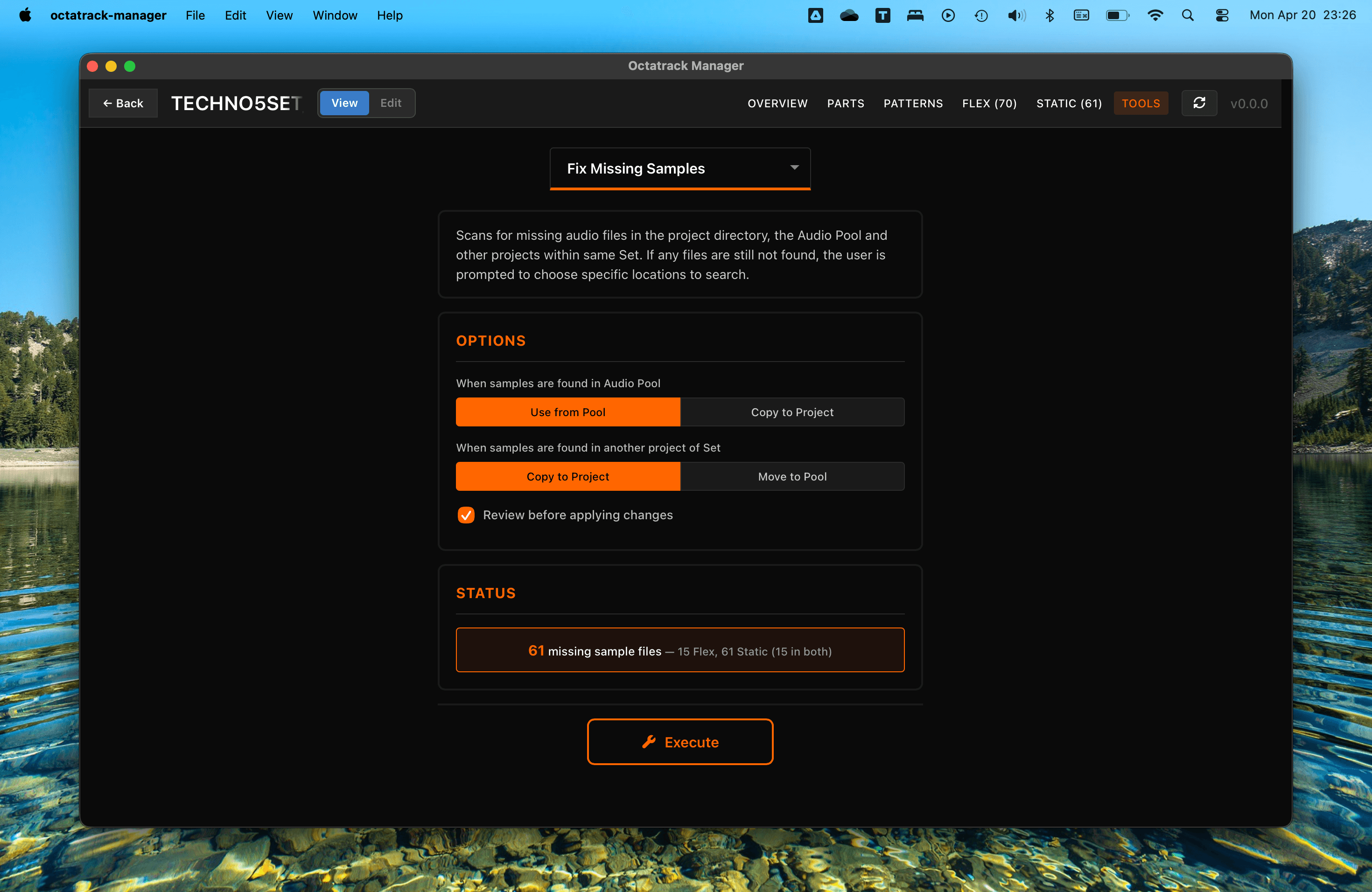
When to Use
Sample references can break when projects are moved between computers, CF cards are reformatted, or files are reorganized manually.
Instead of re-assigning manually each slot on the Octatrack hardware, this tool automatically locates the missing files and updates the slot paths in bulk.
Status
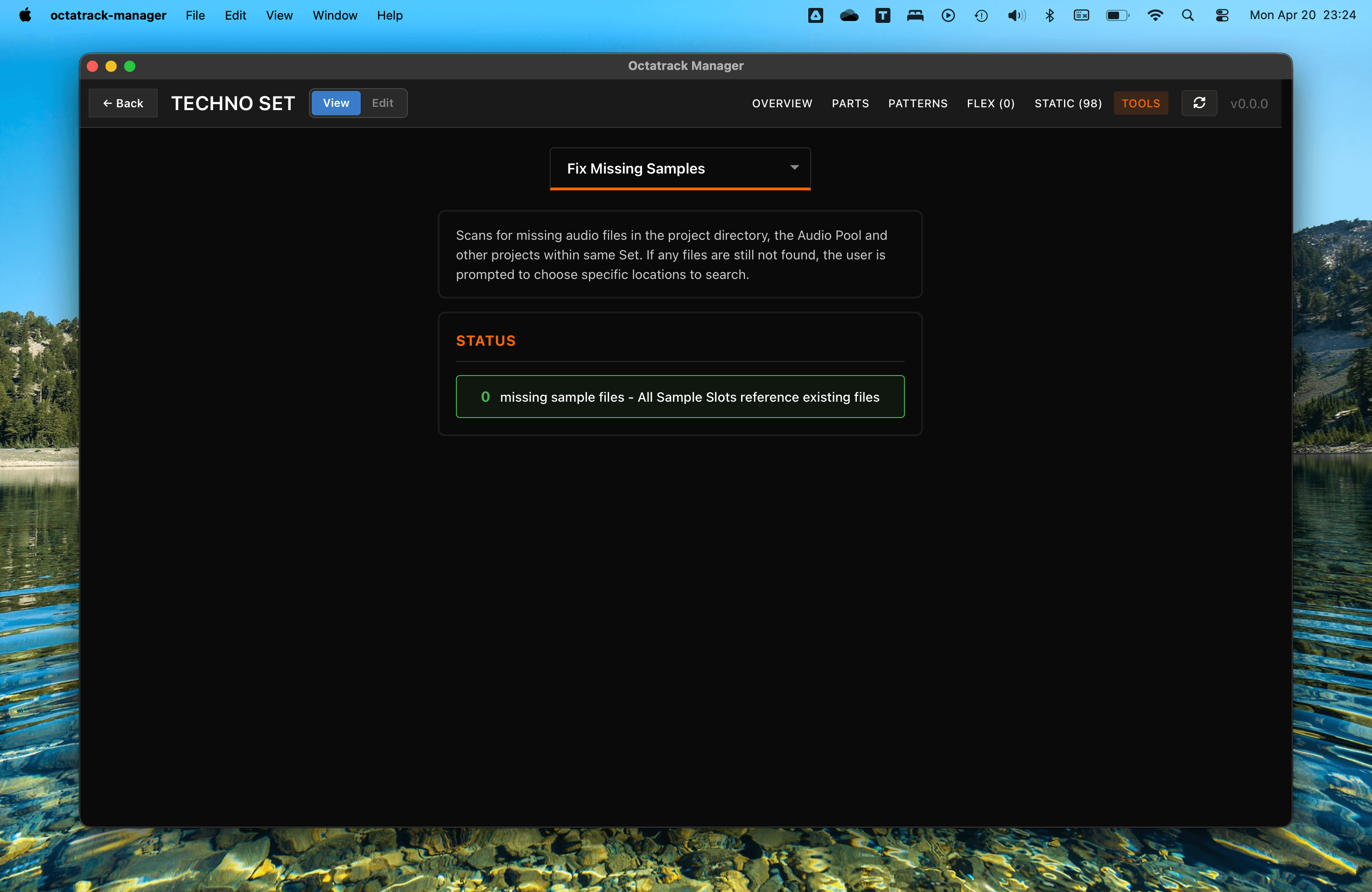
When you select Fix Missing Samples from the operation dropdown, the tool immediately scans all 256 sample slots (128 Static + 128 Flex) and displays a status badge:
- Green badge (0 missing): All referenced audio files exist on disk. No action needed.
- Orange badge (N missing): Shows the count of unique missing files with a Flex/Static breakdown (e.g., "39 missing sample files — 15 Flex, 39 Static (15 in both)").
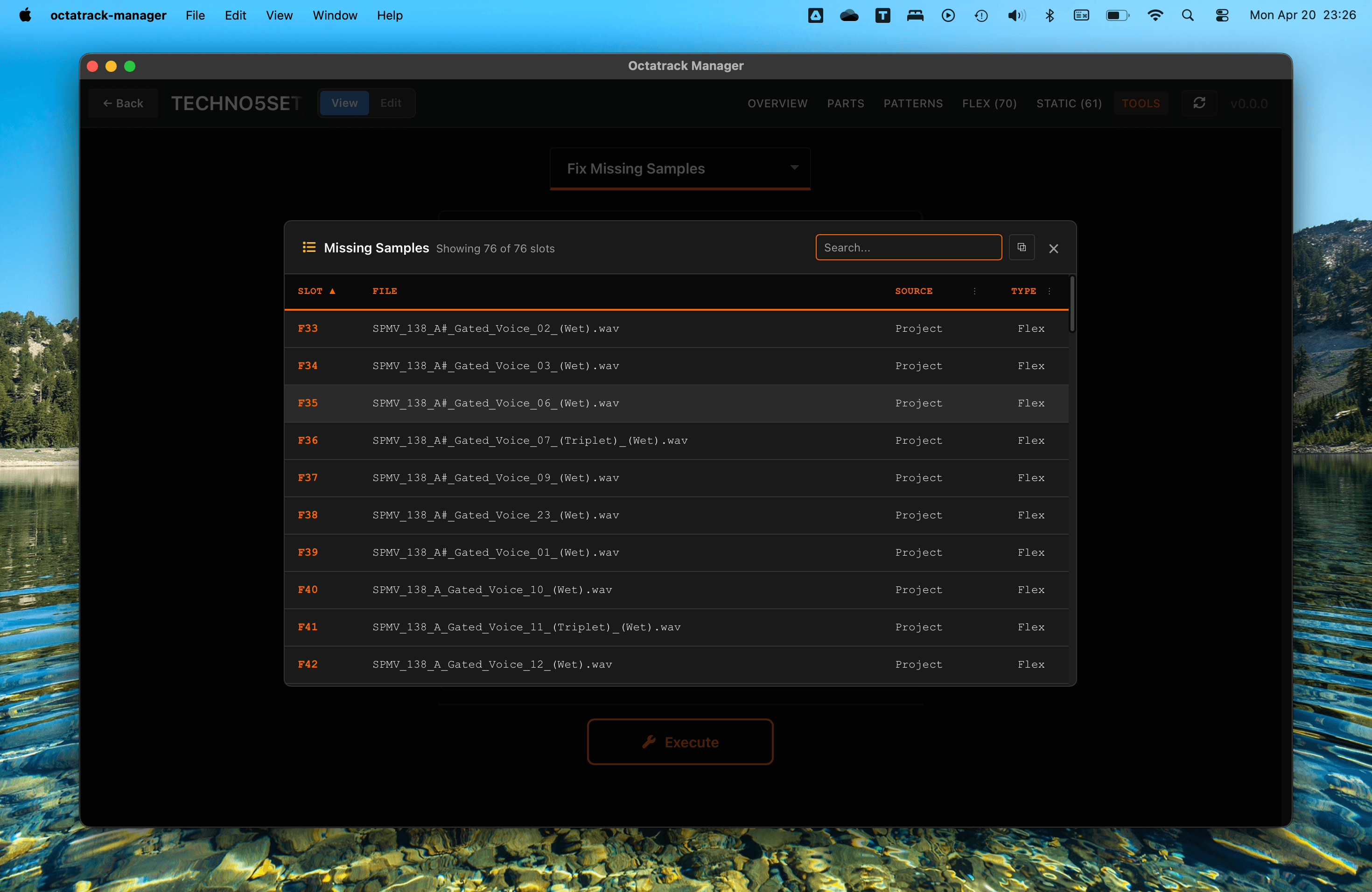
Click Show missing files to expand the full list. Each row shows the filename and which slot types reference it (Flex, Static, or Both).
Configuration Options
Options are displayed only when there are missing files to fix.
When samples are found in Audio Pool
Only visible when the project is part of a Set.
- Use from Pool: Update the slot path to reference the file directly from the Audio Pool (e.g.,
../AUDIO/subfolder/file.wav). No files are copied. - Copy to Project: Copy the file from the Audio Pool into the project's root directory.
When samples are found in another project of Set
Only visible when the project is part of a Set.
- Copy to Project: Copy the file into the current project's root directory.
- Move to Pool: Move the file to the shared
AUDIO/folder and update slot paths in all projects within the Set that reference it.
Set detection: A project is considered part of a Set only if its parent directory contains an AUDIO/ folder. Projects in directories without an AUDIO/ folder are treated as standalone, and Set-specific options are hidden.
Review before applying changes
When enabled, the tool pauses after searching to show a confirmation table before modifying any files. When disabled (the default), changes are applied automatically as soon as the search completes and at least one file is found.
Search Process
Clicking Execute opens a progress modal that searches the following locations in order:
| Step | Location | What it searches |
|---|---|---|
| 1 | Project directory | The project folder and its subdirectories |
| 2 | Audio Pool | The Set's shared AUDIO/ directory (skipped if no Audio Pool exists) |
| 3 | Other Set projects | Sibling project directories within the same Set (only when in a Set) |
| 3 | Parent directory | Sibling project directories in the parent folder (only when not in a Set) |
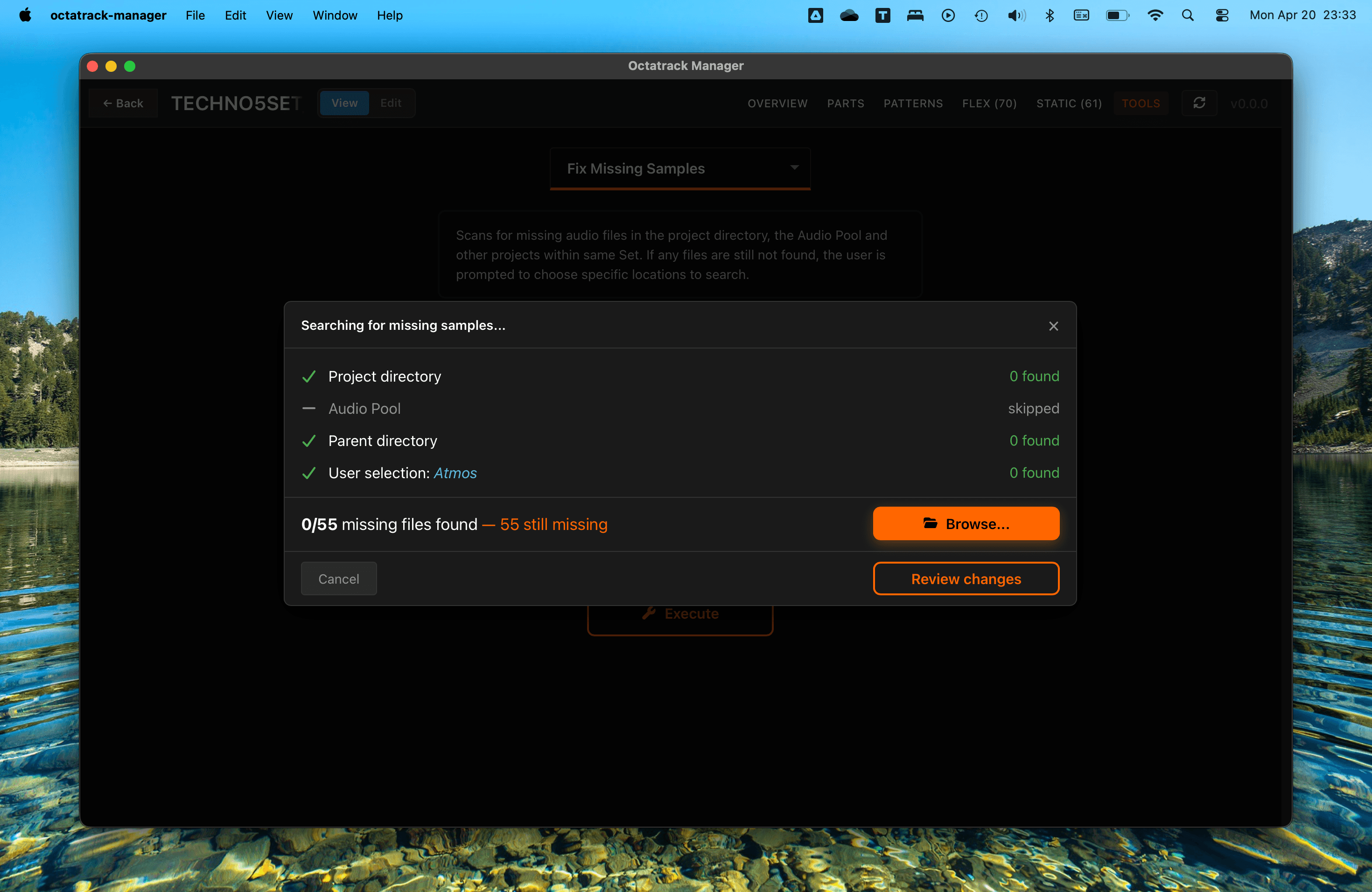
Each step shows a spinner while running, then a checkmark with the number of files found (or "skipped" if all files were already located in a previous step).
Browsing additional directories
If files are still missing after the automatic search, a Browse... button appears on the summary line. Clicking it opens a directory picker. Each browsed directory adds a new step to the progress list (e.g., "User selection: Samples"), with a tooltip showing the full path on hover.
You can browse as many directories as needed. If you select a directory that was already searched, a temporary warning badge appears in the header.
Review Screen
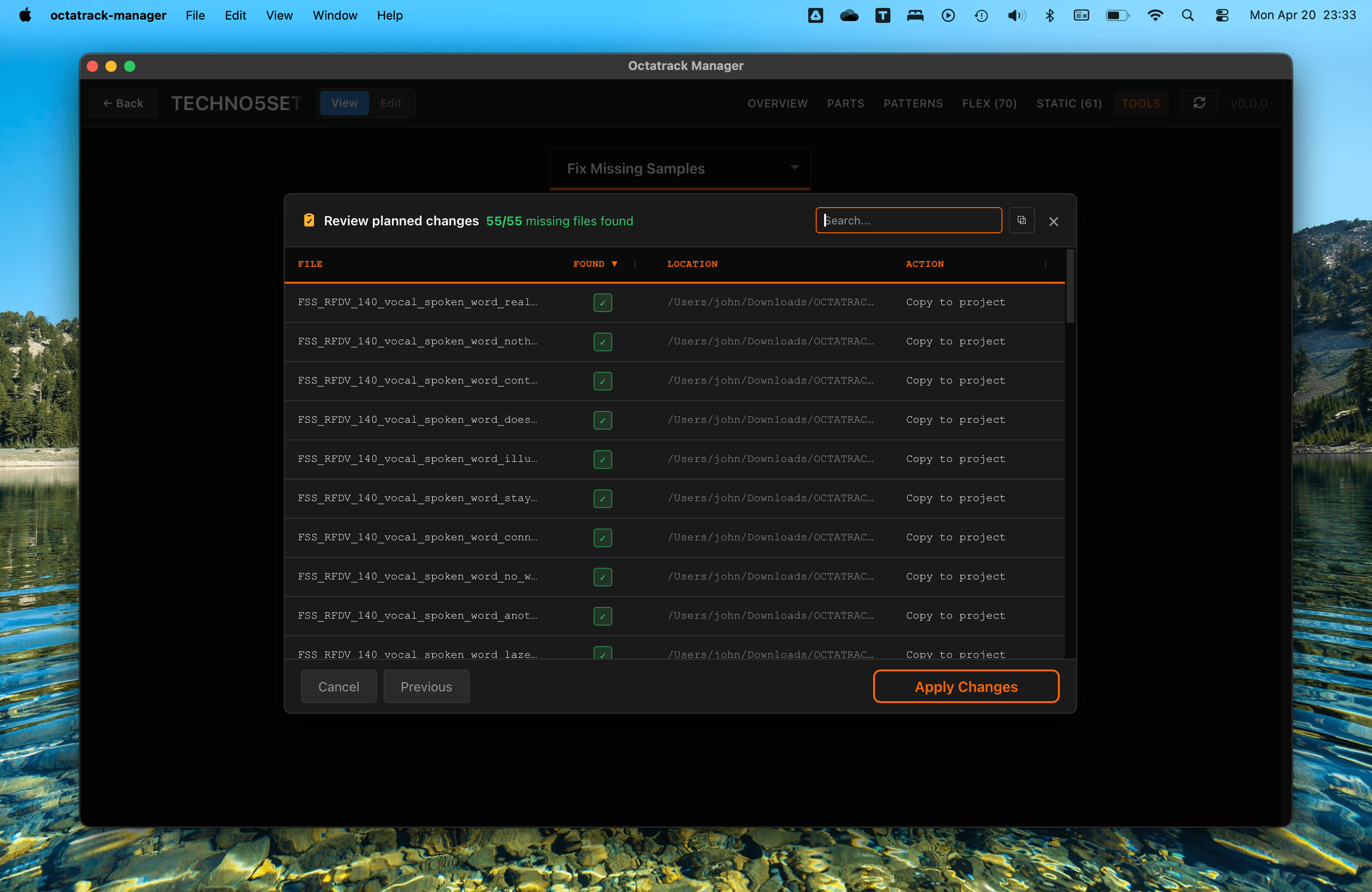
When Review before applying changes is enabled, click Review changes to see a confirmation table with all results:
| Column | Description |
|---|---|
| File | The missing filename |
| Found | ✓ (green) if located, ✗ (red) if not |
| Location | Full path where the file was found |
| Action | What will happen: Update path, Copy to project, Move to Pool, or Not found |
The table supports sorting by any column, filtering by Found status or Action type, and a text search. You can copy the entire table to the clipboard for use in a spreadsheet.
Click Apply Changes to execute, or Previous to return to the progress view and browse additional directories.
After Applying
Once changes are applied, the tool:
- Creates a backup of
project.work(and affected sibling projects for Move to Pool operations) under the project'sbackups/directory with the labelfix_missing_samples. - Updates slot paths in the project file for all resolved samples — both Static and Flex slots.
- Copies or moves files as configured by the options.
- Refreshes the UI automatically — the missing samples count and Sample Slots table update without needing to reload the project.
The done screen shows a summary of all search steps and the final result.
- Both slot types are updated: If a missing file is referenced by both a Static and a Flex slot, both are fixed in a single operation.
- Companion
.otfiles are copied or moved alongside their.wavfiles when present.