Manage Audio Pool
The Audio Pool is the shared sample library for your Octatrack Set. It is located in the AUDIO/ folder at the top level of your Set. All projects within that Set can make use of samples from this directory and assign them to Static or Flex Sample Slots.
Octatrack Manager provides an interface for browsing, managing, importing and converting new samples to your pool.
Browsing the Pool
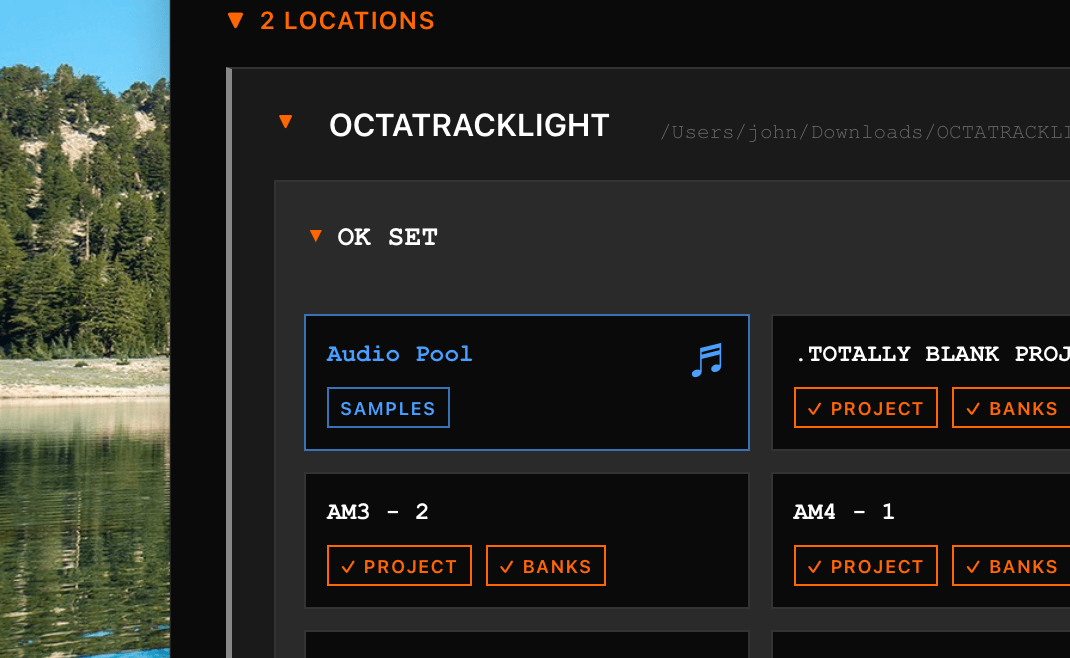
Access the Audio Pool of a Set from the Home Page by clicking the Audio Pool card within any Set:
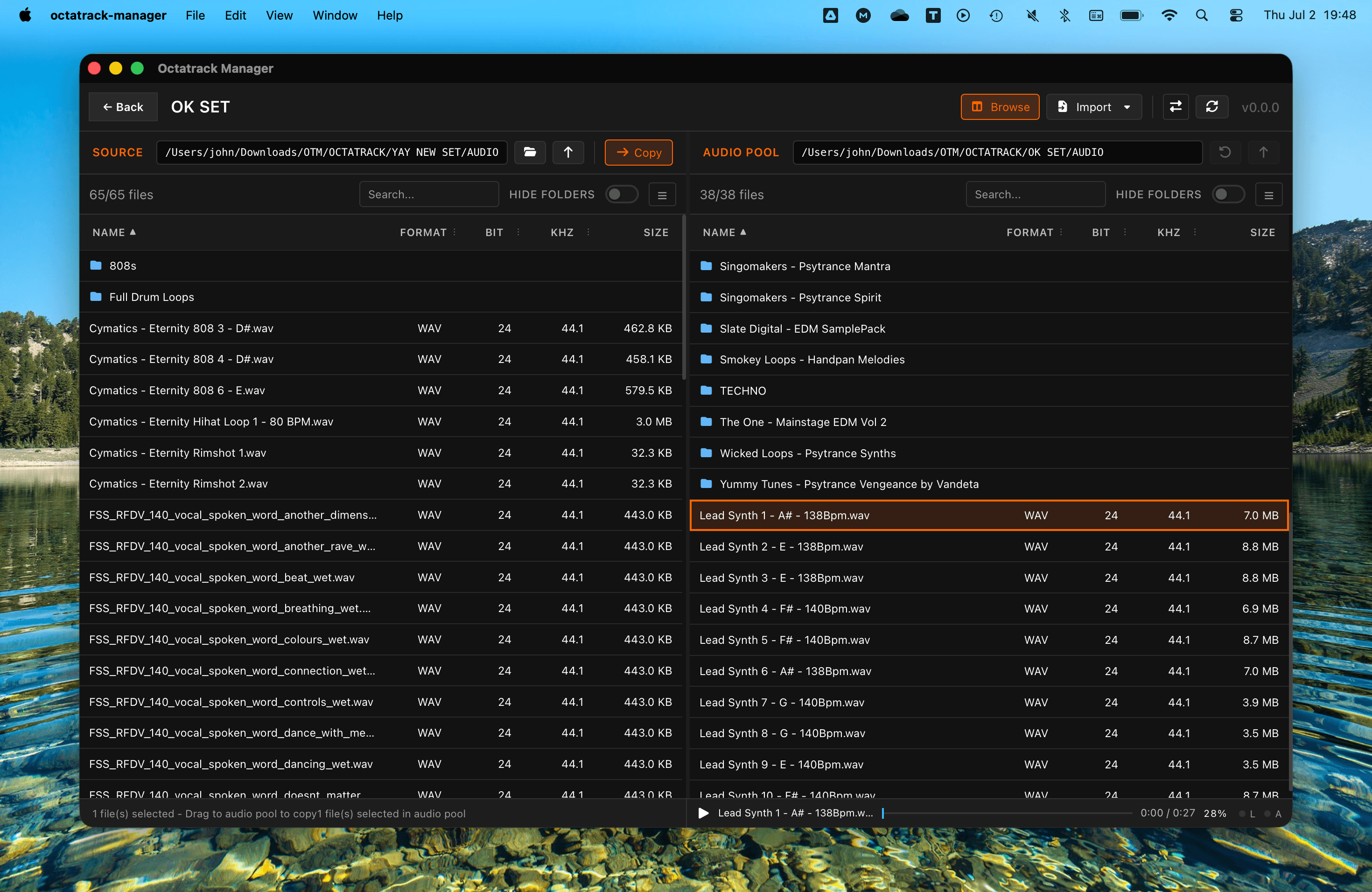
Right Panel: Your Audio Pool
This shows the contents of your AUDIO/ directory. You can:
- Navigate: Double-click a folder to enter it. Click the breadcrumb to go back up.
- Create Folders: Click + New Folder to organize your library.
- Inspect Metadata: Every audio file shows its sample rate, bit depth, and number of channels and size.
- Check Compatibility: The Compat column shows the same face icons as the Octatrack's sample browser — a smiley for playable files, a straight face for a wrong sample rate, and ?? for audio formats the device cannot play (MP3, FLAC, OGG, M4A). Non-audio files get no badge. See Fixing Incompatible Files.
- See Cross-Project Usage: The Usage column shows, for each pool file, whether any project in the Set actually uses it — the same blue ✓ N / gray ○ N badges as the Sample Slots Usage column. Click a badge to open a popover listing every usage, each prefixed with the project that references it (e.g. "ProjectA · Bank A · Part 1 · T1 · Machine"). Each project name in that list is a link - click it to open that project directly. The project page then shows a "Back to Audio Pool" button (top left, also on Escape) to come back here, mirroring the "Back to project" button you get when opening this page from a project's Audio Pool pane. The column can be sorted and filtered by Used / Referenced / Unused, just like on the Sample Slots tabs. Hover the column header for a reminder that this view spans every project of the Set — the Audio Pool pane inside a project only shows that one project's own usage of a file, not the whole Set's.
- Filter and Sort: Use the toolbar to filter by name, bit depth, sample rate, or audio format.
- Search recursively: Typing in the search box matches files and folders in the current directory and all of its subfolders (a spinner shows while deep folders are scanned).
- Location is remembered: the directory you are browsing is shared with a project's Audio Pool pane for the rest of the session, so moving between the two (in either direction) keeps you where you were instead of dropping you back at
AUDIO/.
Left Panel: Your Computer
- This is a standard file browser that lets you explore your local hard drives to find samples you want to add to your Set.
Adding Samples (Copy / Move)
Samples can be imported to Audio Pool in several ways:
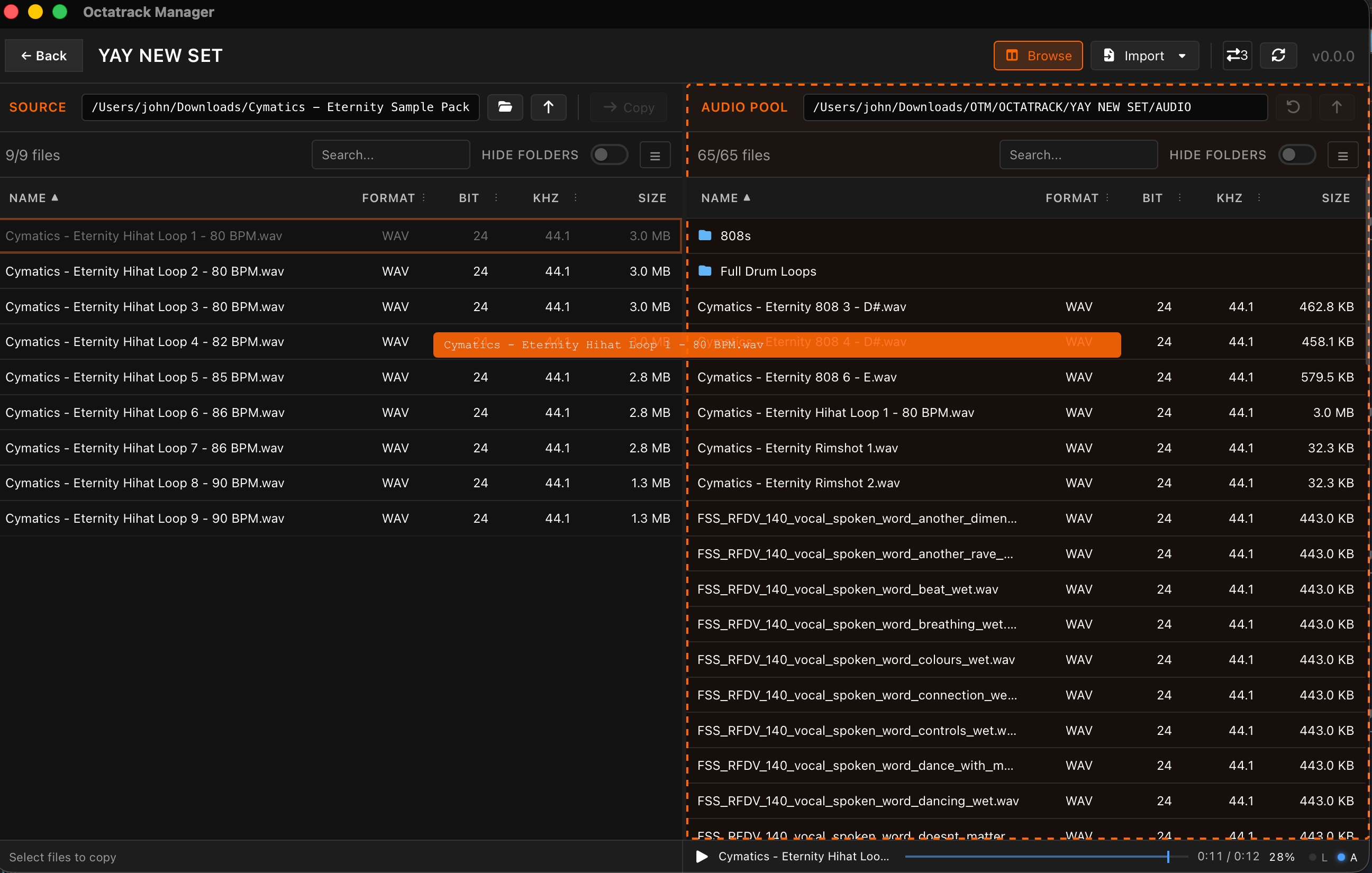
- Drag & drop from the Browser pane: Drag one or more files into the Audio Pool. The drop target highlights while you hover. Several files can be added at once, as well as dragging a whole folder.
- Drag from your computer: Drag audio files or folders directly from OS file manager into Audio Pool pane.
- Browser item right-click: Right-click a file and select Copy to Pool.
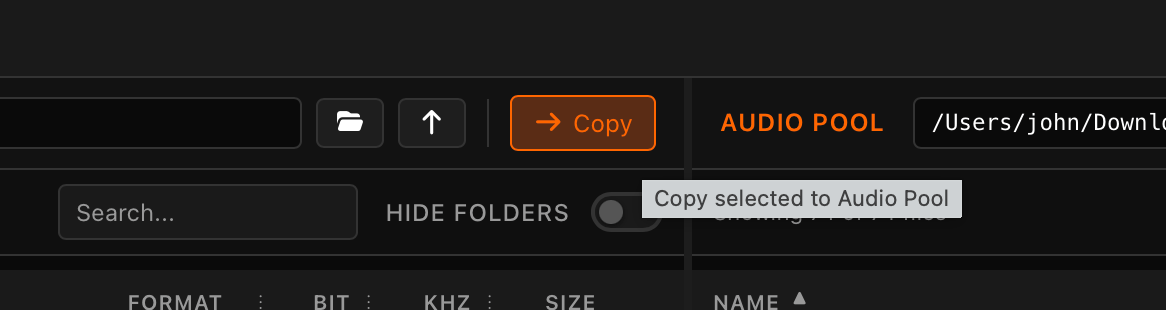
- Select an audio file from Browser pane and click the Copy button
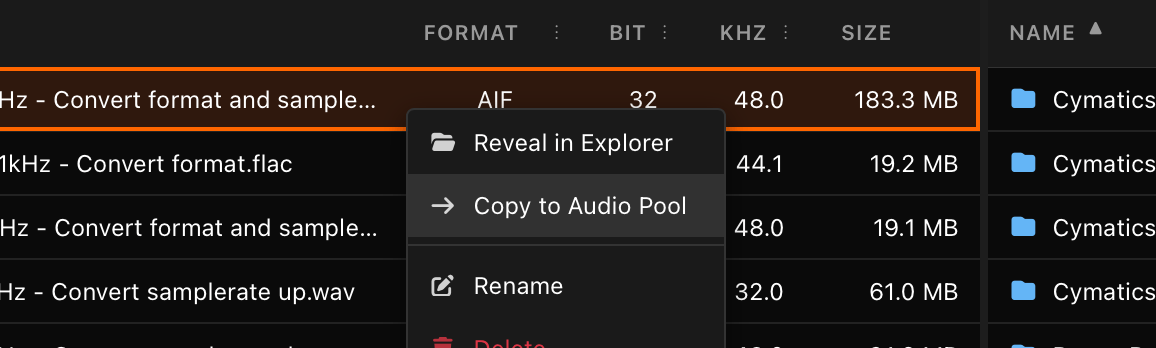
Automatic Conversion
The Octatrack hardware is very specific about the audio formats it can play. Octatrack Manager converts all files added to Audio Pool automatically.
Conversion uses a high-quality Sinc interpolation algorithm (Blackman-Harris windowed) for the best possible audio fidelity.
What happens during import?
- Format: All files (MP3, FLAC, AIFF, etc.) are converted to WAV.
- Sample Rate: Every file is resampled to 44.1 kHz (the only rate the Octatrack supports).
- Bit Depth: 16-bit and 24-bit depths are preserved. Files with higher or lower bit depths are automatically adjusted to the closest supported value (16 or 24-bit).
Progress Tracking
A progress bar appears for every file, showing the current stage of the transfer:
- Decoding: Reading and decoding the source file into raw audio data.
- Resampling: Changing the sample rate to 44.1 kHz (skipped if the source is already at 44.1 kHz).
- Writing: Converting to the target bit depth and creating the final file in WAV format.
- Copying: Simply moving the file if it is already in the correct format (no conversion needed).
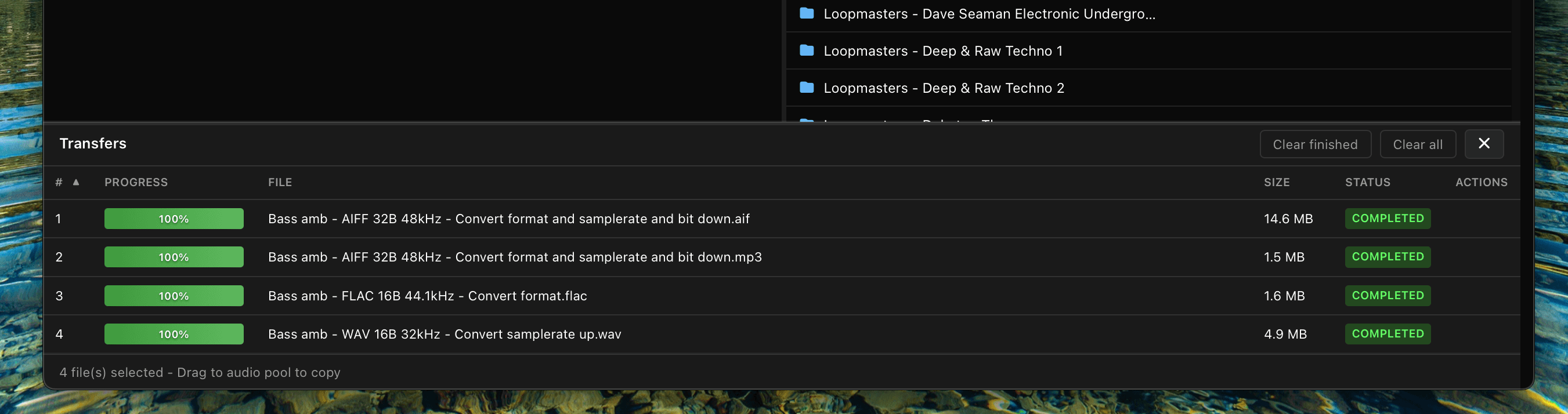
Managing Conflicts
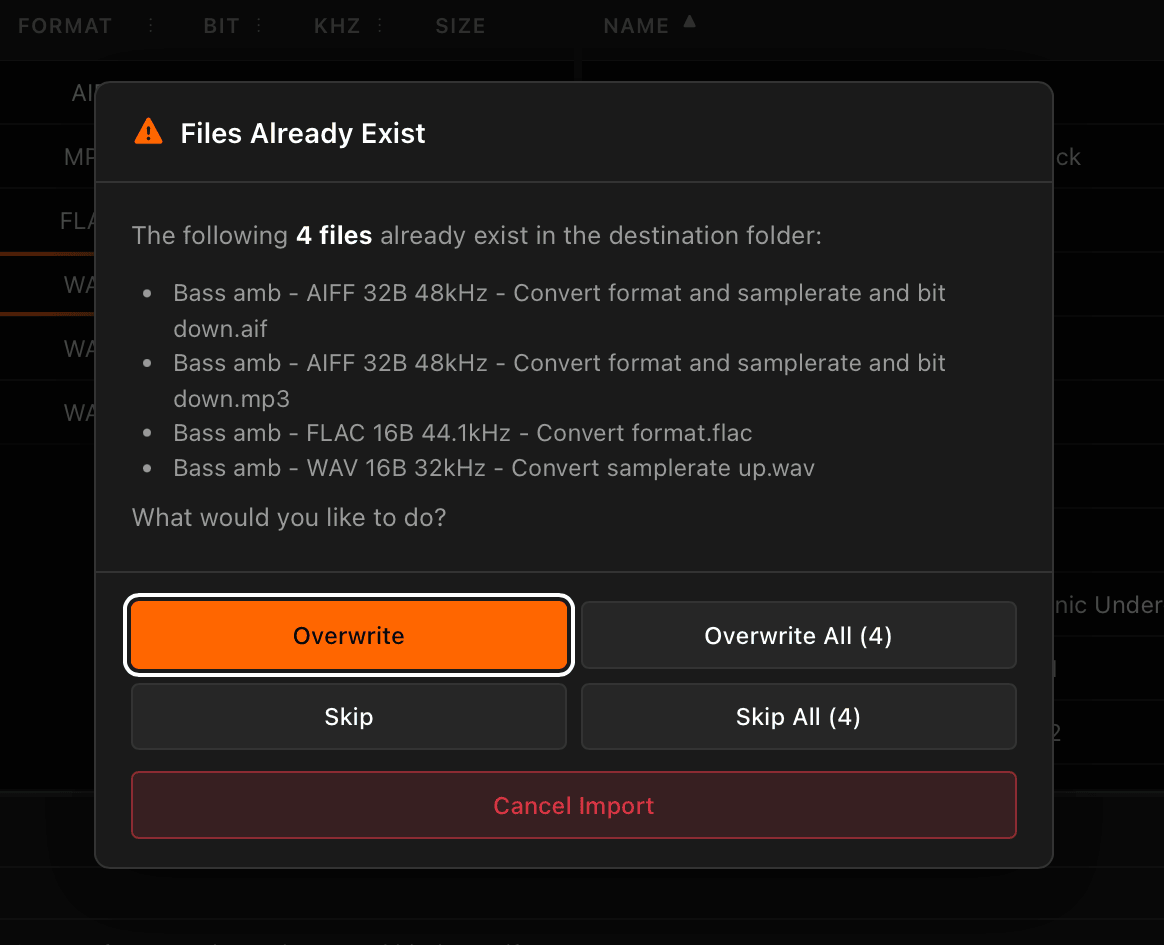
If you try to add a file with the same name as one that already exists in your pool, a conflict dialog will appear. You can choose to:
- Overwrite: Replace the old file with the new one.
- Skip: Keep the old file and don't import the new one.
- Apply to All: Use your choice for all subsequent conflicts in the current batch.
Fixing Incompatible Files
Automatic conversion covers files imported through the app — but a pool that was filled by hand (or by other tools) can contain MP3s, 48 kHz WAVs and other files the Octatrack silently refuses to play. The Audio Pool pane's health glyph (next to the file count) flags this at a glance, and the Tools tab's Fix Audio Pool Samples operation finds and fixes every incompatible file in the pool (and optionally every project of the Set) in one pass, with the same right-click Convert to Octatrack format available for a single file too.
See Fix Incompatible Samples for the full walkthrough — scanning, the review screen, the row context menu, and what a fix actually does to your files.
Purging Unused Samples
Pools tend to accumulate samples that no project references anymore. The Tools tab's Purge Audio Pool Samples operation finds every unused audio file in the pool — optionally across every project of the Set too — and removes it, either to the OS Trash Bin or moved into a folder of your choice.
See Purge Unused Samples for the full walkthrough — what counts as unused, directory collapsing, and the move/delete options.
Renaming Samples
Right-click a file in the Audio Pool pane and choose "Rename...". Renaming file would normally break every sample slot pointing at it - so the rename also automatically updates all project's slots where it's used.
The same right-click "Rename" is available in the Audio Pool pane of a project's Flex or Static tab, where it behaves identically (the loaded project reference gets updated).
Note that renaming a directory is not covered by that mechanism: the slots keep pointing at the old folder name and go missing. Use Fix Missing Samples to fix everything in that case.
Deleting Samples
To remove unwanted samples from your library:
- Select one or more files in the right panel (Audio Pool).
- Click Delete.
- A confirmation dialog will appear to prevent accidental loss of data.
Assigning Pool Samples to Slots
Audio Pool pane can be opened from a project's Flex or Static tab - where you can drag samples straight onto sample slots while in Edit mode.
See Assigning & Managing Samples.
Playback
An audio player is available the bottom of the page. Select an item from either the Browser or the Audio Pool pane to play it:
- Double-click a file to play it right away. You can also right-click it and choose Play.
- Use ↑ / ↓ to move to the previous / next slot and play it as you go.
- Press Space to play / pause the loaded sample.
- Hold Ctrl and press ← / → to scrub backward / forward the timeline; or drag the play head to any position.
- Drag VOL up/down to change volume. You can also scroll over it, or hold Ctrl and press ↑ / ↓.
- Click LOOP or use Shift + L to toggle sample repeat.
- Click AUTO or use Shift + Enter) to toggle auto playback when selecting a file.
- Press B to show or hide the left (Browse) panel.

Common audio formats are supported: WAV, AIFF, FLAC, MP3, OGG/Opus, and M4A/AAC.
The player is also available from Sample Slots within projects.
Tips
- Batch Processing: You can select and transfer dozens of folders at once. Octatrack Manager will handle the recursive conversion of every audio file within them.
- External Drives: You can browse and import samples from any connected external drive or shared network.