Copy Sample Slots
Copy Sample Slots manages the 256 sample slots (128 Static, 128 Flex) across projects. It can independently copy sample assignments (file path references + audio files) and sample attributes (Audio Editor settings like gain, BPM, trim points, slices…).
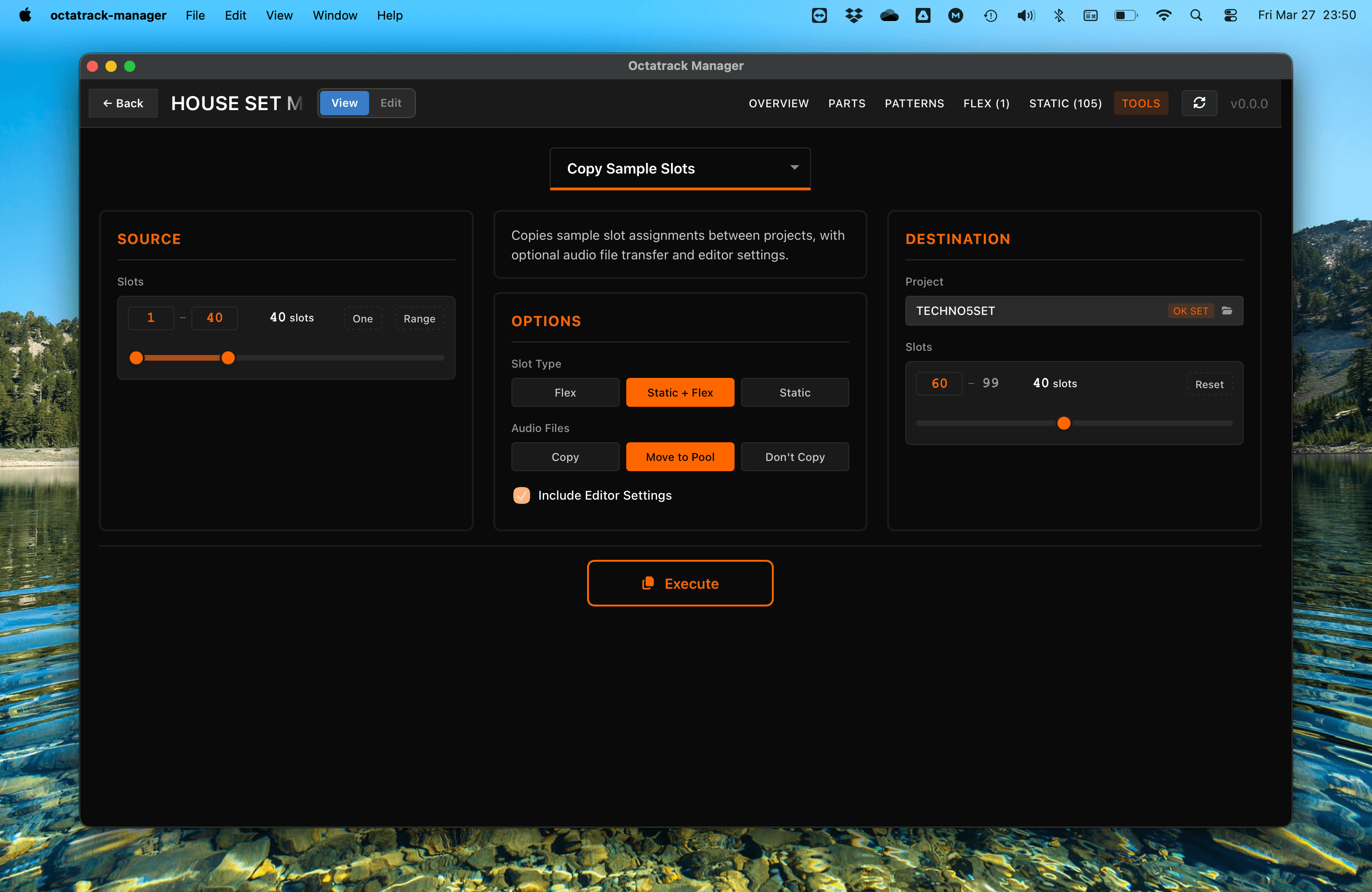
Workflow
- Source: Choose the source project (the one you are viewing, by default), then use
Onemode to select a single slot orRangemode to select a contiguous range (with dual sliders). - Destination: Select the destination slot positions in target project.
- Configure Options: Choose slot type, sample assignments, audio file handling, and sample attributes.
- Execute: Perform the sample slot copy.
Choosing the Source Project
The source pane has its own project selector, defaulting to the project you are viewing. Point it at another project to copy out of a project without opening it. It is the same picker as the destination one - see Copy Banks for what it lists and how to browse for a project it does not know about.


Configuration Options
Slot Type
- Static + Flex: Copy both Static and Flex slot data.
- Static Only: Copy only Static slot data; Flex slots are untouched.
- Flex Only: Copy only Flex slot data; Static slots are untouched.
Sample Assignments
Controls whether sample path references are copied to the destination slots.
- Copy: Copy source slot file paths to destination. Show the Audio Files sub-option (see below).
- Don't Copy: Destination slot paths are left untouched — useful when destination slots already reference valid files and you only want to copy Audio Editor settings.
When Copy is selected, the Audio Files sub-option controls how the underlying audio files are handled:
- Mirror locations: Mirror source references — files referenced from the Audio Pool keep their
../AUDIO/path, while project-local files are copied to the destination project's root directory. Only available when both projects are in the same Set (pool references would be invalid otherwise). - Copy all to project: Copy all referenced audio files to the destination project's root directory, making the destination self-contained.
- Move all to Pool: Move project-local audio files to the Set's shared
AUDIO/folder and update slot paths to../AUDIO/in both the source and destination projects.- Only available when source and destination projects are in the same Set.
- If a source file is also referenced by the opposite slot type (e.g., a file used by both a Static and Flex slot), the original file is kept to avoid breaking the other reference — the success message reports how many shared files were preserved.
When Copy is selected, a warning badge is displayed if any source audio files are missing on disk.
Audio file operations never copy or move .ot sidecar files. .ot files are part of Audio Editor settings, not sample assignments. On Move all to Pool, any .ot files alongside audio files in the project directory are re-integrated into project.work and markers.work before being deleted (the Octatrack ignores .ot files placed in the Audio Pool anyway).
Sample Attributes
Controls whether Audio Editor (AED) settings are copied to the destination slots.
- Copy: Copy selected attributes from source to destination. When reading source attributes,
.otsidecar files are used if available (they take priority), with fallback toproject.workandmarkers.work. Attributes are always written toproject.workandmarkers.workonly —.otfiles are never created. - Don't Copy: Destination slot attributes are left untouched — useful when the destination project has its own purposefully configured Audio Editor settings.
When Copy is selected, individual attribute toggle buttons let you select exactly which settings to copy (all are selected by default):
| Attribute | Source (project file) | Source (.ot fallback) |
|---|---|---|
| Gain | GAIN= field | .ot gain value |
| BPM / Tempo | BPMx24= field | .ot tempo ÷ 24 |
| Timestretch | TIMESTRETCH= field | .ot stretch mode |
| Loop mode | LOOP= field | .ot loop_mode |
| Trig quantization | TRIGQUANTIZATION= field | .ot quantization |
| Trim points | Markers file: trim_offset, trim_end | .ot trim_start, trim_end |
| Loop point | Markers file: loop_point | .ot loop_start |
| Slices | Markers file: slices, slice_count | .ot slices, slices_len |
Use None to deselect all, or All to select all attributes.
Recording buffers (Flex slots 129–136) are not affected by Copy Sample Slots — only user-selectable slots 1–128 are copied.
The Execute button is disabled when both Sample Assignments and Sample Attributes are set to "Don't Copy" (nothing to do).
Slot Mapping
Each copied slot(s) respects user selection regarding destination slot ID: For example, copying source slot 2 to destination slot 10 results in a slot with slot_id = 10, not the source's original ID.
That's true for both One and Range source selection.
In case selected destination slot does not leave enough room for all selected source slots (Range mode), the warning Some slots will overflow is displayed and the "Execute" button is disabled to prevent an invalid copy. Adjust the source range or the destination start slot to resolve the overflow before executing.

Important Notes
- Automatic Backup: Before executing, the app automatically backs up
project.work,markers.work, and any destination audio files (.wav) that would be overwritten.- When using Move all to Pool, the source project's
project.workand audio files are also backed up since both are modified. - See Quick Start for details.
- When using Move all to Pool, the source project's
- Same Set required for Mirror and Move all to Pool: Both "Mirror locations" and "Move all to Pool" are only available when source and destination projects are in the same Set. If you select a destination project in a different Set, the audio mode auto-switches to "Copy all to project" — the only option that guarantees all files are self-contained in the destination.
- Shared files on Move all to Pool: If the same audio file is referenced by both a Static slot and a Flex slot, and you copy only one slot type (e.g., Static only), the original file is kept in the source project directory after the move — deleting it would break the Flex slot that still references it. The success message reports how many files were preserved for this reason.