Copy Tracks
Copy Tracks is the most granular copy operation in Octatrack Manager. It copies individual track data (sound design and/or pattern triggers) between parts and patterns, within or across projects.
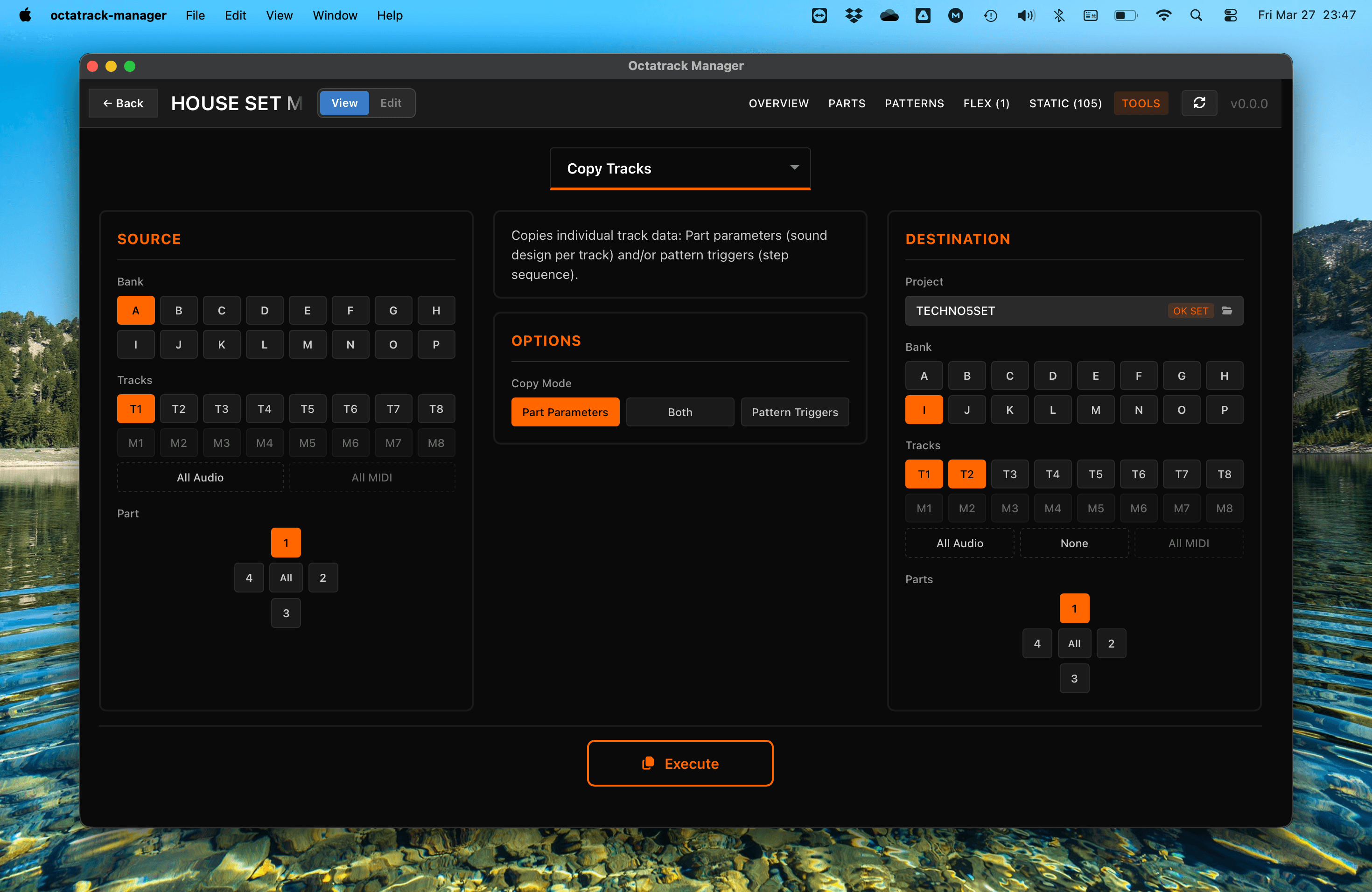
Tracks aren’t treated as first-class entities in the Octatrack's architecture. This feature goes beyond existing limitations, giving users the power to craft a precise and flexible combination of elements that make up a “track” without being constrained by existing structures.
Workflow
- Source: Choose the source project (the one you are viewing, by default), the bank (A–P), part (1–4), and track (T1–T8 for audio, M1–M8 for MIDI).
- Destination: Choose the target project, one or more destination banks (A–P), part(s), and track(s).
- Copy Mode: Choose what data to copy — Part Parameters, Pattern Triggers, or Both.
- Execute: Perform the track copy.
Choosing the Source Project
The source pane has its own project selector, defaulting to the project you are viewing. Point it at another project to copy out of a project without opening it. It is the same picker as the destination one - see Copy Banks for what it lists and how to browse for a project it does not know about.
Copy Modes
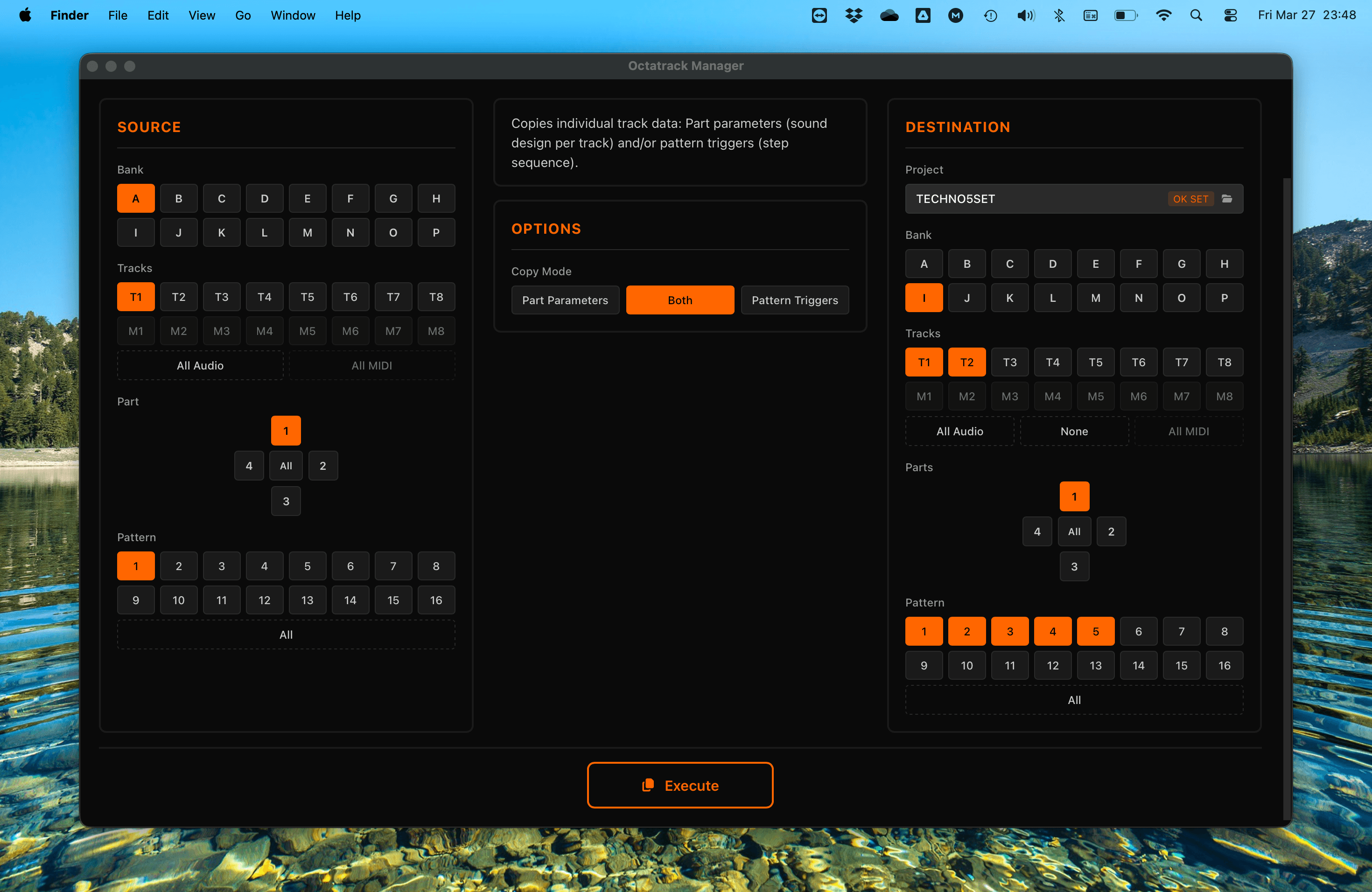
- Part Parameters: Copies per-track sound design data (machine type, amp, LFO, FX, volumes, recorder setup).
- Both saved and unsaved (working) Part states are transferred, but only for the selected tracks — all other tracks' data in both states is completely preserved.
- The destination Part becomes a hybrid gracefully: selected tracks get source data in both states, while non-selected tracks keep their existing saved and unsaved data untouched.
- Part names are not copied, since only selected tracks are modified.
- Pattern Triggers: Copies only the sequencer data (triggers, trigless trigs, parameter locks, swing) for the selected tracks. Sound design settings remain unchanged.
- Both: Copies both sound design settings and sequencer data for a complete transfer.
Track Mapping
A single source track can be copied to one or multiple destination(s):
- Single source → single destination: Copies one track to one target.
- Single source → multiple destinations: A single source track can be copied to multiple destination tracks (e.g., T1 → T1, T3, T5).
- All Audio / All MIDI: Select All Audio (T1–T8) or All MIDI (M1–M8) to copy all tracks 1-to-1.
Pattern Selection
When using Both or Pattern Triggers mode, you can select which patterns to copy:
- Pattern 1 (default): Both "Both" and "Pattern Triggers" modes default to Pattern 1 as source and destination.
- Specific source pattern → multiple destinations: A single source pattern can be copied to one or more destination patterns.
Important Notes
- Multi-bank Destination: You can select multiple destination banks to copy tracks to several banks at once.
- Track Type Consistency: Audio tracks (T1–T8) can only be copied to audio targets, and MIDI tracks (M1–M8) to MIDI targets.
- Part Names Not Copied: Since Copy Tracks only modifies selected tracks, the destination Part name is preserved: Overwriting it with the source Part name would be misleading for a hybrid Part.
- Automatic Backup: The app automatically backs up the destination bank file before executing. See Quick Start for details.
- Sample Slot References: This tool only copies the reference to a sample slot id (which Slot is assigned to track), not the Sample Slot metadata, nor audio file itself. Use Copy Sample Slots to transfer audio files.