Copy Patterns
Copy Patterns copies individual sequencer data (1–16) between banks and projects, with granular control over track scope, part assignment and mode (Audio / MIDI) scope.
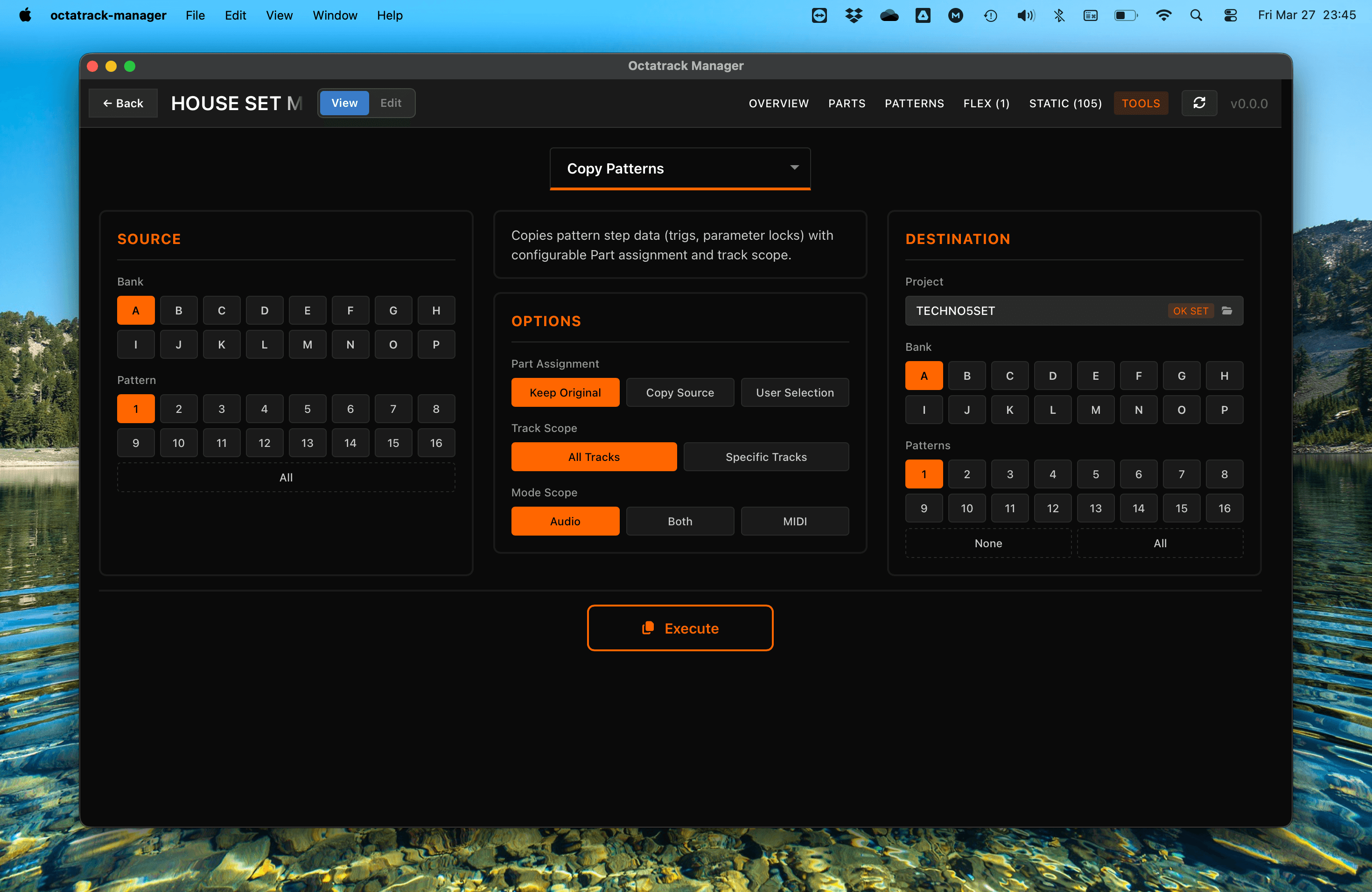
Workflow
- Source: Choose the source project (the one you are viewing, by default), the bank (A–P), and the pattern(s) (1–16, or All for a 1-to-1 copy).
- Destination: Choose the target project, one or more destination banks (A–P), and target pattern(s).
- Configure Options: Set part assignment, track scope, and mode scope.
- Execute: Perform the copy.
Choosing the Source Project
The source pane has its own project selector, defaulting to the project you are viewing. Point it at another project to copy patterns out of a project without opening it. It is the same picker as the destination one - see Copy Banks for what it lists and how to browse for a project it does not know about.
Selecting Several Source Patterns
The source pattern grid takes a multi-selection, the way a file manager does:
- Click: Select one pattern. Clicking the only selected pattern deselects it.
- Shift-click: Select every pattern between the last one you clicked and this one.
- Ctrl-click (Cmd on macOS): Add or remove one pattern, keeping the rest.
- All: Select all 16 and sync the destination to all 16.
With one source pattern selected, nothing changes: it is copied to every destination pattern you pick, as before.
With several source patterns selected, the copy becomes one-to-one and the destination locks to a run of the same length. Clicking a destination pattern starts the run there — select 1, 5 and 9 as the source and click 5 in the destination and they land on 5, 6 and 7 in that order. A run that would not fit slides back, so a 3-pattern source clicked on 16 becomes 14, 15, 16. The All button in the destination is disabled while the run is locked, and a line under the grid shows the pairing.
The source patterns do not have to be adjacent, but the destination is always a contiguous run.
Copy Options
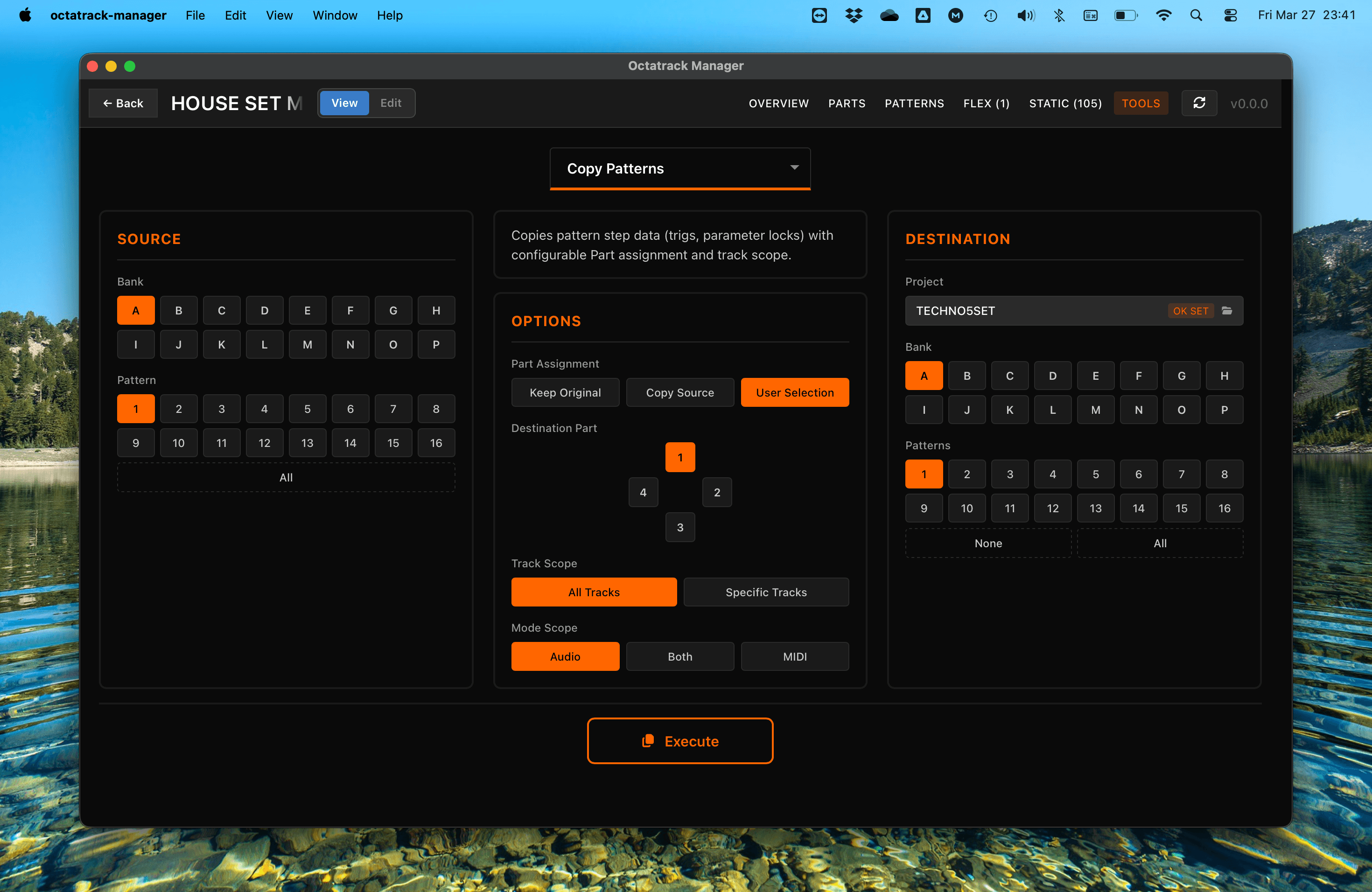
Part Assignment
- Keep Original: Destination patterns keep their existing part assignment.
- Copy Source Part: The source pattern's part data is also copied; destination patterns reference the copied part.
- User Selection: Manually choose which part (1–4) to assign to the destination patterns.
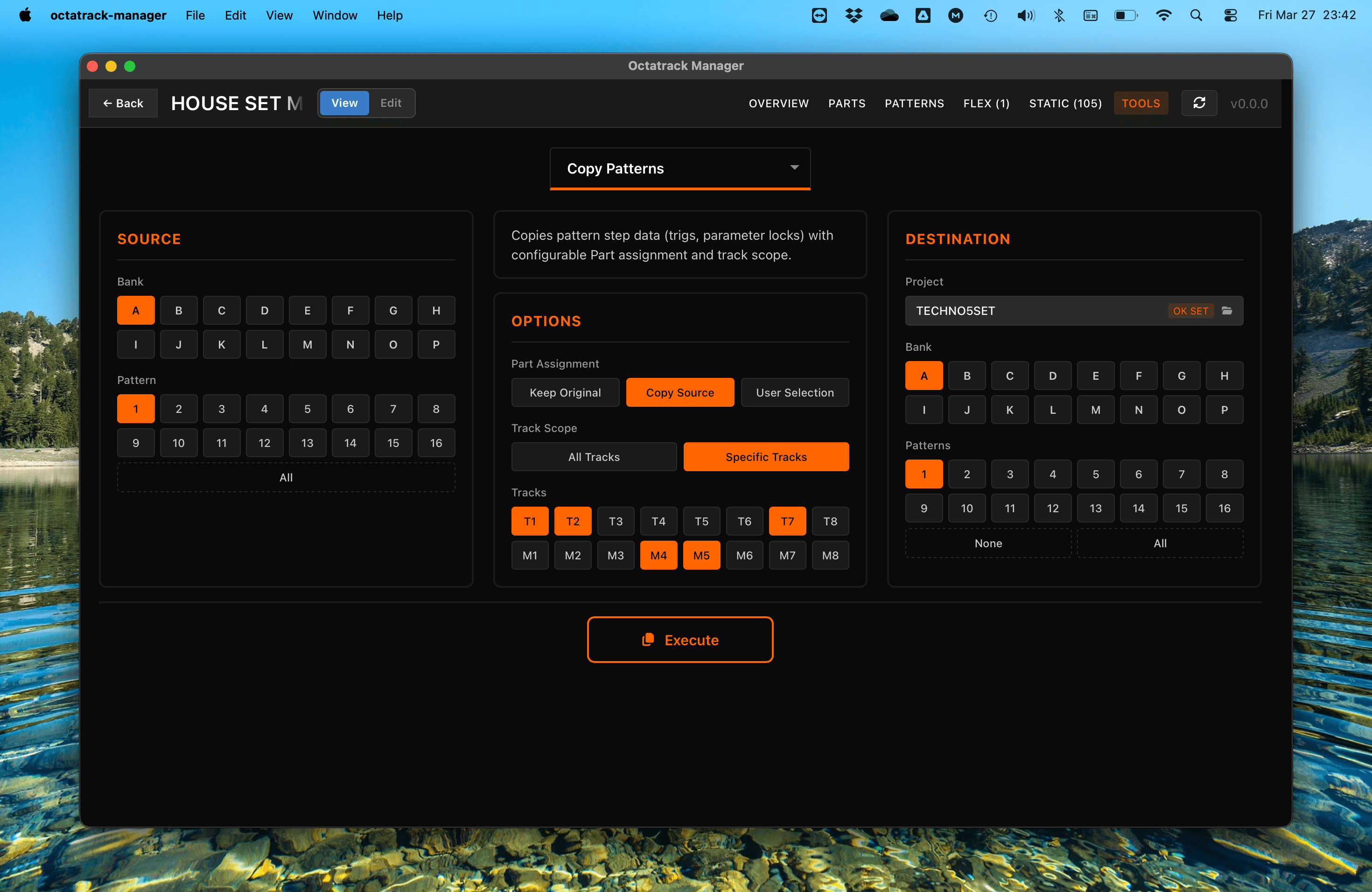
Track Scope
- All Tracks: Copy triggers and p-locks for all tracks, filtered by Mode Scope.
- Specific Tracks: Copy only selected tracks (only T1, T2, T7, M4 and M5).
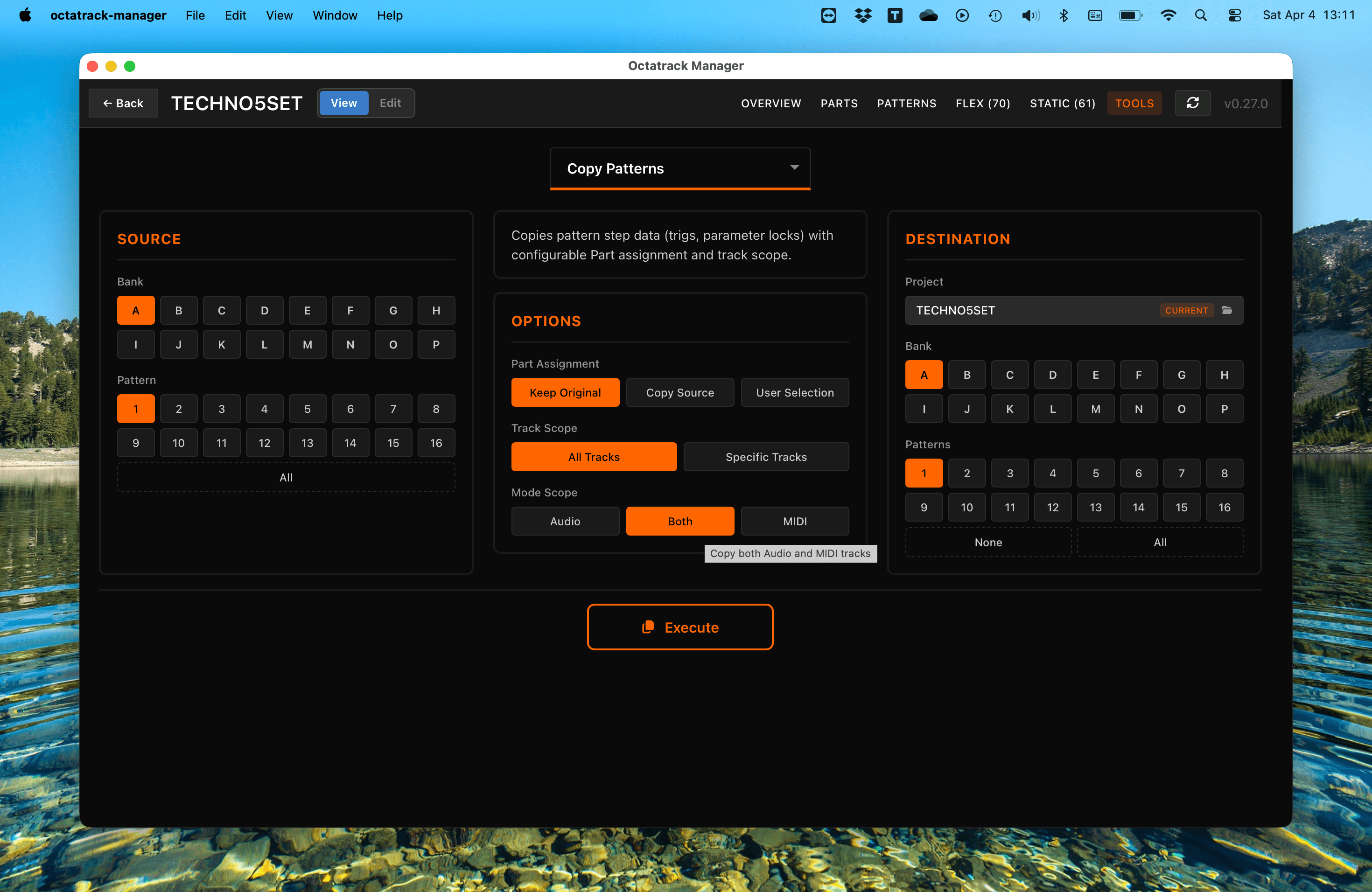
Mode Scope
Visible when All Tracks is selected. Controls which track types are copied:
- Audio: Copy only audio tracks (T1–T8); MIDI tracks in the destination are untouched.
- MIDI: Copy only MIDI tracks (M1–M8); audio tracks in the destination are untouched.
- Both: Copy all 16 tracks (T1–T8 and M1–M8).
Data Copied
- Triggers: Standard, trigless, and one-shot triggers.
- Parameter Locks: Every parameter lock on every step.
- Trig Conditions & Timing: Probability, fill, and micro-timing.
- Track Length & Scale: Sequencer length and speed settings.
Important Notes
- All Tracks Affected: Pattern data includes of all Audio and MIDI tracks of current bank - it's not tied to individual tracks.
- Multi-bank Destination: You can select multiple destination banks to copy patterns to several banks at once.
- Multi-pattern Source: With several source patterns selected, the destination holds the same number of patterns. The Execute button stays disabled while the two counts disagree.
- Overlapping Ranges: Copying patterns onto an overlapping range in the same bank is safe: the whole source bank is read before anything is written, so 1, 2, 3 onto 2, 3, 4 moves each pattern rather than smearing the first one.
- Destructive Operation: Copying a pattern replaces existing sequences at the destination.
- Automatic Backup: The app automatically backs up the destination bank file(s) before executing. See Quick Start for details.