Navigate Projects
Navigating through an Octatrack project is intuitive and provides a much broader view of your data than is possible on the device's screen.
Navigating Banks (A–P)
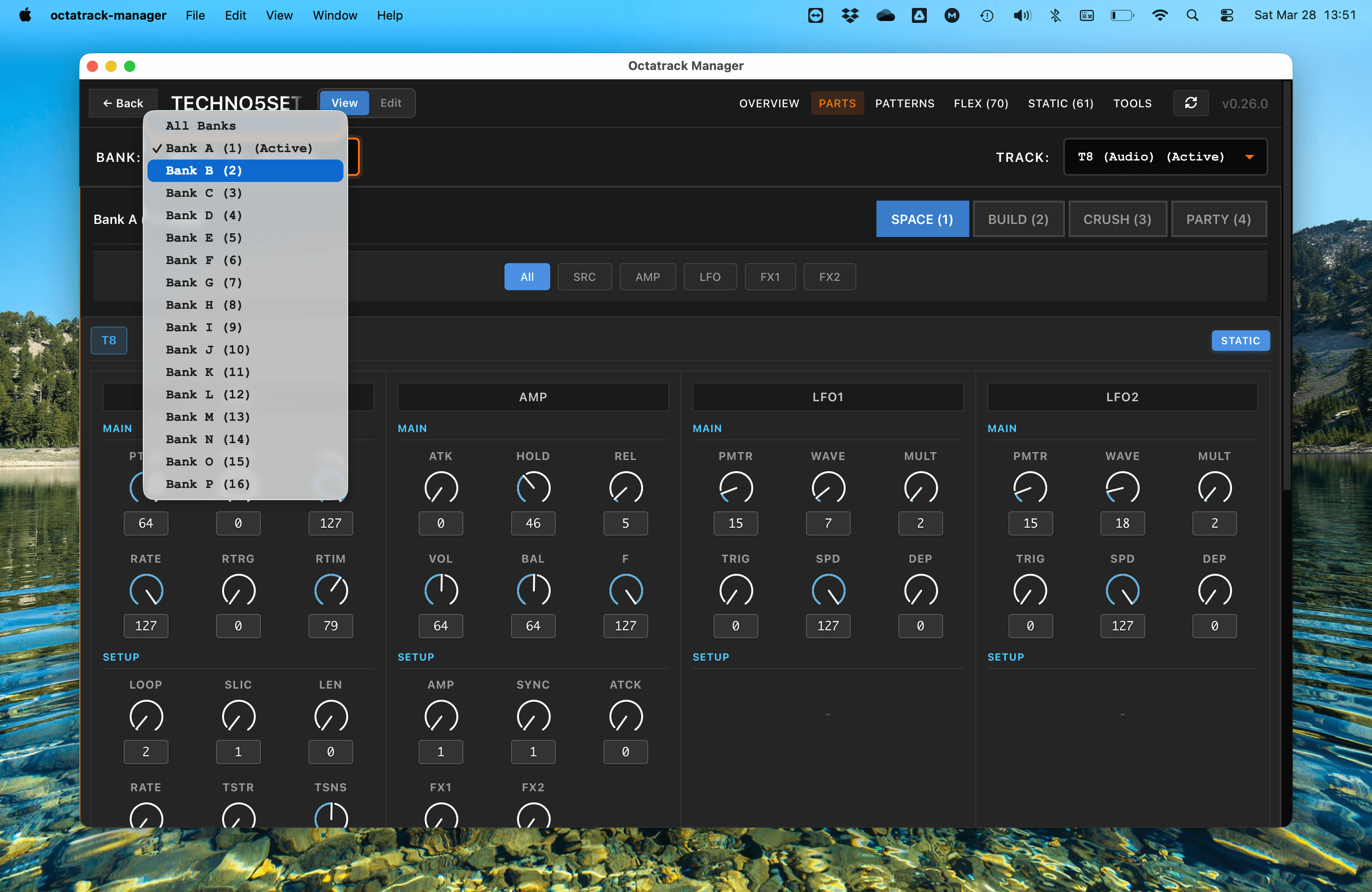
You can choose how much of your project you want to see at once using the Bank Selector in the header.
Single Bank View
By default, the app focuses on a single bank. Select a letter (A through P) to display the Parts or Patterns for that specific bank.
"All Banks" View
Select All from the bank selector to see an overview of every bank in your project on a single, scrollable page. This is incredibly useful for:
- Getting a bird's-eye view of your entire live set.
- Quickly finding where a specific part or pattern is located.
- Comparing content across different sections of your project.
Navigating Tracks (T1–T8 & M1–M8)
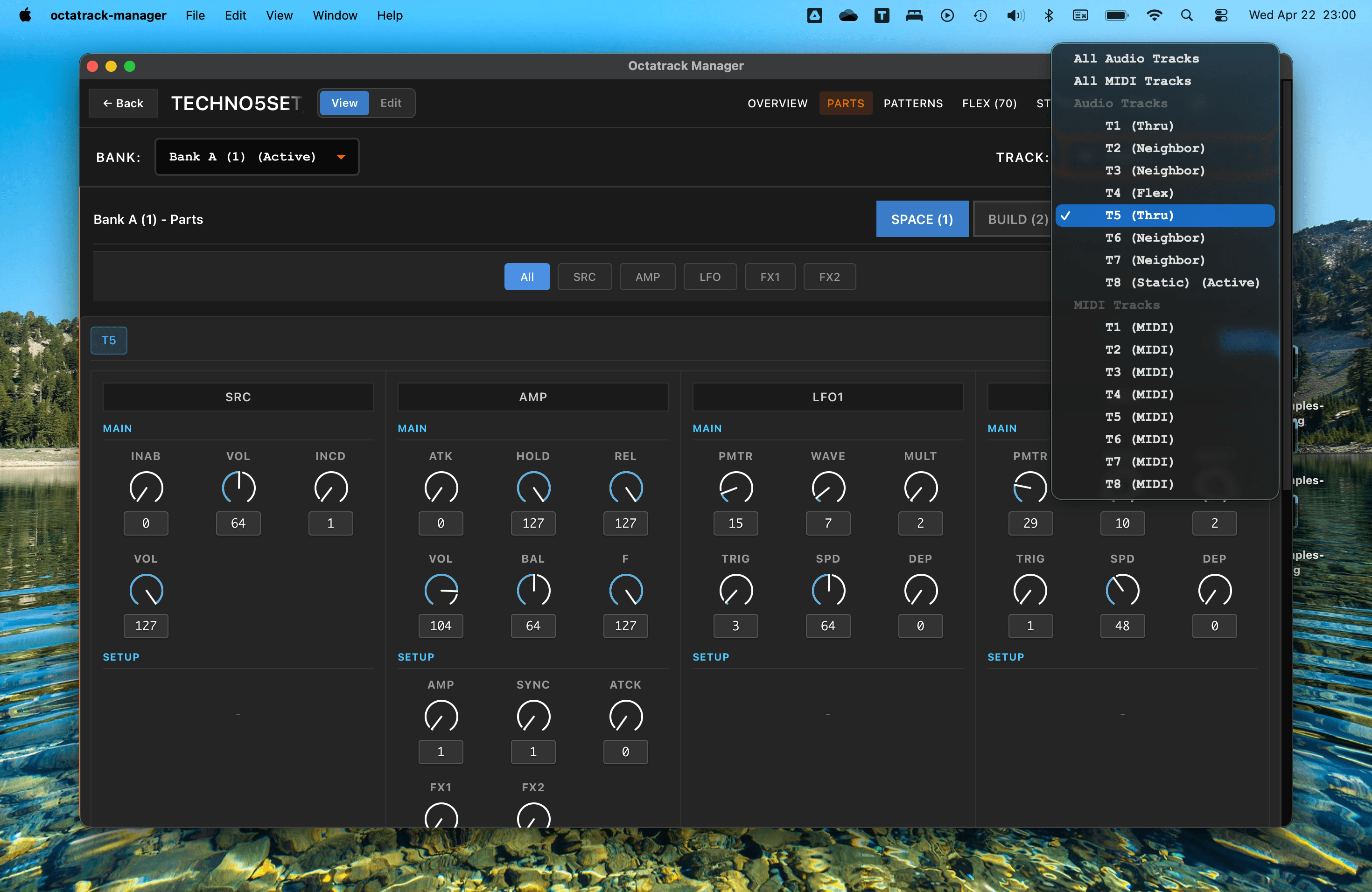
The Track Selector allows you to focus on a specific audio or MIDI track, or view all tracks of a given type at once.
- Audio Tracks (T1–T8): The 8 audio tracks, each with its own machine, effects, and LFOs.
- Each audio track displays its active machine type from the current part - T1 (Flex), T2 (Thru), etc
- MIDI Tracks (M1–M8): The 8 MIDI tracks for sequencing external gear.
- "All Audio" / "All MIDI": View all 8 tracks of a given type simultaneously.
The machine type shown updates automatically when you switch banks or change the active part.
Switching Parts (1–4)
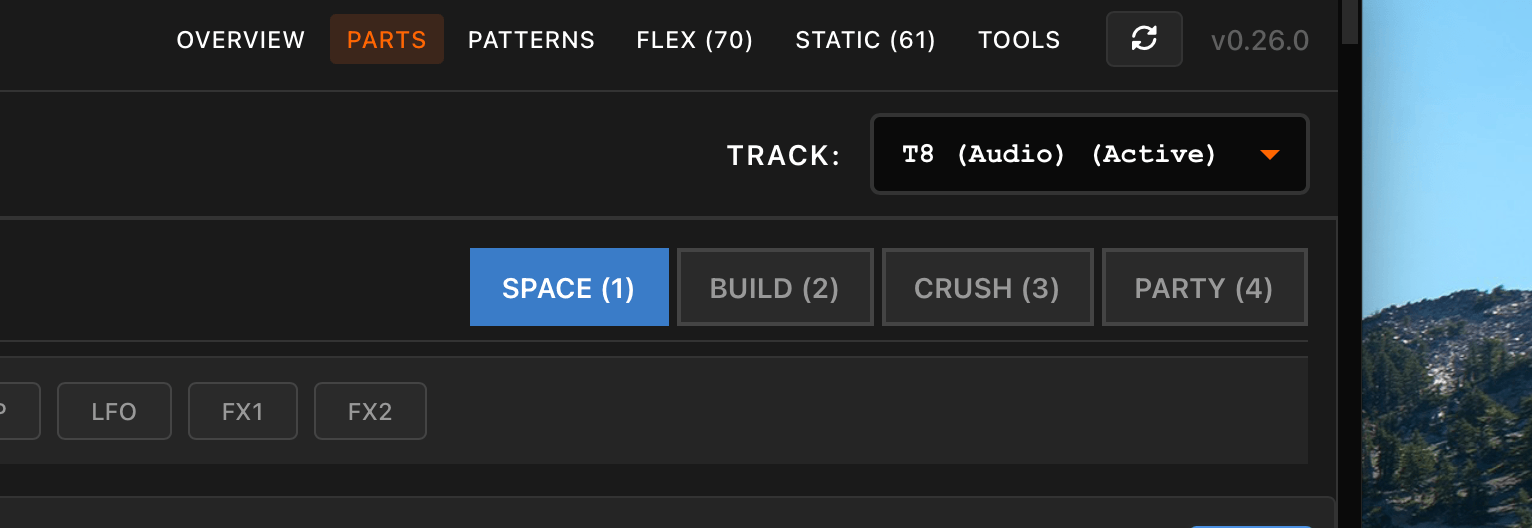
In the Parts tab, you can navigate between the four snapshots (kits) available in each bank.
- Click on the Part 1, Part 2, Part 3, or Part 4 tabs within a bank.
- The interface updates instantly to show the sound design settings (Machine, LFO, Amp, FX) for all tracks in that part.
Navigating Patterns (1–16)
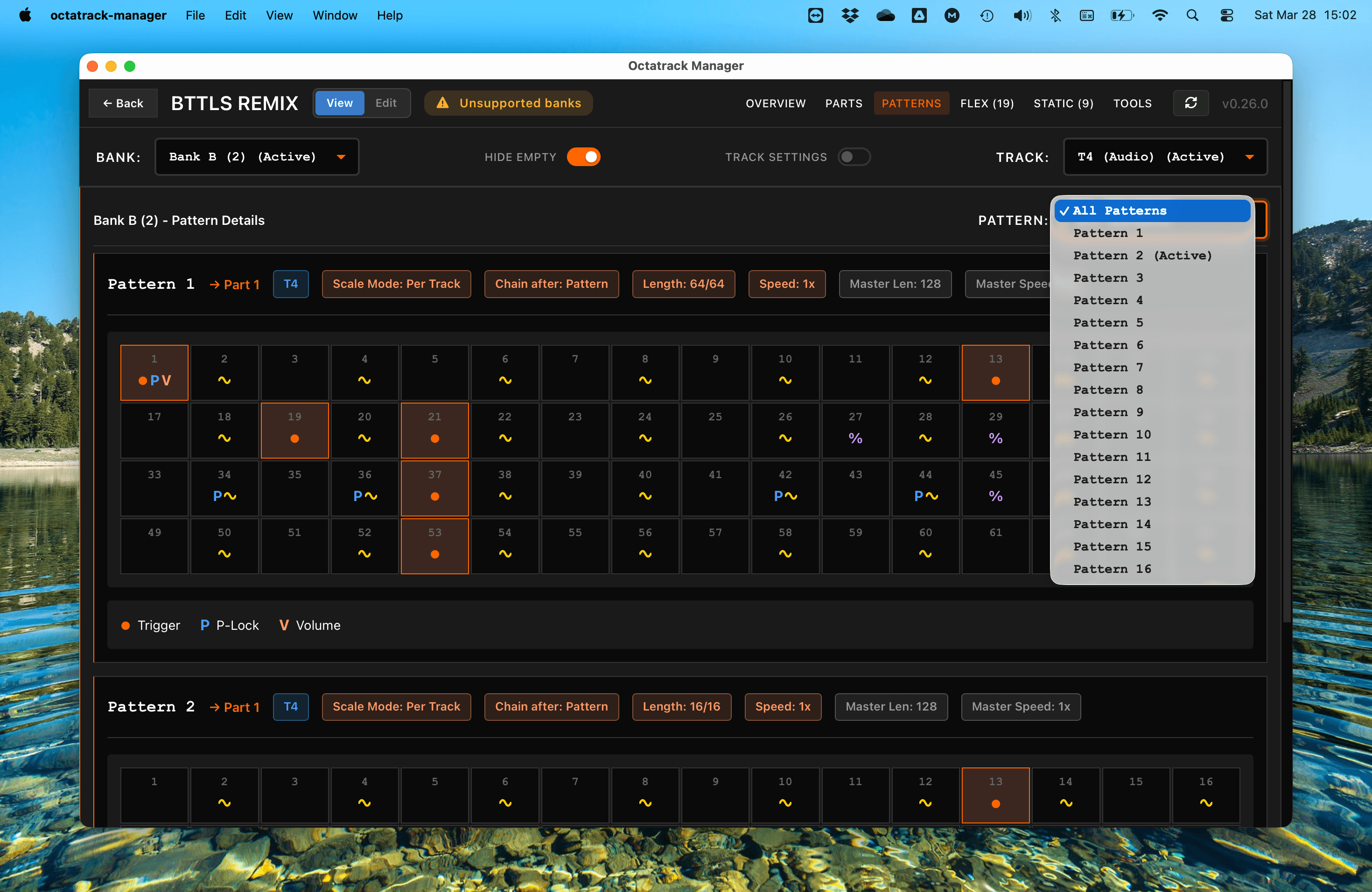
In the Patterns tab, you can choose which sequences to inspect.
- Use the Pattern Selector to focus on a single pattern (1 through 16).
- Use the "All Patterns" option to see every sequence in the bank simultaneously. This helps you visualize how your track evolves across patterns.
- Use the "Hide Empty" toggle in the header to filter out patterns that contain no triggers or data.
Octatrack Manager synchronizes your navigation across different tabs. For example:
- If you select Bank B in the Parts tab, the app will stay on Bank B when you switch to the Patterns tab.
- This ensures that your workflow remains fluid as you move between different aspects of your project.