View Patterns
The Patterns tab provides a visual representation of the sequencer data. It allows to inspect triggers, parameter locks, and trig conditions of every step in projects - all at a glance.
Visualizing Triggers
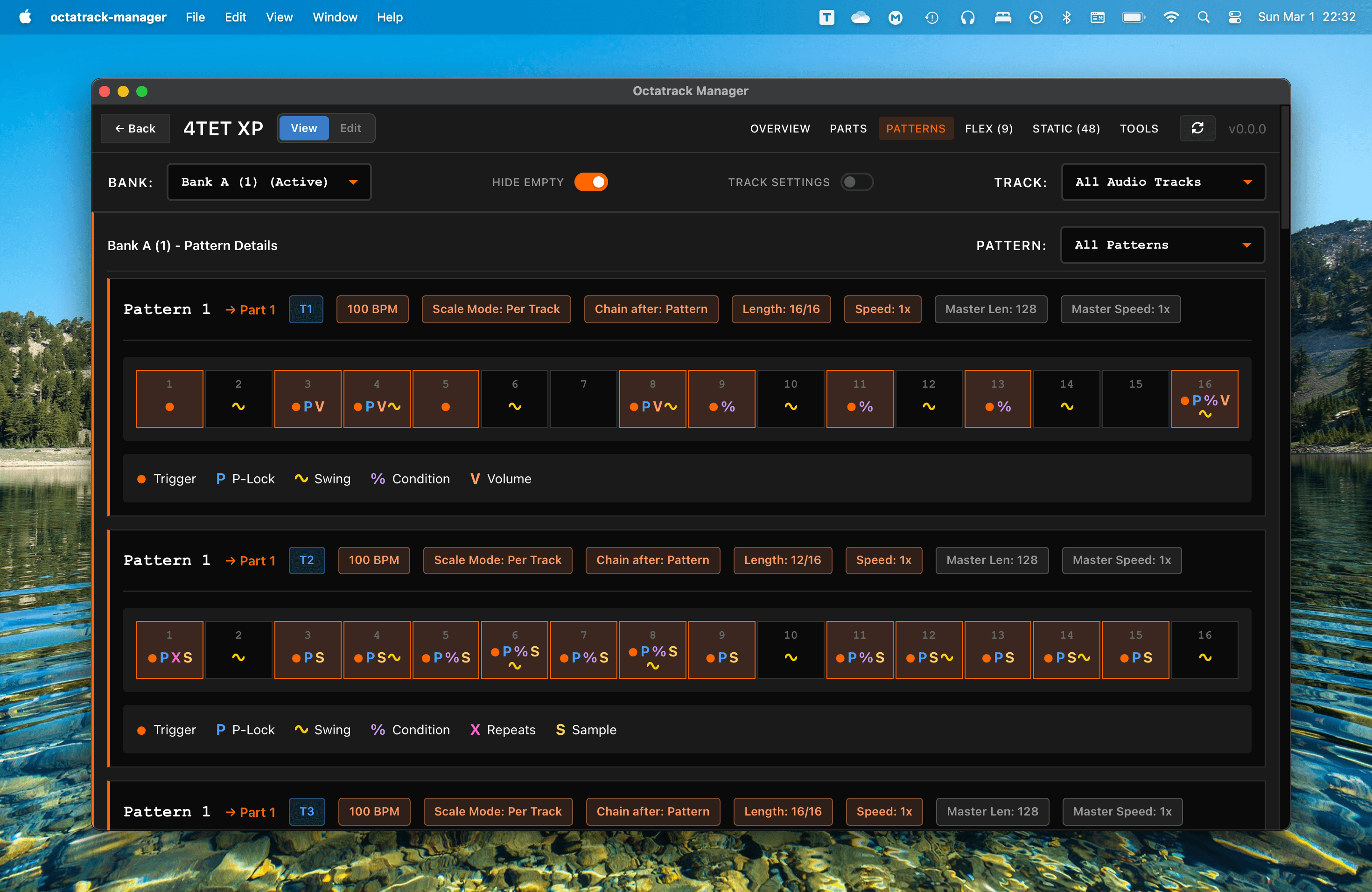
Each pattern is displayed as a grid of steps. It matches the global or per-track length defined in Scale Setup menu of the Octatrack.
Trig Types
- Trigger: Solid orange circle. A traditional sequencer trigger.
- One-Shot: Solid yellow circle. A trigger that plays only once, until re-armed.
- Trigless: Solid green circle. A trigger that changes parameters but does not restart the sample envelope.
- Lock: Outlined green circle. A trigless lock (lock trig) that holds parameter locks without triggering anything.
- P-Lock: Indicated by the letter P (or a count like 3P). Shows that one or more parameter locks are present on that step. A step whose only lock is a sample lock shows S alone, without P.
Recorder Trigs
Just like on the Octatrack itself, recorder trigs are displayed separately from the track's sample/note trigs, on their own grid below the main grid. A red R marks a recorder trig; a yellow R marks a One-Shot recorder trig.
The Trigs control next to the bank selector picks which grids are displayed:
- Track: Sample and note trigs only.
- All: The track grid plus the recorder grid.
- Rec: Recorder trigs only.
With Hide empty off, the selected grids are always displayed, even when empty. With Hide empty on, each empty grid is hidden individually (for example an empty recorder grid disappears while the track grid stays), and a pattern vanishes entirely when nothing is left to display.
Specialized Indicators
- ↗: Slide trigger
- %: Trig Condition
- X: Trig Repeats
- µ: Micro-timing offset
- V: Volume lock
- S: Sample Slot lock
- Swing: A green wave icon indicates that a swing trig is active on that step. Swing trigs are hidden when the track's swing amount is 50 (the default), since they have no effect. The swing amount is set per track and per pattern on the Octatrack, so when it is above 50 the pattern header shows it as a Swing: N% chip next to Length and Speed.
Filtering Indicators
With every trig type, lock and modifier displayed at once, busy patterns can get dense. Things can be filtered out using two complementary filters:
- Global filter: The Show: chip row at the top of the tab lists every indicator:
- Click a chip to hide or show that indicator in all patterns
- Use All / None to toggle everything at once
- Per-pattern filter: The legend badges below each pattern grid are clickable too:
- Clicking one hides that indicator in that pattern only (click again to restore)
Detailed Step Inspection
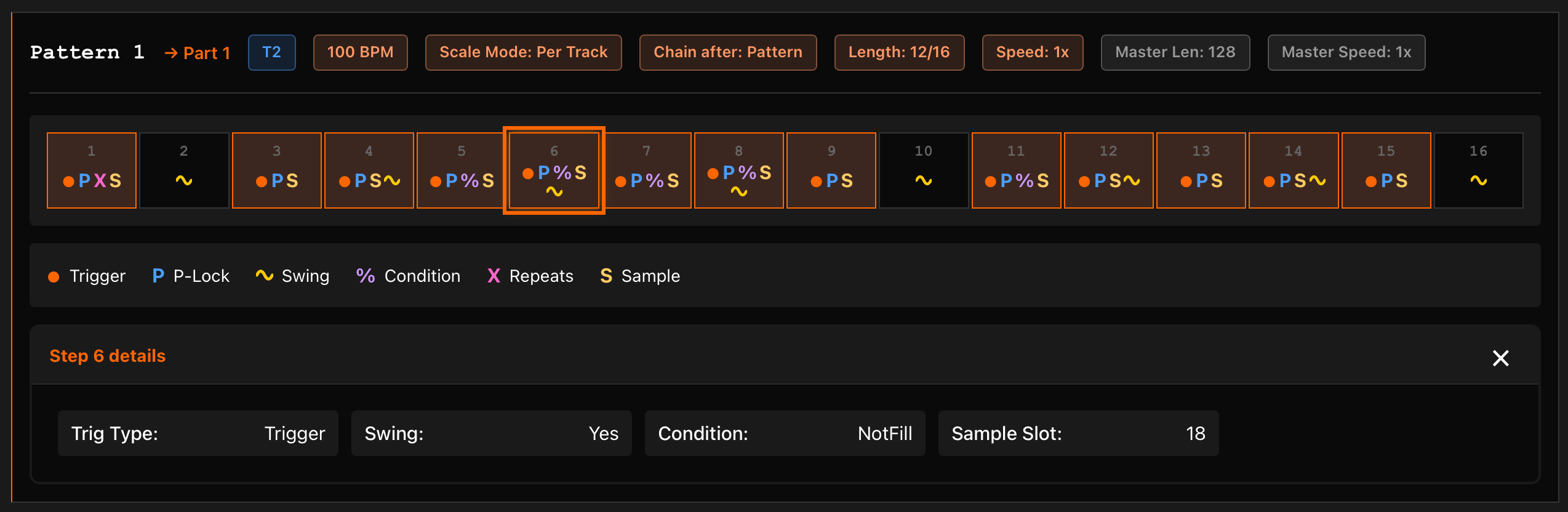
Click on any step in the grid to open the Parameter Details Panel. This panel shows you every single piece of data associated with that specific trigger.
Each grid has its own panel below it: the track grid's panel covers the sample/note trig data, while the recorder grid's panel reports the recorder trig state of the selected step. Selecting a step highlights it on both grids - orange on the track grid, red on the recorder grid.
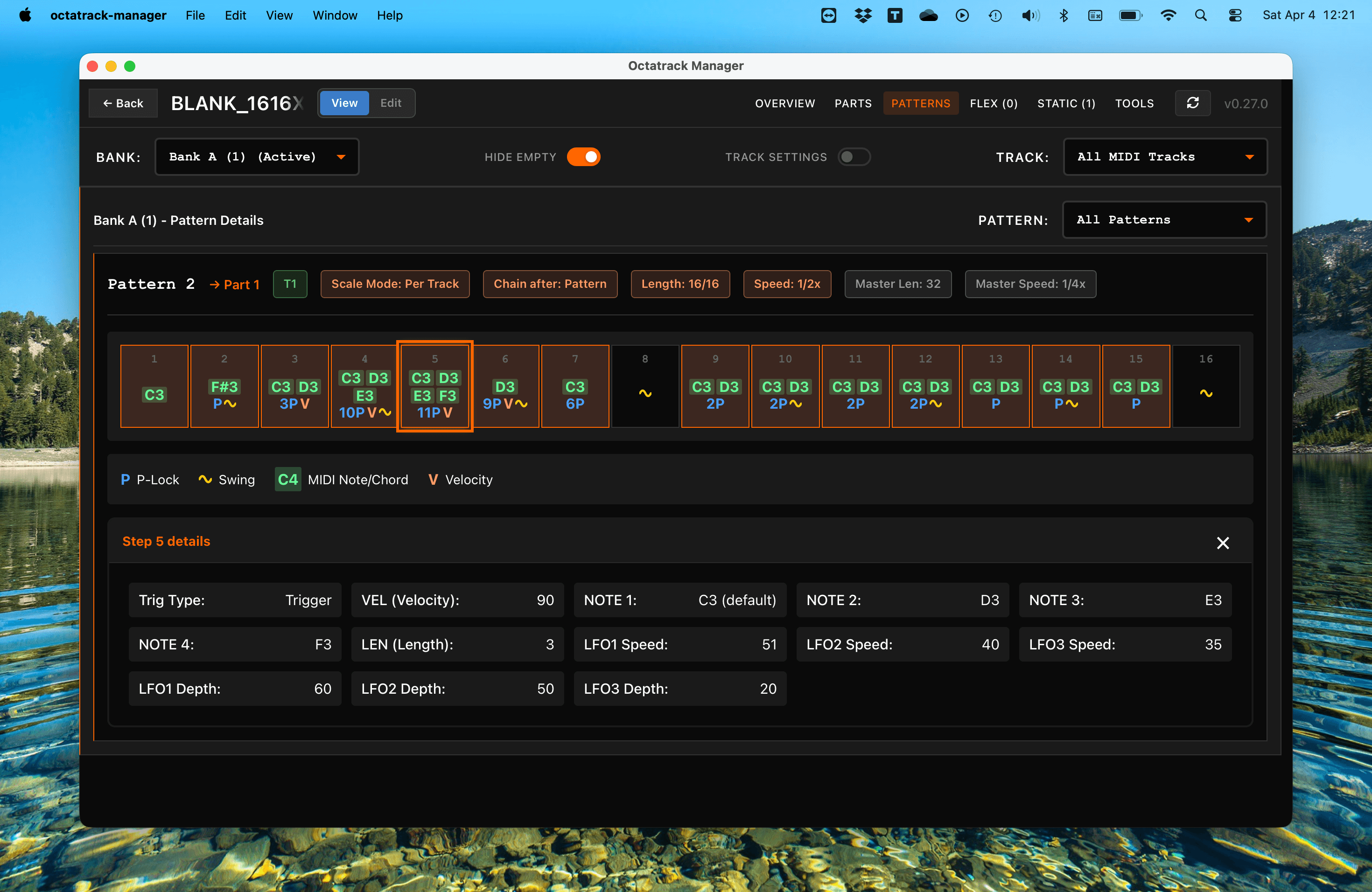
- Notes & Chords: For MIDI tracks, it shows the exact notes and even detects common chord types.
- P-Lock Values: Lists every parameter lock and its exact value.
- Slices: When the track's machine has SLIC enabled and its sample is sliced, a STRT lock selects a slice - the panel shows the slice number (STRT (Slice)) instead of the raw start value.
- Micro-timing: Shows the precise offset (+1/32 for instance).
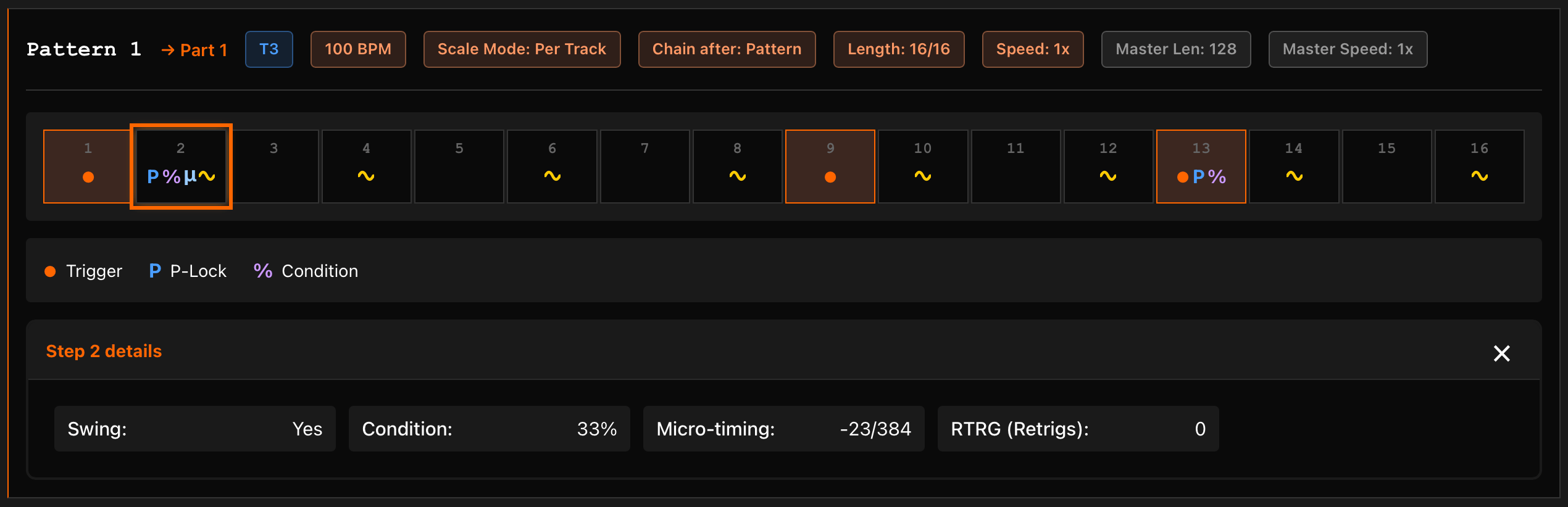
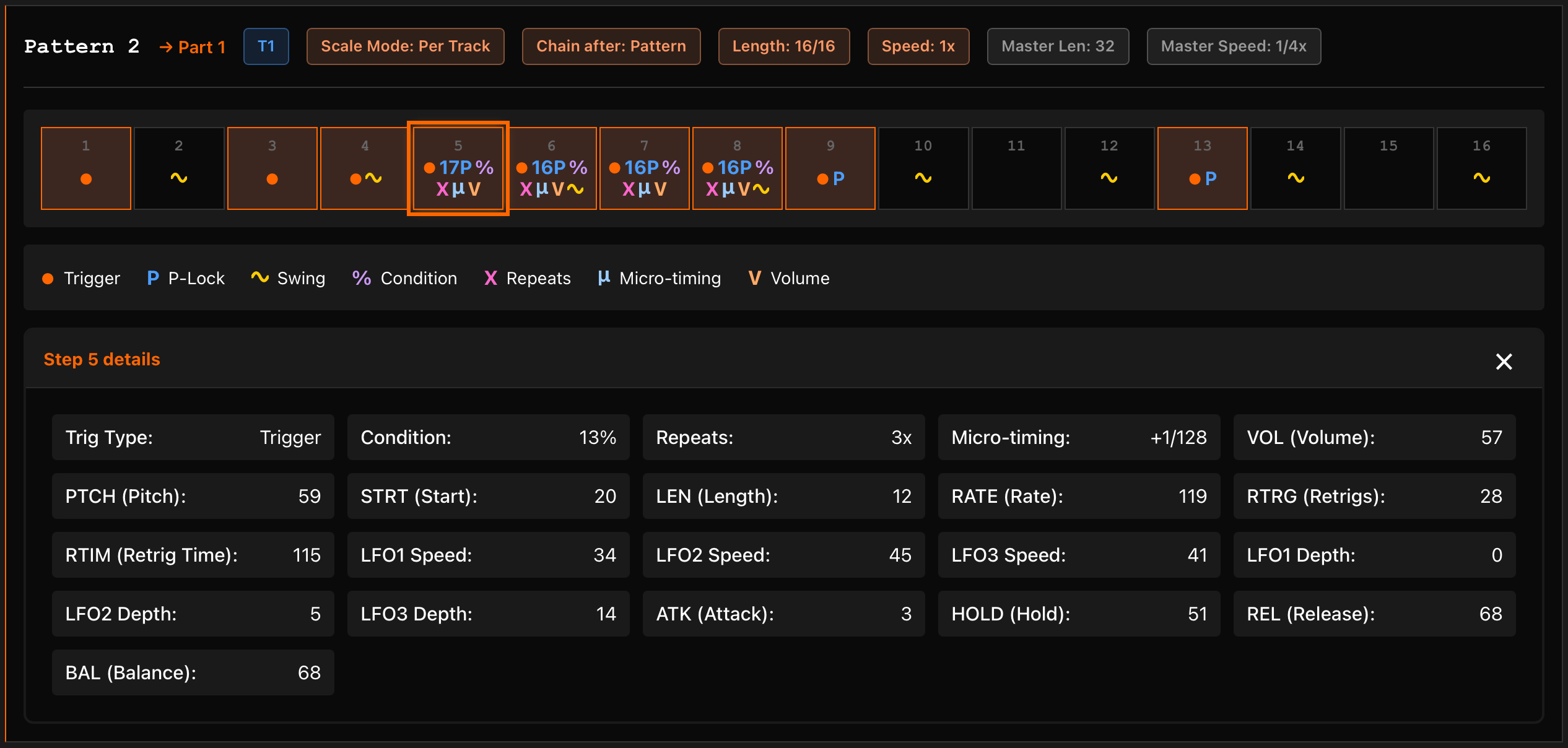
When viewing all patterns at once, each track's triggers are displayed across multiple rows with full indicator detail:
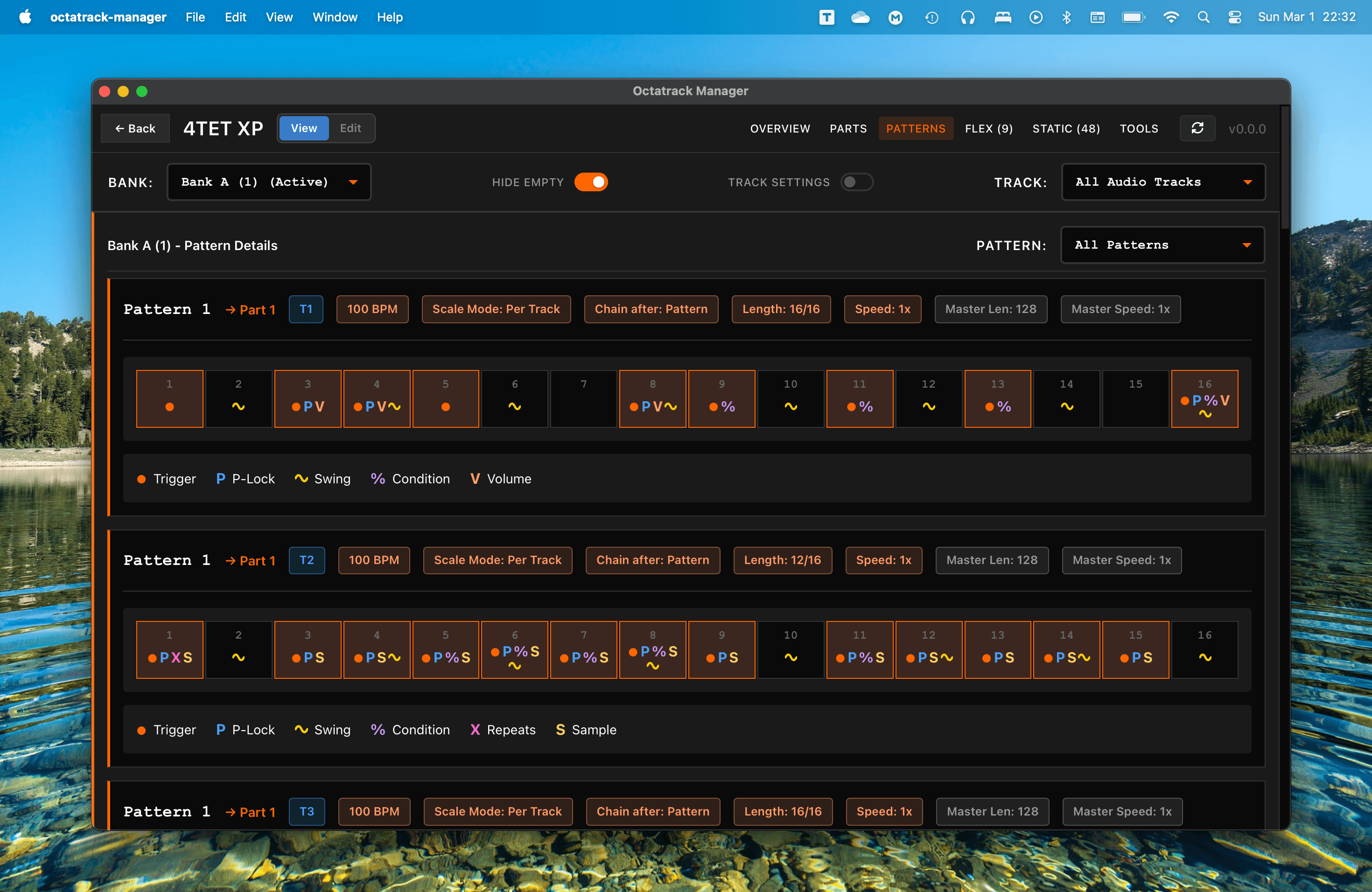
Hide Empty: Toggle the Hide empty switch in the header to focus only on patterns that contain triggers.
Keyboard Navigation
Once a step is selected, you can move through the pattern from the keyboard:
- ← / → or Tab / Shift+Tab: previous / next step.
- ↑ / ↓: jump a full page row (16 steps) up or down.
- Esc: close the details panel.
When viewing a single pattern, moving past its last step continues into the next pattern (and moving before step 1 goes back to the previous one), so you can walk through a whole bank without touching the mouse.
Pattern Navigation
- Single Pattern: Select a specific pattern (1–16) from the selector.
- All Patterns: View all sequences in a bank at once by selecting All from the pattern selector.
Track Settings
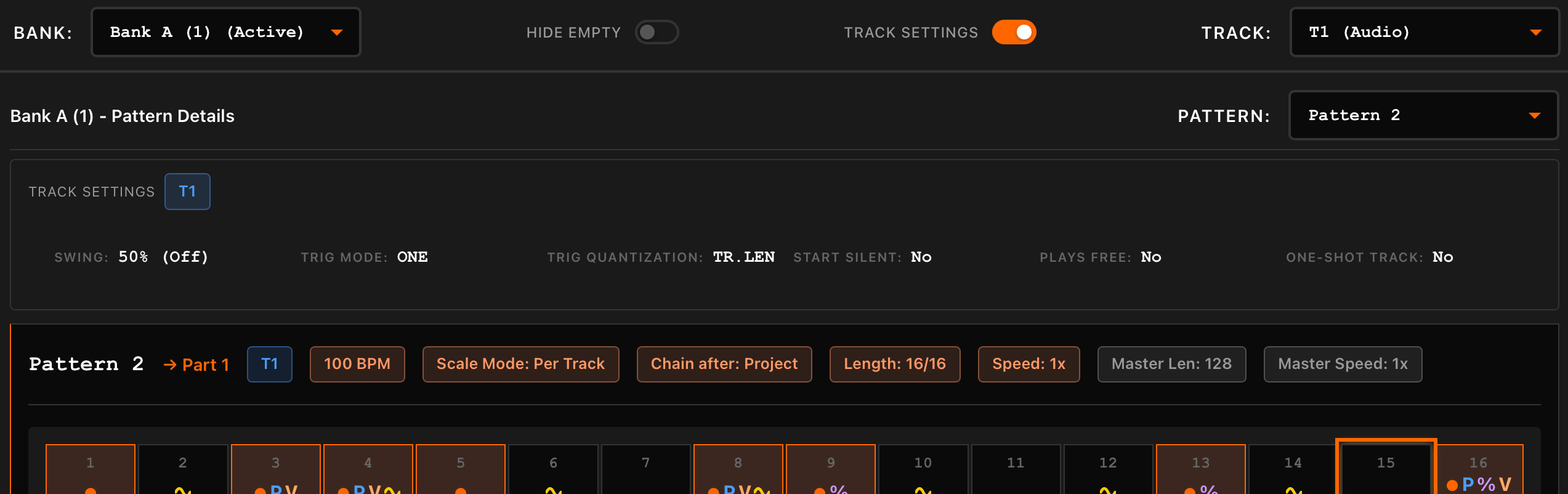
Toggle Track settings in the header to see the configuration for each track within the bank.
This section shows:
- Trig Mode: The track's trig mode (e.g., Plays Free, One-Shot).
- Quantization: The trig quantization settings.
- Start Silent: Whether the track starts silently.
Advanced Pattern Data

Part Assignment
Each pattern displays its assigned part as a "→ Part N" label. Hovering over this label shows a tooltip with the part's name, making it easy to identify parts at a glance.
Scale & Length
The app displays the Length (in steps) and Master Scale (speed) for every pattern. If you are using Per Track scale mode, the individual track length and speed are shown instead.
Chain Behavior
The Chain Mode indicator shows how the Octatrack will transition after this pattern finishes playing (e.g., chain after 16, 32, 64 steps).
MIDI Patterns
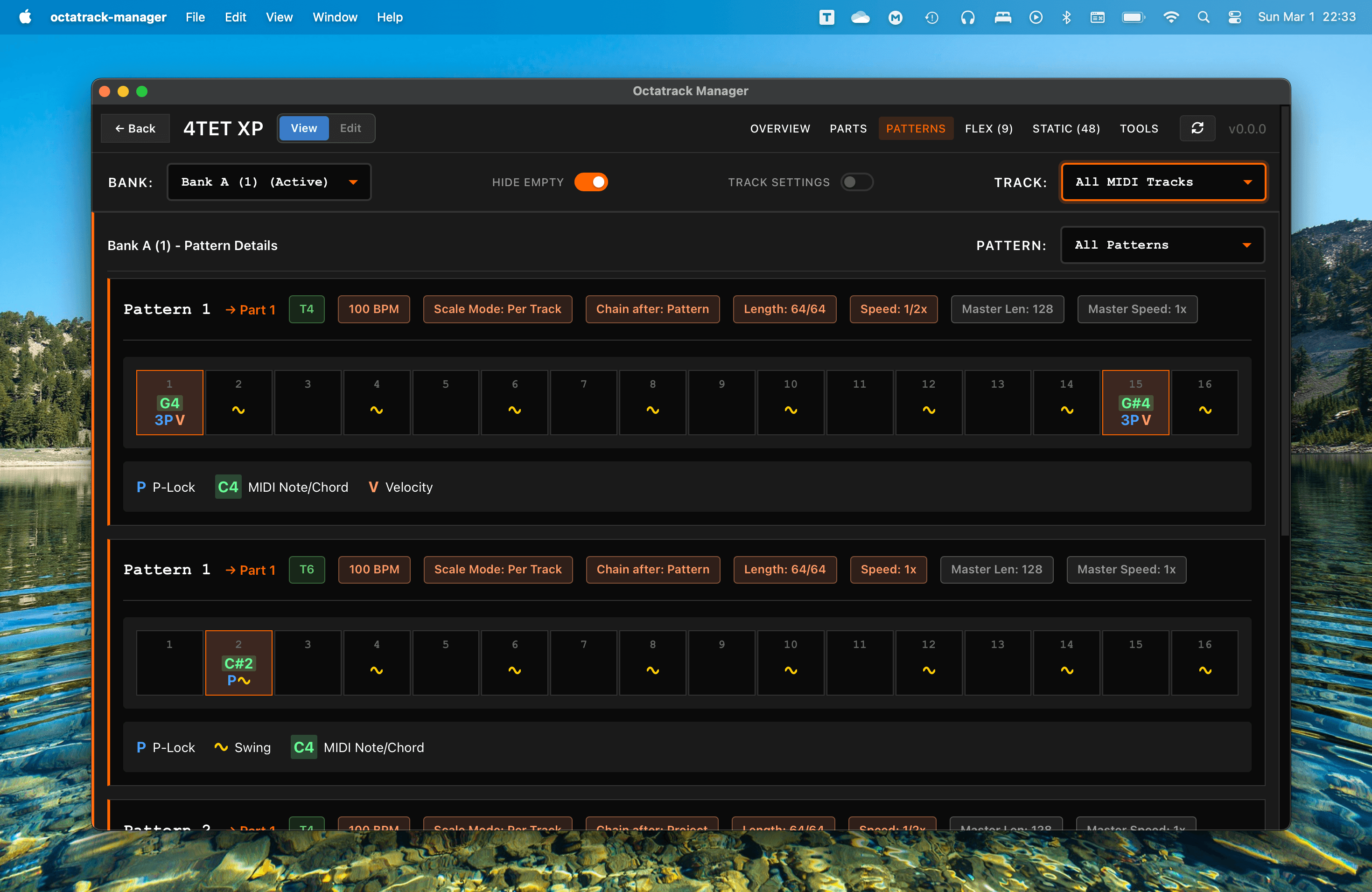
For MIDI tracks, everything works the same - except triggers are replced by MIDI notes! The app detects and displays:
- The default note for the track.
- Chord information (major, minor, 7th, etc.) if multiple notes are triggered on a single step.