Discover Projects
The Home page is your starting point for browsing and organizing your Octatrack work.
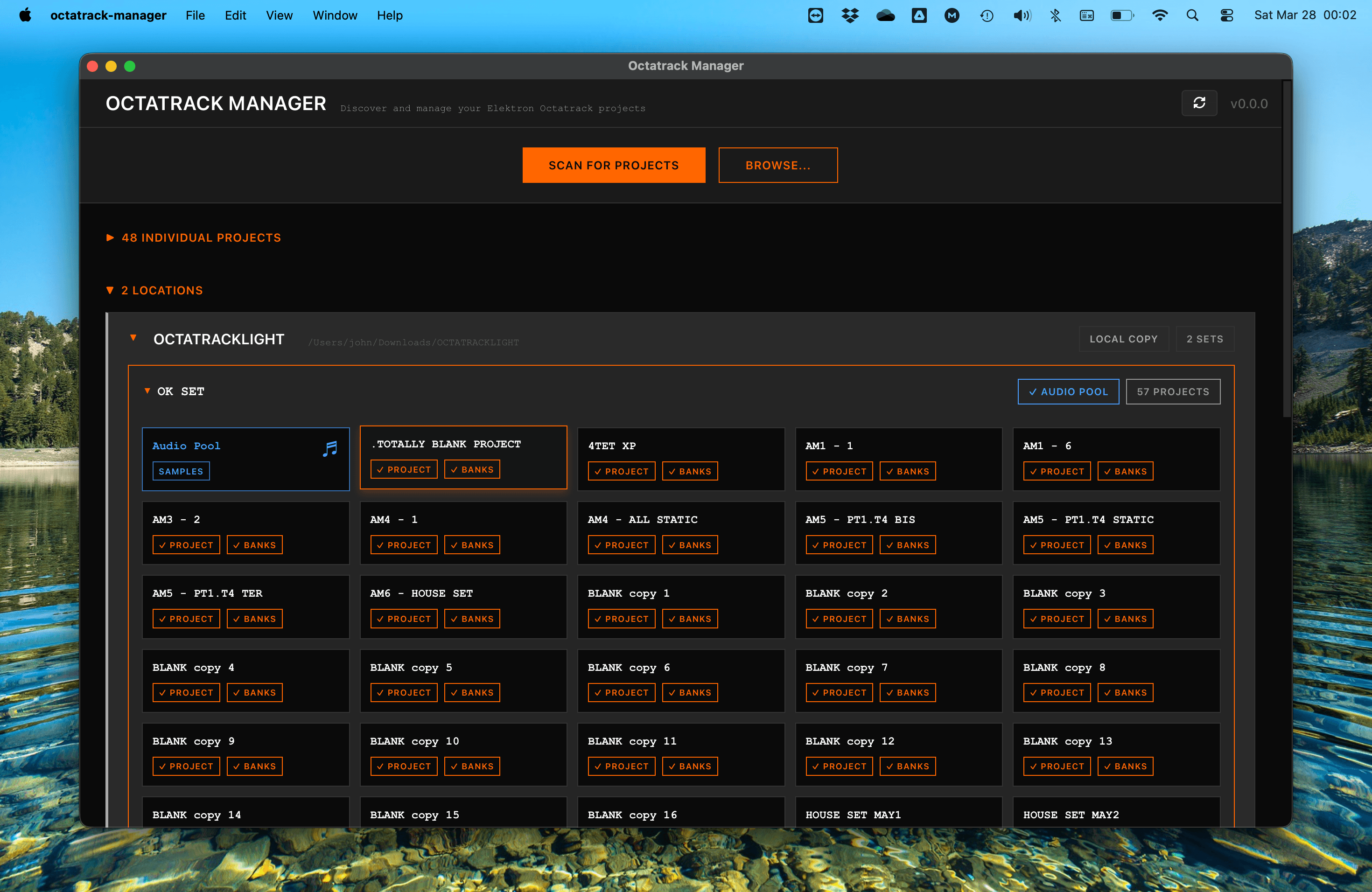
Finding Your Projects
When you open Octatrack Manager, the first step is to locate your projects. You can do this in two ways:
1. Automatic Scanning
Click Scan for Projects to trigger a comprehensive search across your system. The app searches:
- Removable Drives: All mounted CompactFlash (CF) cards and USB drives.
- System Folders: Common locations like
~/Documents,~/Music,~/Downloads, and~/Desktop. - Octatrack Folders: Any folder on your home directory named
octatrack(in any capitalization).
2. Manual Browsing
If your projects are stored in a non-standard location (e.g. a specific backup drive or a cloud-synced folder):
- Click Browse....
- Select the directory you want to scan.
- The app will search that directory recursively and add all found Sets and projects to the results.
Refreshing the Results
If you insert a CF card or move files while the app is open, click the Refresh (↻) button in the header: The app will rescan all its known locations.
Navigating the Results
Results are organized by Location, which corresponds to a physical drive or folder on your system. Each location contains one or more Sets.
A directory is recognized as a Set if it contains an AUDIO/ subfolder — even if it has no projects yet (e.g. a freshly created Set).
Set Locations
Each location card provides key information at a glance:
- Device Type: Labeled as CF Card, USB, or Local Copy.
- Audio Pool Status: A ✓ Audio Pool indicates that the
AUDIO/folder contains valid samples. An ✗ Audio Pool means it is missing or empty. - Project Count: Shows how many projects were found in that specific Set.
Click the ▶ arrow on a location card to expand it and see the individual projects within.
Individual Projects
If projects are found outside of a Set (i.e., they are standalone .work or .strd files without a parent AUDIO/ folder), they are listed in the Individual Projects section at the bottom.
These projects can be opened and edited like any other, but because they do not have a dedicated Audio Pool and are not part of a set, features related to Audio Pool mangement are not available.
Opening a Project
To open a project and start working:
- Locate the project name in the expanded list.
- Click the project card.
- You will be taken to the Project Detail page.
Project Status Indicators
Inside each project card, you will see two status markers:
| Marker | What it means |
|---|---|
| ✓ Project | The main project file (project.work) was found and is readable. |
| ✓ Banks | All associated bank files (e.g., bank01.work) were found. |
If a marker is ✗, it indicates a missing or corrupted file. This can happen when projects are partially copied or moved manually in your computer's file manager.