Edit Parts
The Parts Editor is the heart of sound design in Octatrack Manager. It allows to modify the four Parts ("snapshots" or "kits") available in each bank, giving you a powerful interface for tweaking machine parameters, effects, and LFOs.
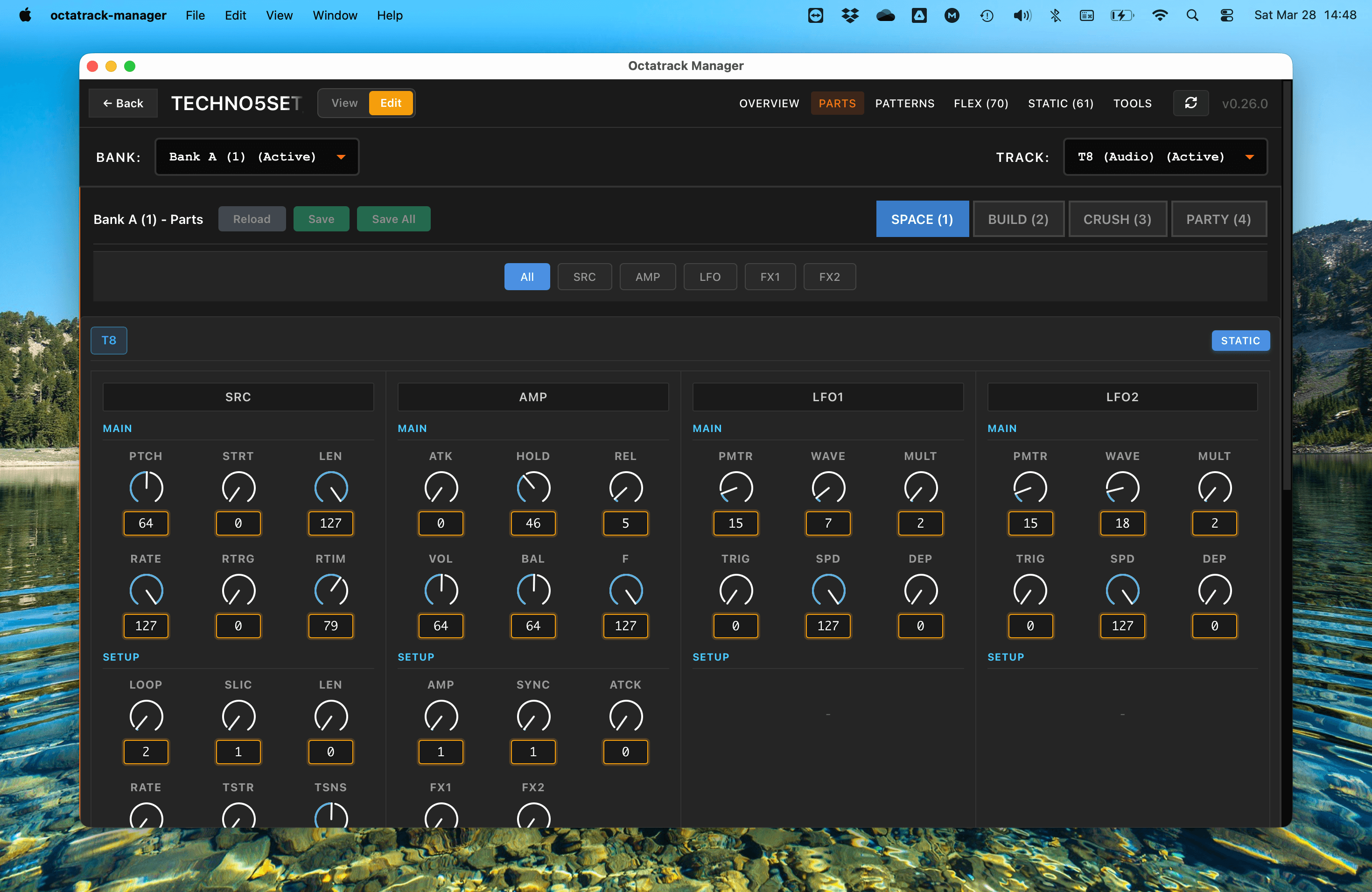
Enabling Edit Mode
By default, Octatrack Manager is in a safe, read-only mode to prevent accidental changes. To start editing:
- Open a project.
- Go to the Parts tab.
- Toggle the Edit mode switch in the project header.
When Edit Mode is active, the knobs and fields become interactive, and your changes will be written to disk.
Note that in the future, more than Parts will be editable in projects.

Navigation Within the Editor
Use the PAGE tabs to switch between the different parameter pages (SRC, AMP, LFO, etc).
Both your parameter page selection and part selection persist when switching between banks, so you can quickly compare the same page across different banks.
The dropdown fields let you switch quickly between all Audio tracks, MIDI tracks, partrs and the 16 banks.
Modifying Part Settings
The Parts Editor is organized into several pages, mirroring exactly the Octatrack. Although here we can display much more information on screen.
Audio Track Pages (T1–T8)
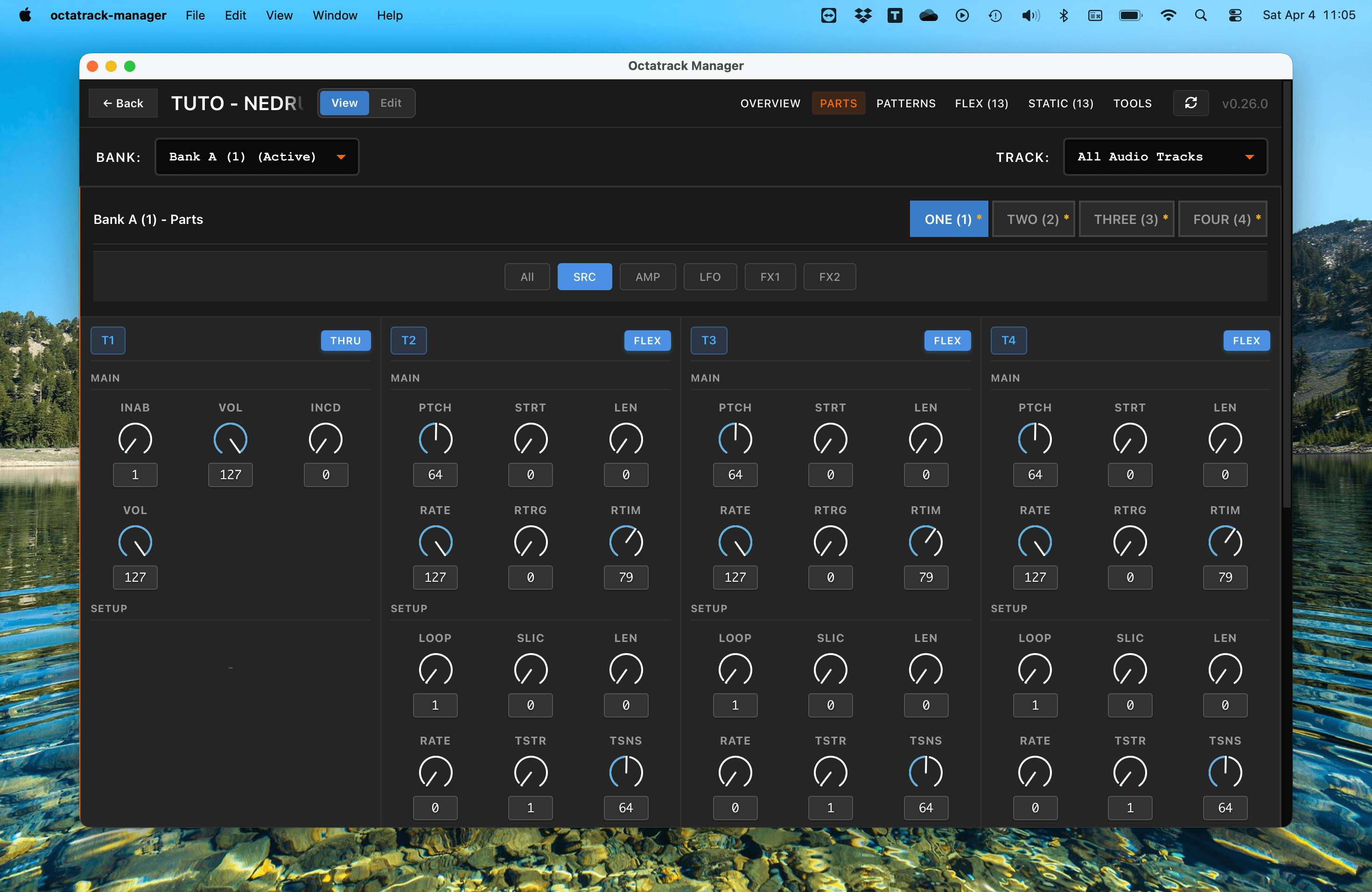
- SRC Page: Configure the core parameters (Pitch, Start, Length, Rate, etc.) of selected machine (Flex, Static, Thru, Neighbor, etc).
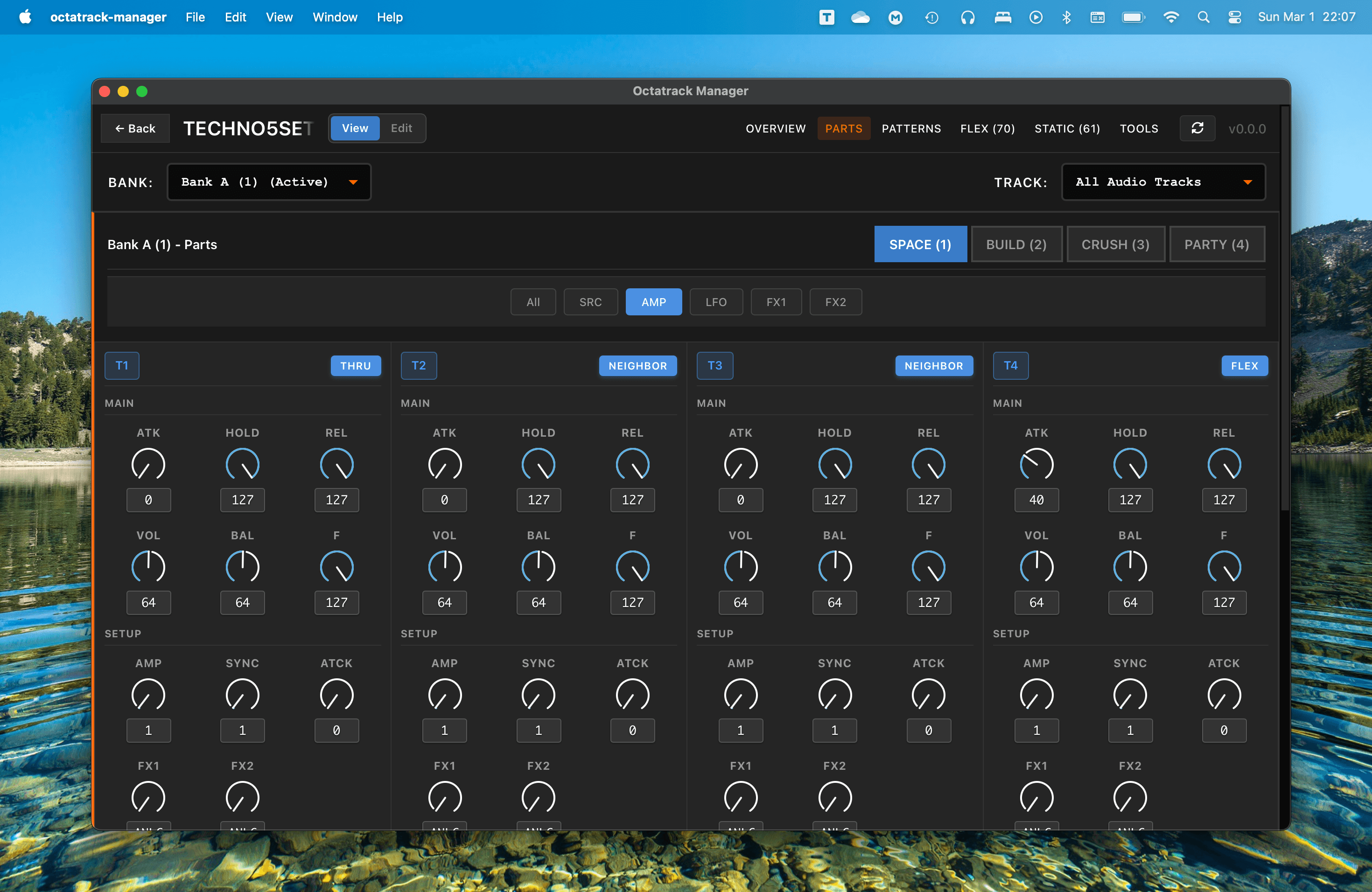
- AMP Page: Adjust the envelope (Attack, Hold, Release), Volume, and Balance for the track.
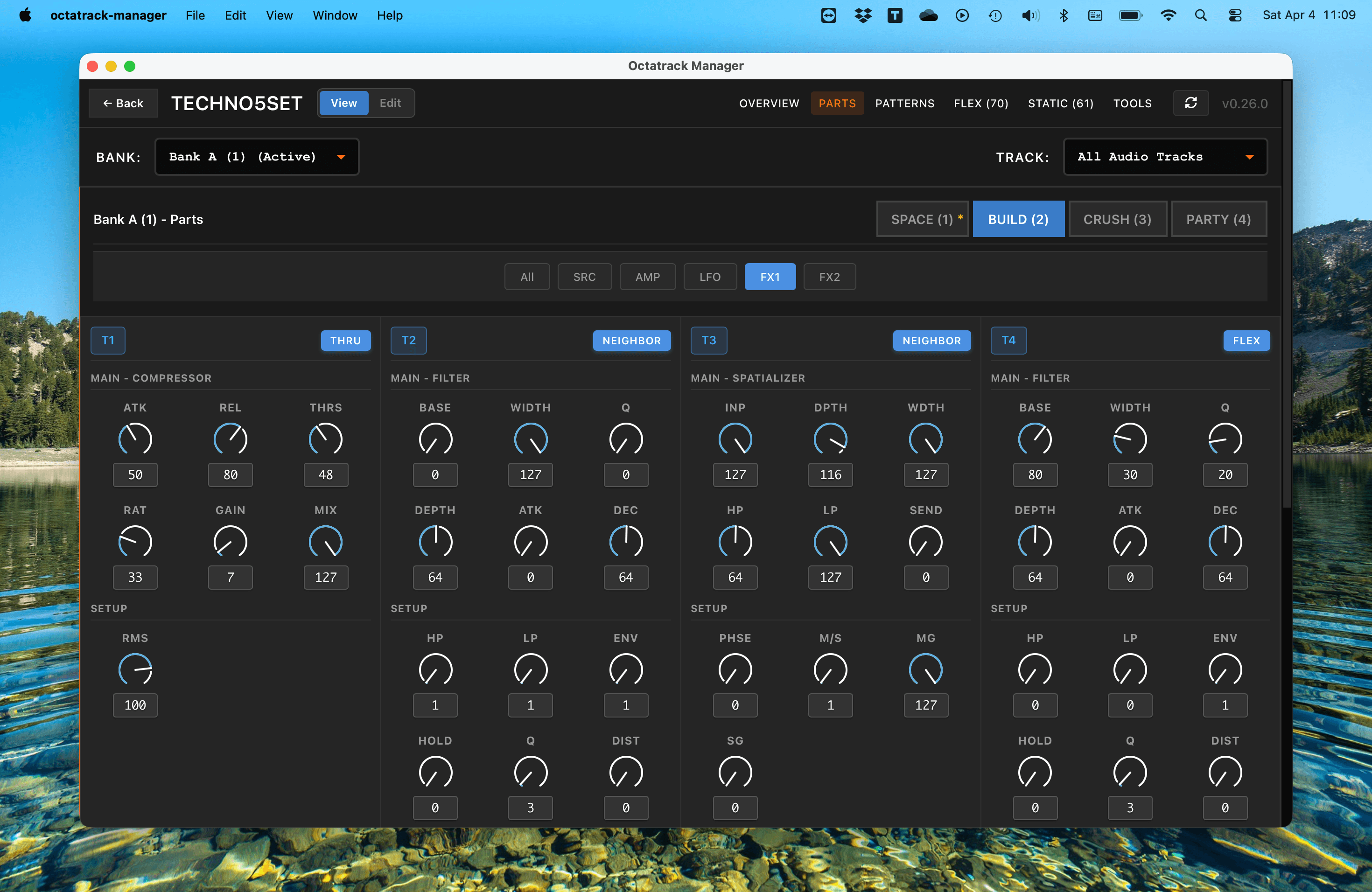
- FX1 & FX2 Pages: Edit the two effect slots for each track.
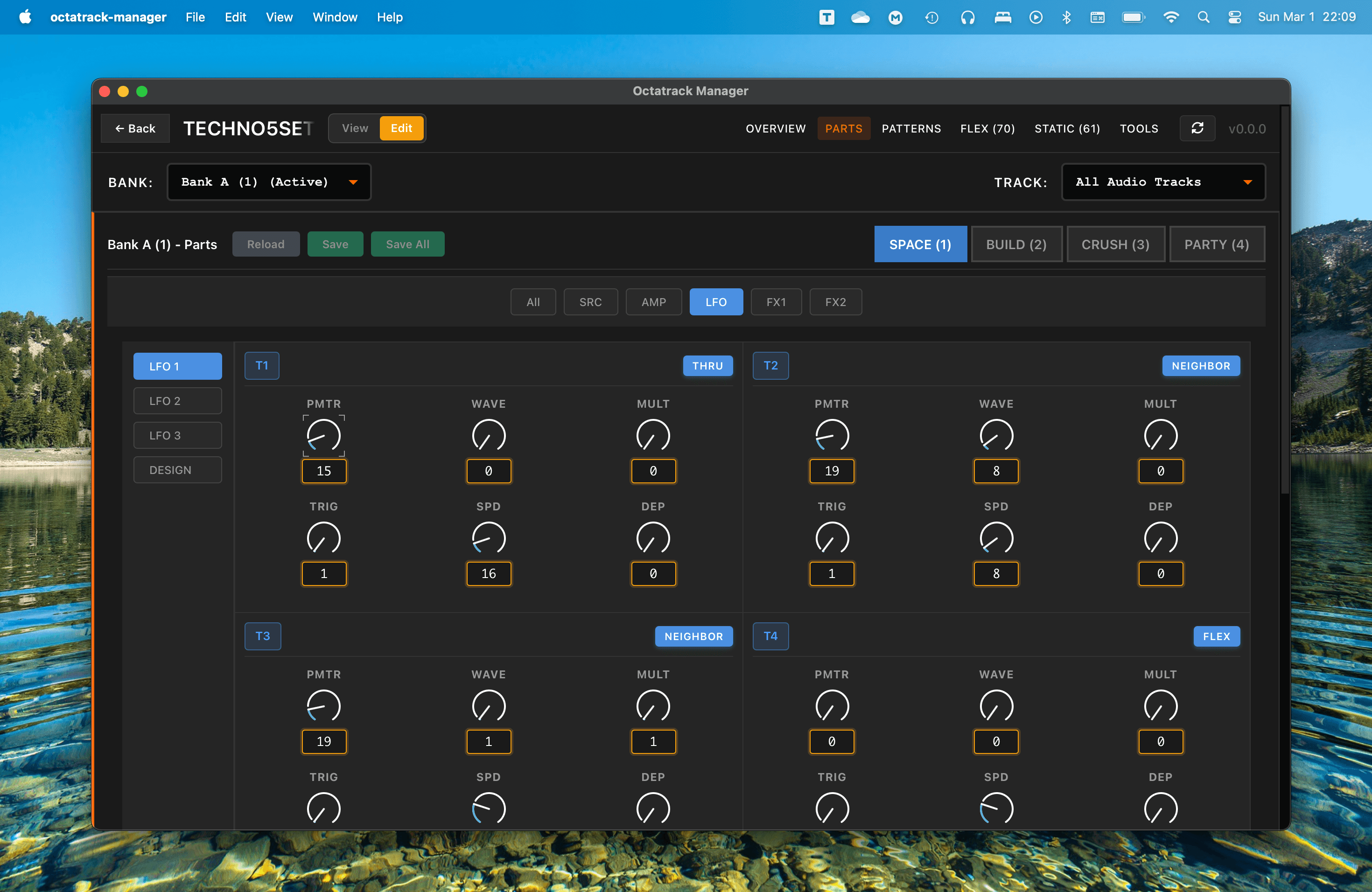
- LFO Pages: Configure the three LFOs per track, including speed, depth, and destination.
MIDI Track Pages (M1–M8)
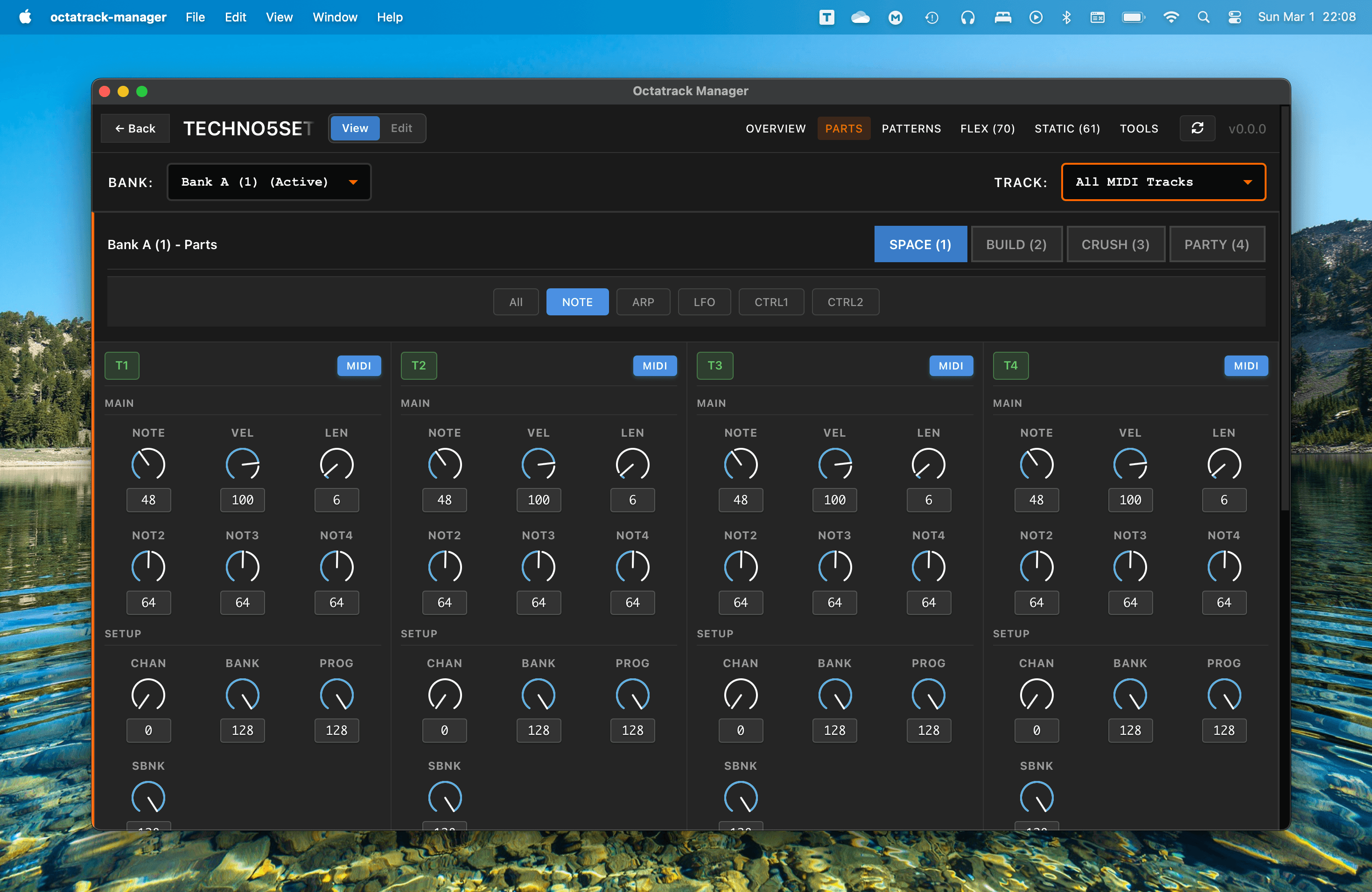
- NOTE Page: Edit the MIDI channel, notes, velocity, and length for external sequencing.
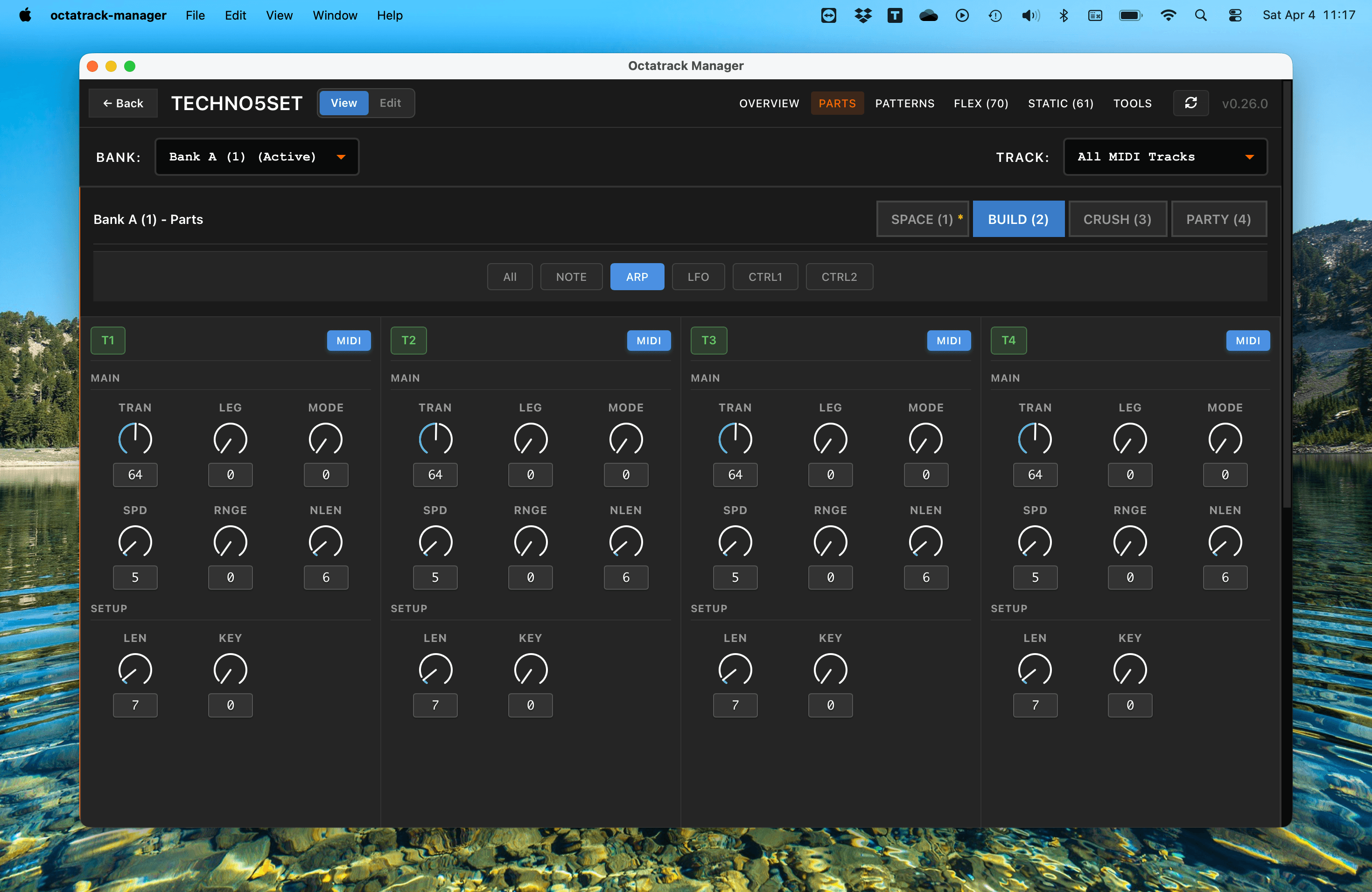
- ARP Page: Adjust the arpeggiator settings (Transpose, Legato, Mode, Speed, Range, Length).
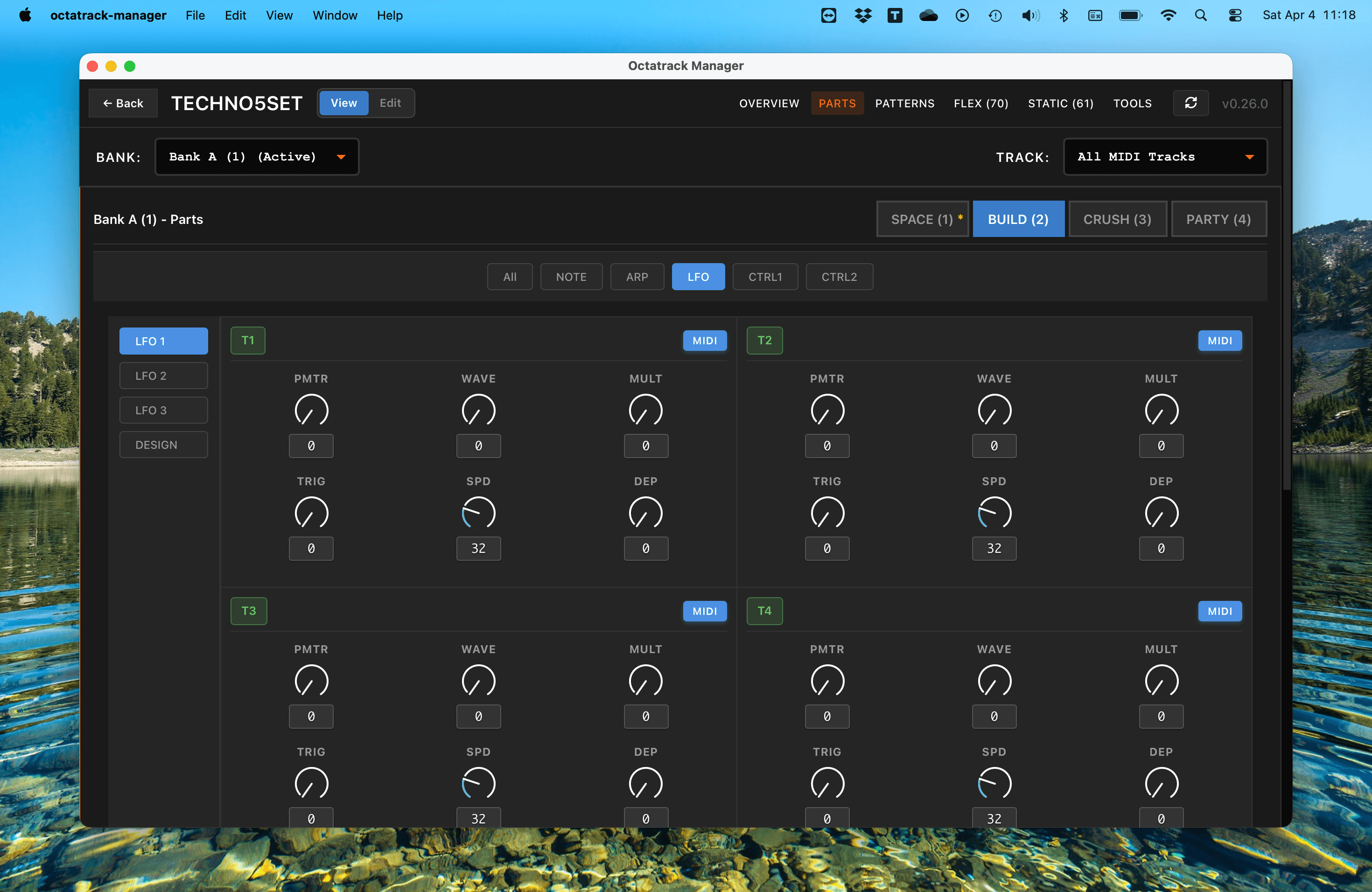
- LFO Pages: Adjust the three MIDI LFOs, draw custom LFO shapes.
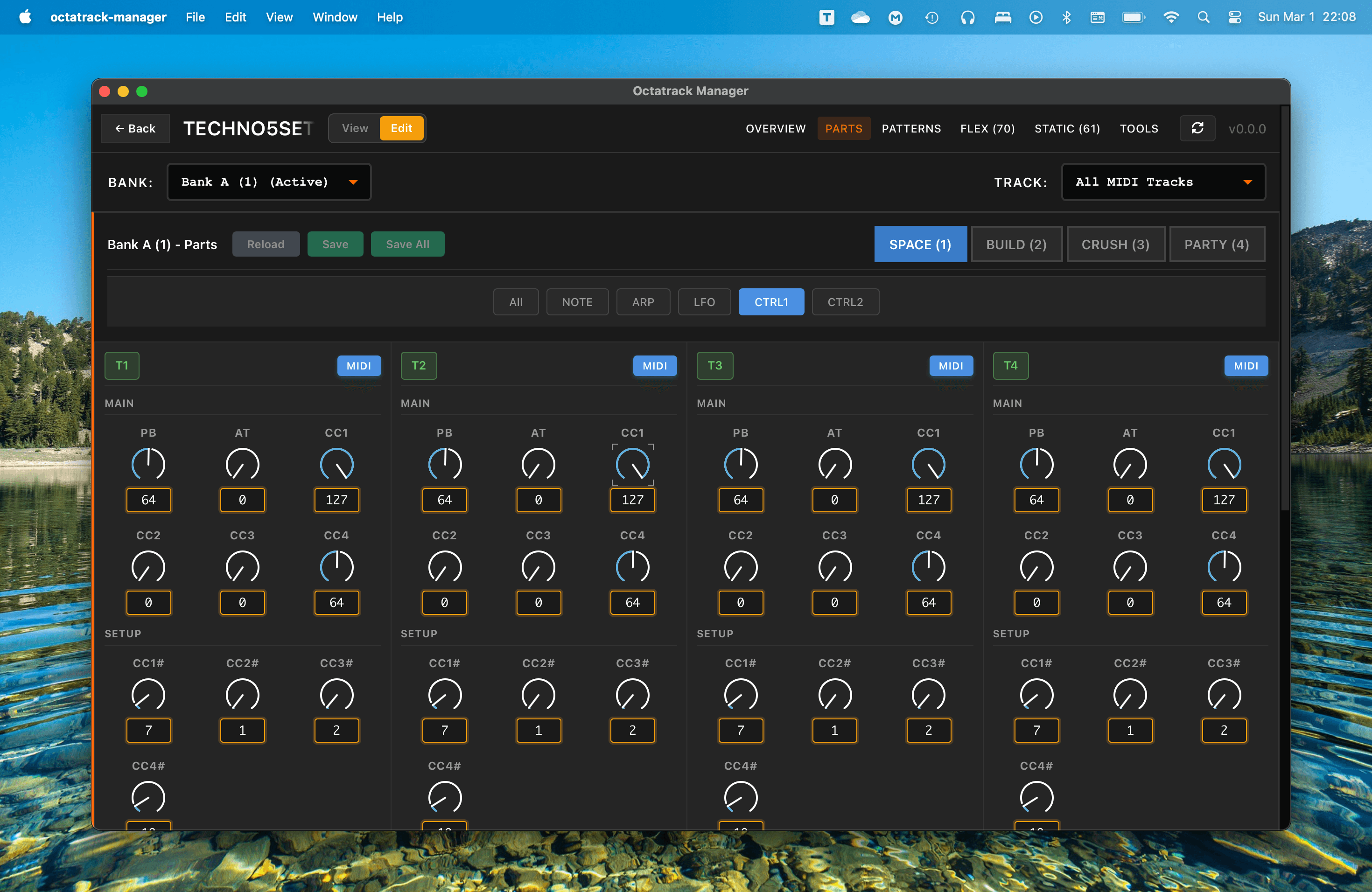
- CTRL Pages: Configure the MIDI CC parameters for external gear control.
Custom LFO Designer
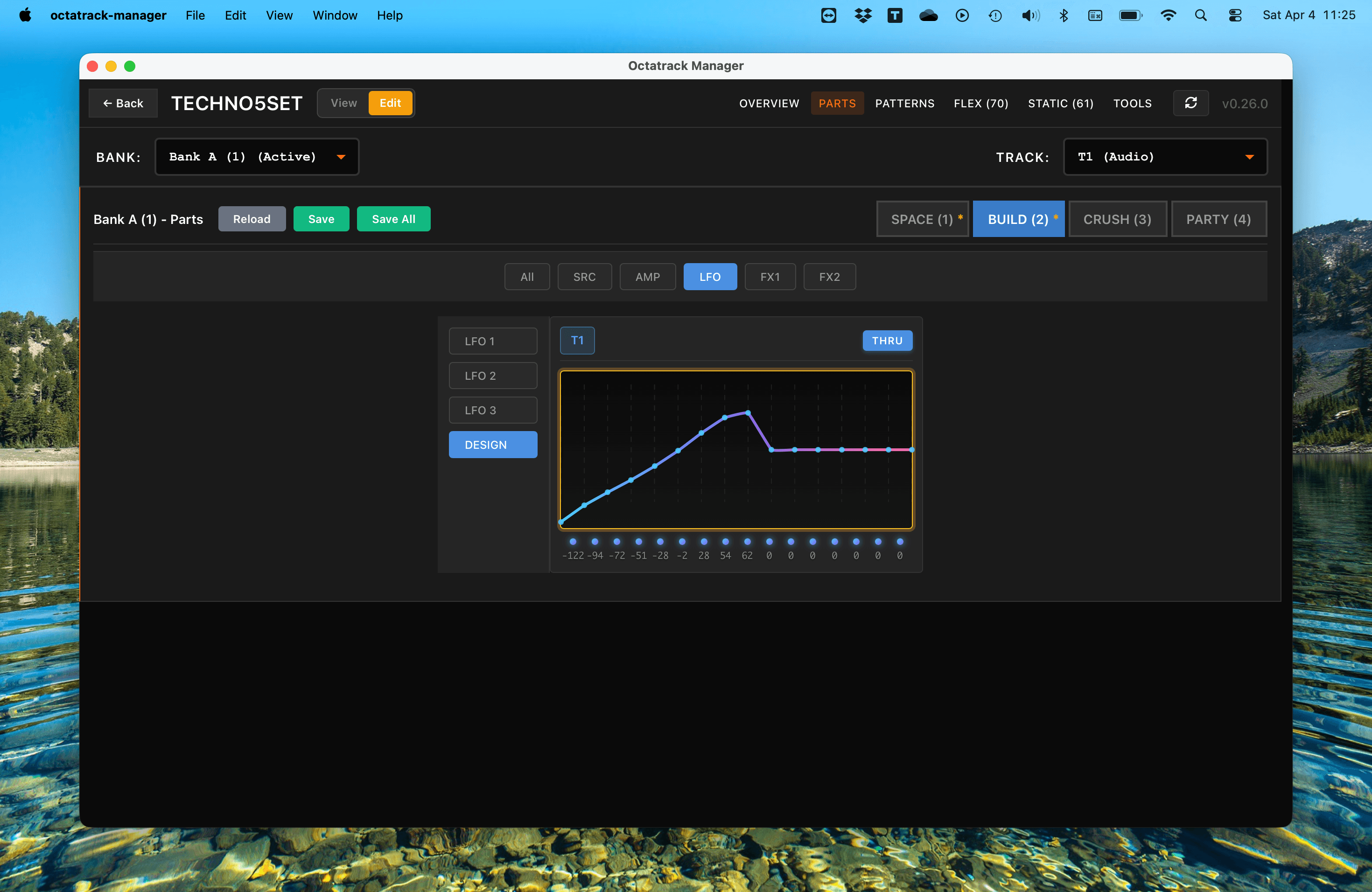
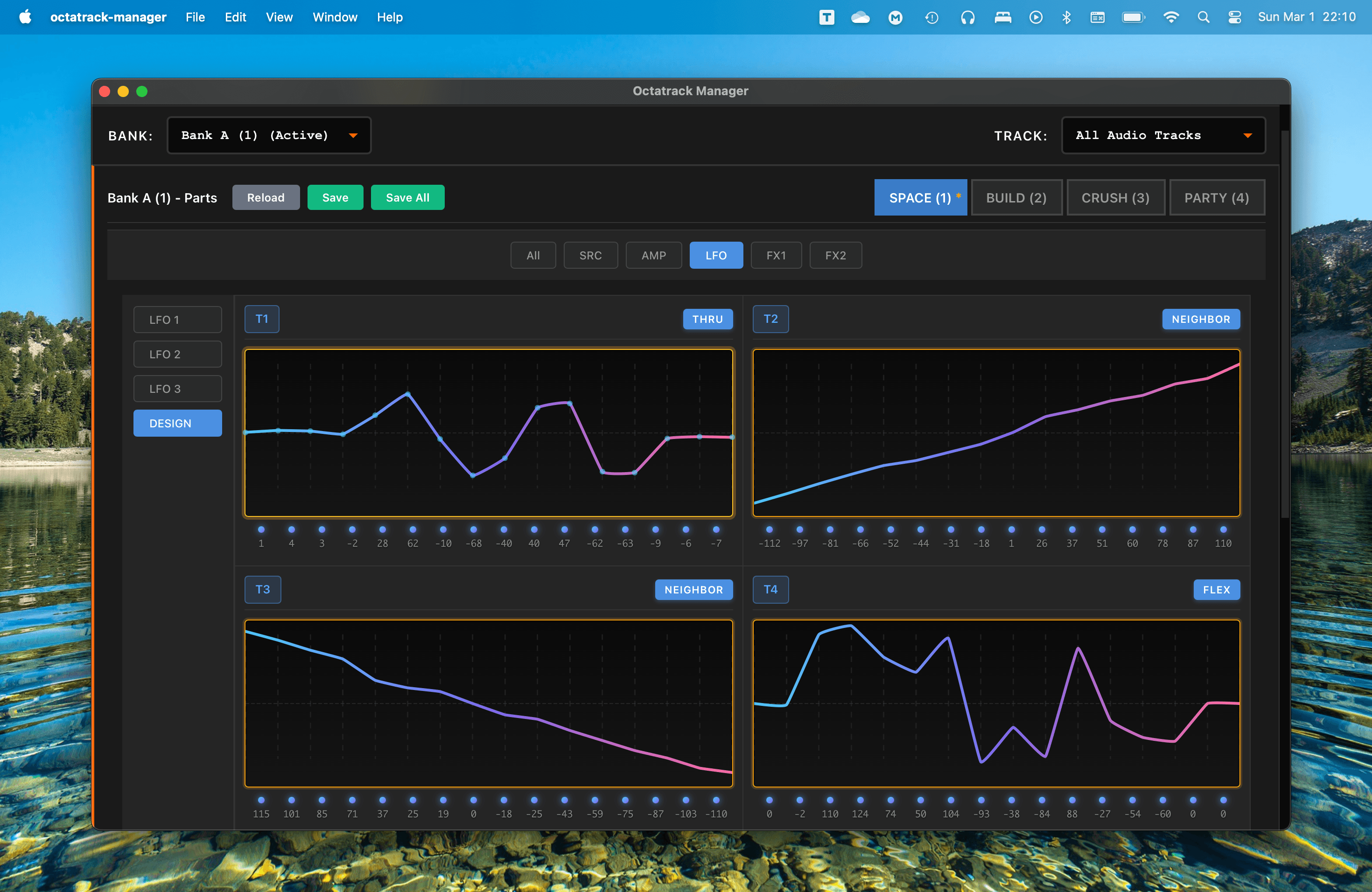
Octatrack Manager features an intuitive LFO Designer that allows you to draw custom LFO waveforms - freely with your mouse.
- Navigate to a track's LFO page.
- Select the DESIGN tab.
- Click and drag in the editor to draw your waveform.
- The changes are updated in real-time in the project.
Saving and Committing Changes
Octatrack Manager follows the same two-step process for saving changes, mirroring exactly how the Octatrack works.
1. Live Editing
As you move a knob or change a setting, the change is immediately written to project's Part. Your edits are stored in the Parts's working state and will be persisted.
- An unsaved indicator (asterisk) will appear next to the part name to show that it contains uncommitted changes. Exactly like on the Octatrack.

2. Reloading a Part
Live changes made can easily be discarded; allowing you to return to the last saved state of Part:
- Click the Reload button in the bank header.
- This will clear the unsaved changes.

3. Saving to Part
To commit your edits to the Part:
- Click Save to commit the current part, or Save All to commit all modified parts in the bank at once.
- The unsaved indicator will disappear, and your changes are now final.

Data Safety
Important: Editing parts directly modifies your project files. While automatic backups provide a safety net, it’s strongly advised to keep your own copies of your projects as well.
- Check Your Bank: Ensure you have selected the correct bank (A–P) before you start editing.
- Commit Often: Be sure to understand how the Octactrack works with changes - as the app works exactly the same way.
- Back Up: Always maintain a separate backup of your CF card or project folder.