Copy Banks
Copy Banks copies an entire bank — all 4 Parts and 16 Patterns — with optional sample slot transfer and automatic remapping. Useful to merge live sets or reorganize banks across your projects.
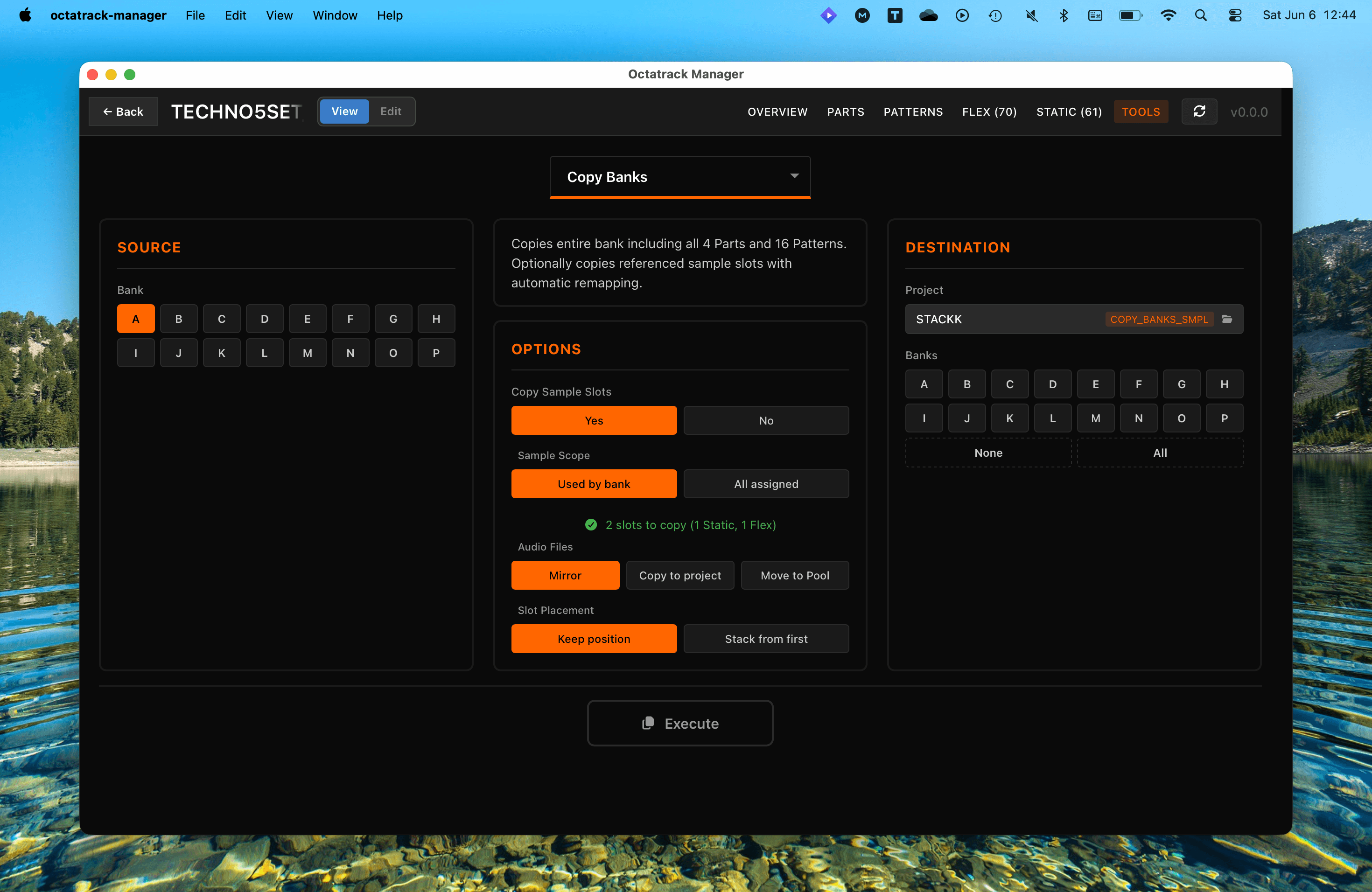
Workflow
- Source: Choose the source project (the one you are viewing, by default) and one or more banks (A–P) to copy from it.
- Destination: Choose the target project and the destination banks (A–P).
- Options: Configure sample copying behavior.
- Execute: Perform the bank copy.
Choosing the Source and Destination Projects
Both panes have their own project selector, and both open the same picker. The source defaults to the project you are viewing, so leaving it alone gives the familiar behavior; pointing it at another project lets you pull banks out of a project without opening it first.
The picker lists the current project and every project the app already knows about. Three buttons extend the list:
- Rescan for Projects: Refreshes the known locations, like the Refresh button on the home page.
- Browse...: Pick any folder — it is scanned recursively for Octatrack projects, exactly like Browse on the home page. If the folder is itself a project it is selected directly; otherwise every project found under it appears in a collapsible Manual Browse section for you to pick from.
- New Project...: Pick any folder and create a fresh project directly inside it. Unlike the New Project card shown on a Set, this one is not tied to any Set the picker lists - use it to create a project wherever you want, including somewhere the app has never scanned. The new project becomes the destination straight away, and stays listed for the rest of the session.
Both New Project entries appear only in the destination picker, since an empty project is of no use as a source.
- Note on the destination name: a project the app has not scanned is labelled by its folder name.
When the source is a project other than the one on screen, the source bank grid shows that project's banks: banks it does not have are greyed out, and a selected bank that the new source lacks is dropped from the selection.
Selecting Several Source Banks
The source bank grid takes a multi-selection, the way a file manager does:
- Click: Select one bank. Clicking the only selected bank deselects it.
- Shift-click: Select every bank between the last one you clicked and this one.
- Ctrl-click (Cmd on macOS): Add or remove one bank, keeping the rest.
- None / All: The row under the grid clears the selection, or selects all banks.
With one source bank selected, nothing changes: it is copied to every destination bank you pick, as before.
With several source banks selected, the copy becomes one-to-one and the destination locks to a run of the same length. Clicking a destination bank starts the run there — select A, B, C as the source and click I in the destination and the run becomes I, J, K. A run that would not fit slides back to the end of the list, so a 3-bank source clicked on P becomes N, O, P. The All button in the destination is disabled while the run is locked, and a line under the grid shows the pairing.
Copying a range onto an overlapping range in the same project is safe. Copying A, B, C onto B, C, D runs the pairs in the order that preserves each source, so B and C are read before they are overwritten.
Data Copied
- 16 Patterns: Sequences, triggers, parameter locks, and micro-timing.
- 4 Parts: Machine settings, amplifier configuration, LFOs, and effects.
- Part Assignments: Pattern-to-part links.
- Track Settings: Swing, quantization, and other per-track parameters.
- Sample Slots (optional): Referenced sample slot assignments, audio files, and Audio Editor settings.
Copy Sample Slots Option
When Copy Sample Slots is set to Yes (default), the app also copies the sample slots referenced by the source bank's tracks and patterns to the destination project.
Sample Scope
Controls which sample slots are included:
| Mode | Description |
|---|---|
| Used by bank | Only slots actively referenced by the bank's Parts (track machines) and Patterns (sample locks). This is the most conservative option. |
| All assigned | All slots in the source project that have an audio file assigned, regardless of whether this bank uses them. |


Audio Files
Controls how audio files are handled at the destination:
| Mode | Description | Requirement |
|---|---|---|
| Mirror | Preserves source references: pool files stay as pool references (../AUDIO/), project-local files are copied to the destination project. | Same Set |
| Copy to project | Copies all referenced audio files into the destination project's root directory. Works across different Sets. | — |
| Move to Pool | Moves project-local files to the Set's Audio Pool (AUDIO/ folder) and updates paths in both source and destination projects. | Same Set |

Slot Placement
Controls where copied samples are placed in the destination's slot list:
| Mode | Description |
|---|---|
| Keep position | Places samples at the same slot number as the source. Falls back to the first free slot if that position is occupied. |
| Stack from first | Fills the first available slots starting from slot 1, packing samples tightly. |

Slot Validation
Before executing, the app validates the destination project against every selected source bank at once and shows a status indicator. A sample that two selected banks share is counted once, not once per bank:
- Green checkmark: Sufficient free slots and Flex RAM available. Shows the number of slots to copy; when some files already exist in the destination project (same filename) they are counted as "already in destination and reused" instead of being copied again.
- Orange warning:
- Not enough free slots at the destination (e.g. "Not enough free Flex slots: need 70, only 1 available").
- Source project has missing audio files (e.g. "55 audio files missing in source project"). Consider using Fix Missing Samples to resolve missing files first.


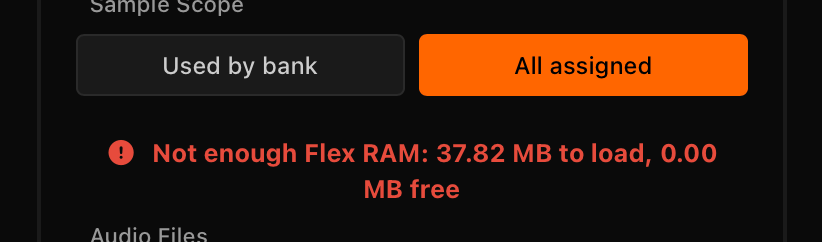
- Red error: Not enough free slots or insufficient Flex RAM. The Execute button is disabled with details in the tooltip.
Automatic Remapping
When copying samples, the app automatically remaps all slot references in the copied bank data (Parts and Patterns) to point to the new slot positions in the destination. If a file with the same name already exists in the destination, the existing slot is reused instead of creating a duplicate.
Important Notes
- Destructive Operation: Copying a bank replaces all existing data at the destination.
- Automatic Backup: The app automatically backs up destination bank files before executing. See Quick Start for details.
- Multi-bank Destination: With a single source bank, you can select multiple destination banks to copy it to several targets at once.
- Multi-bank Source: With several source banks selected, the destination holds the same number of banks and the copy is one-to-one. The Execute button stays disabled while the two counts disagree.
- Cross-project Source: The source project is only ever read. Backups are taken of the destination, plus the source project's
project.workwhen Move to Pool rewrites it.