Quick Start
This guide will get you up and running with Octatrack Manager in just a few minutes.
1. Scan for Projects
When you first open Octatrack Manager, your first task is to find your work.
Click Scan for Projects to let the app automatically search for:
- Removable Drives: Mounted CompactFlash cards and USB drives.
- Common Paths: Folders like
Documents,Music,Downloads, andDesktop. - Octatrack Folders: Any folder on your home directory named
octatrack,Octatrack, orOCTATRACK.
If your projects are in a custom location which is not automatically detected (e.g., an external drive or a specific backup folder), click Browse... to select it manually.
2. Navigate Your Content
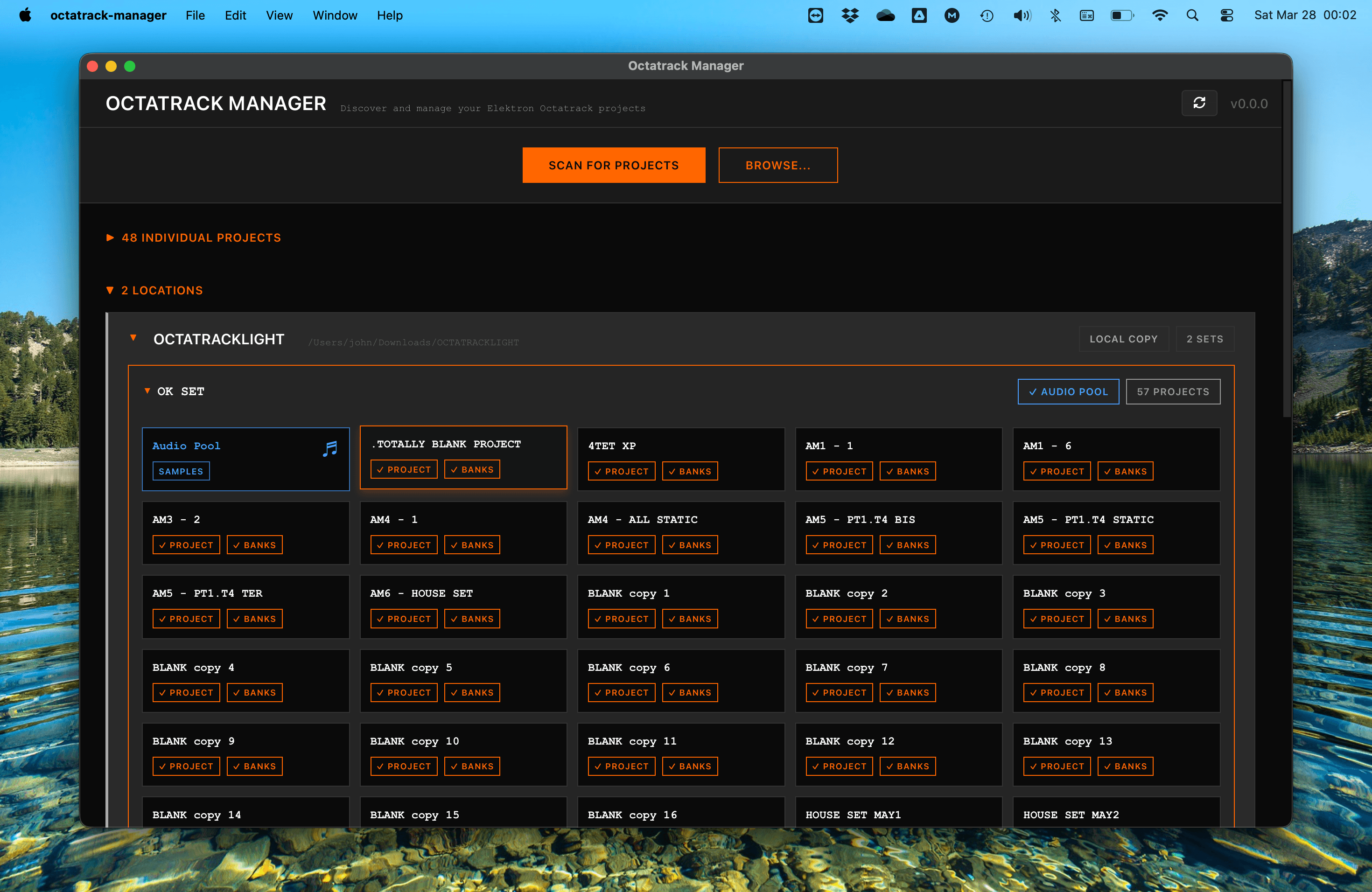
Found content is grouped into Locations (where your Sets are located) and Individual Projects (not part of a Set).
- Locations: Each card represents a Set on your disk or CF card. It shows the number of projects inside and if it has a valid Audio Pool.
- Open a Project: Click on any project name to enter the Project Detail view.
- Access the Audio Pool of a Set: Click the Audio Pool card within a Set to manage your samples.
3. Explore Project Details
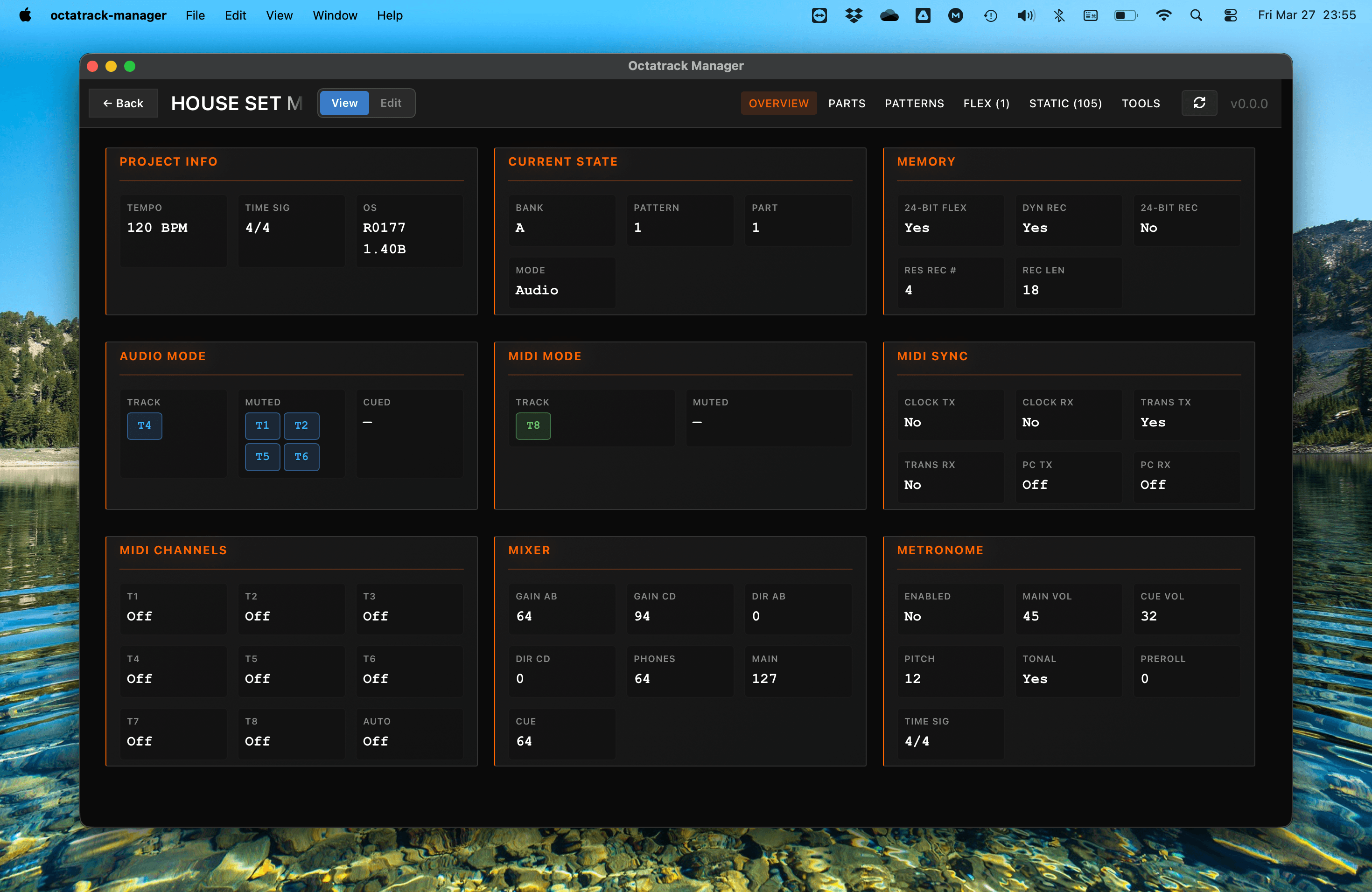
Once a project is open, you can see everything about it.
The Overview tab shows your mixer, MIDI, memory, and metronome settings. This is a view that helps you understand how the project was configured when last saved.
Switching Between Tabs
At the top of the project view, you can switch between several specialized views:
- Parts: Manage the 4 sound snapshots (kits) for each bank.
- Patterns: Visualize your sequences and triggers in detail.
- Flex / Static: Browse, search, filter sample slots and assign samples to them from the Audio Pool or your computer.
- Tools: Access bulk copy operations between projects.
4. Edit a Part
To modify a part, navigate to the Parts tab and select a bank (A–P).
- Select a specific Bank and one of the 4 Parts (Part 1, 2, 3, or 4).
- Toggle Edit mode using the switch in the top header.
- Use the knobs and fields to modify machine parameters, effects, and LFOs.
- Each change is written to project immediately as you make it, in the form of 'un-saved' changes - Just like on the Octatrack.
- Changes can then be saved to the current Part, All Parts, or reverted (reloads to 'saved' state of Part).
5. Manage Your Audio Pool
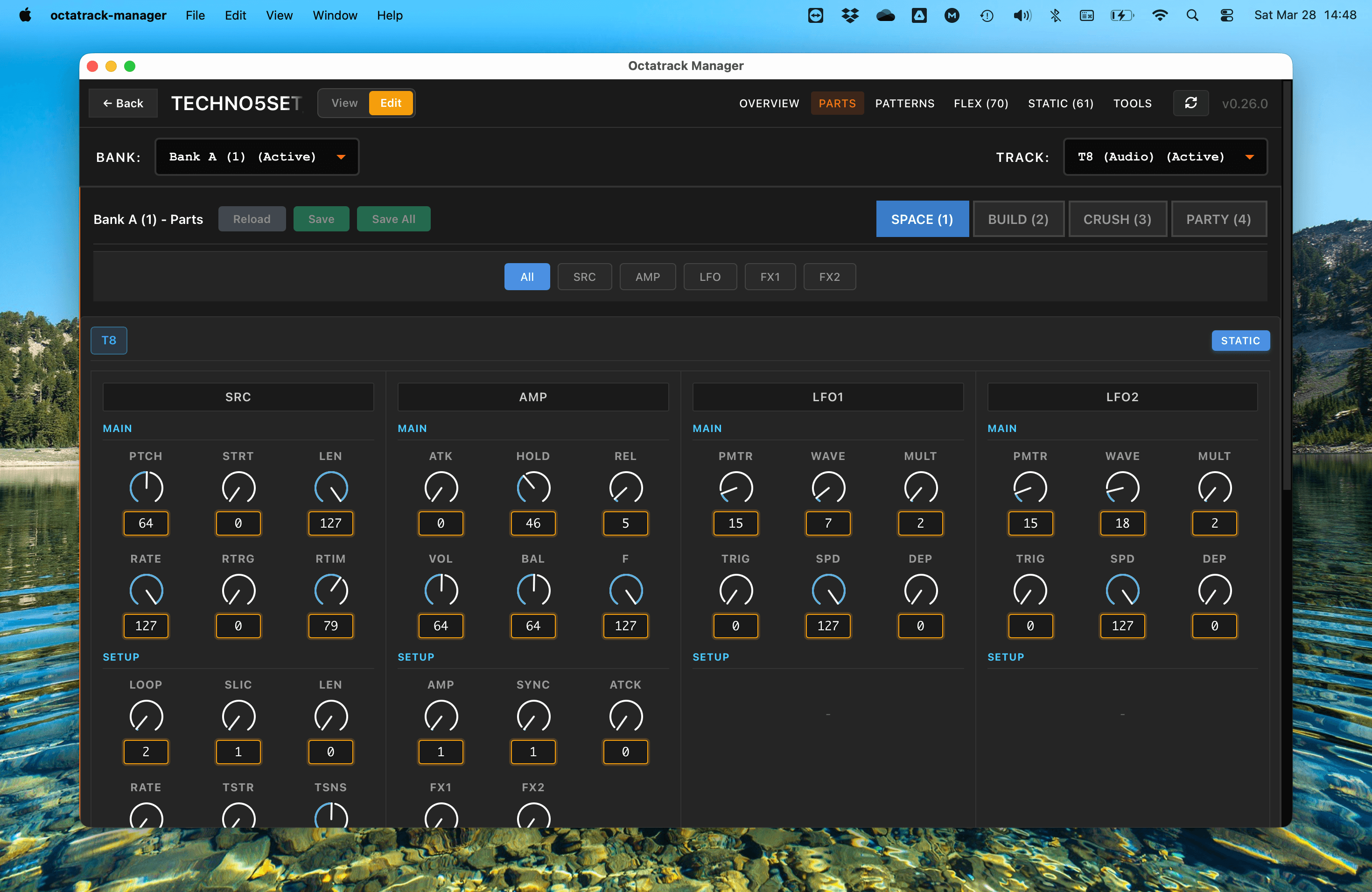
In the Audio Pool view, you can move samples from your computer into your Set.
- Browse your computer in the left panel and your Audio Pool in the right panel.
- Select the audio files you want to add.
- Click Copy to Pool.
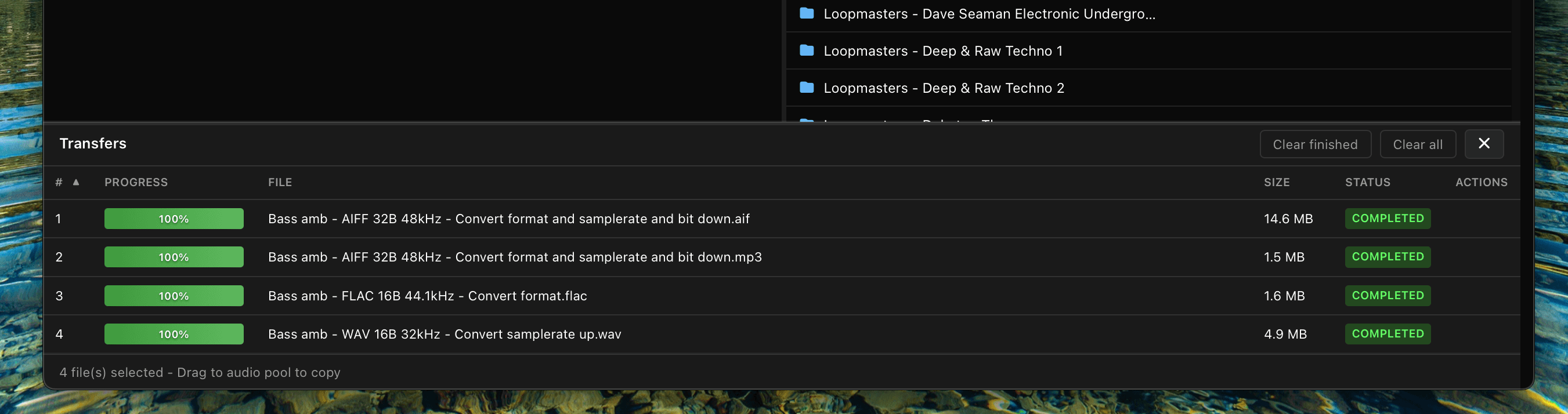
- Octatrack Manager will automatically convert them as needed - making all audio files compatible with the Octatrack by default (Format, Sampling Rate, Bit Depth).
6. Manage Sample Slots
On the Flex and Static tabs you can assign samples to your project's 256 slots - no hardware needed. Slot editing requires Edit mode (toggle in the header, or press E).
- Open the project's Flex or Static tab and switch to Edit mode.
- Open the Audio Pool pane (toggle in the toolbar, or press A) to browse the Set's samples right beside the slots.
- Drag one or more samples - from the pane or directly from your computer - onto a slot row. Multiple files (or a whole folder) fill consecutive empty slots. Files dragged from your computer are imported and converted automatically.
- Alternatively, right-click a pool sample to Assign to first empty slot / Assign to selected slot, or right-click a slot to import files from disk.
- Right-click any slot to clear its sample or reset its attributes; selecting multiple slots applies the action to all of them.
See Assigning & Managing Samples for the full details.
7. Copy Content Within and Between Projects
The Tools tab lets you copy content between banks and projects without touching the hardware. Select an operation from the dropdown, configure source, options, and destination, then execute.
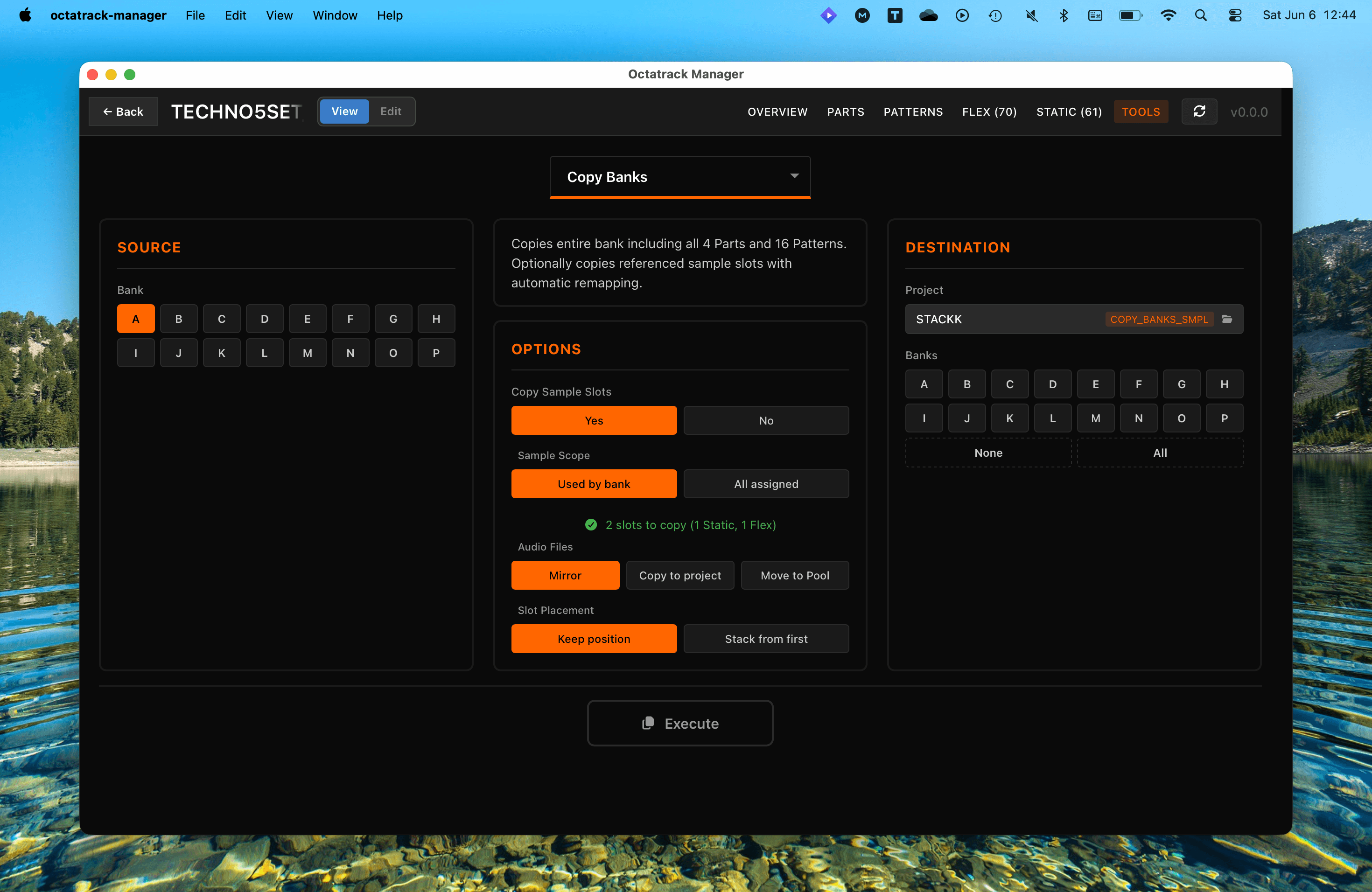
Available Operations:
- Copy Banks: Copy an entire bank (all 4 Parts + 16 Patterns) with optional sample slot transfer and automatic remapping.
- Copy Parts: Transfer Part sound design (machines, amps, LFOs, FX) between parts and banks.
- Copy Patterns: Copy patterns with configurable Part assignment and track scope.
- Copy Tracks: Copy individual track data — sound design, pattern triggers, or both.
- Copy Sample Slots: Copy sample slot assignments with optional audio file transfer and Audio Pool management.
All operations work within the same project or across different projects.
The destination project can be selected from your scanned locations or browsed manually:

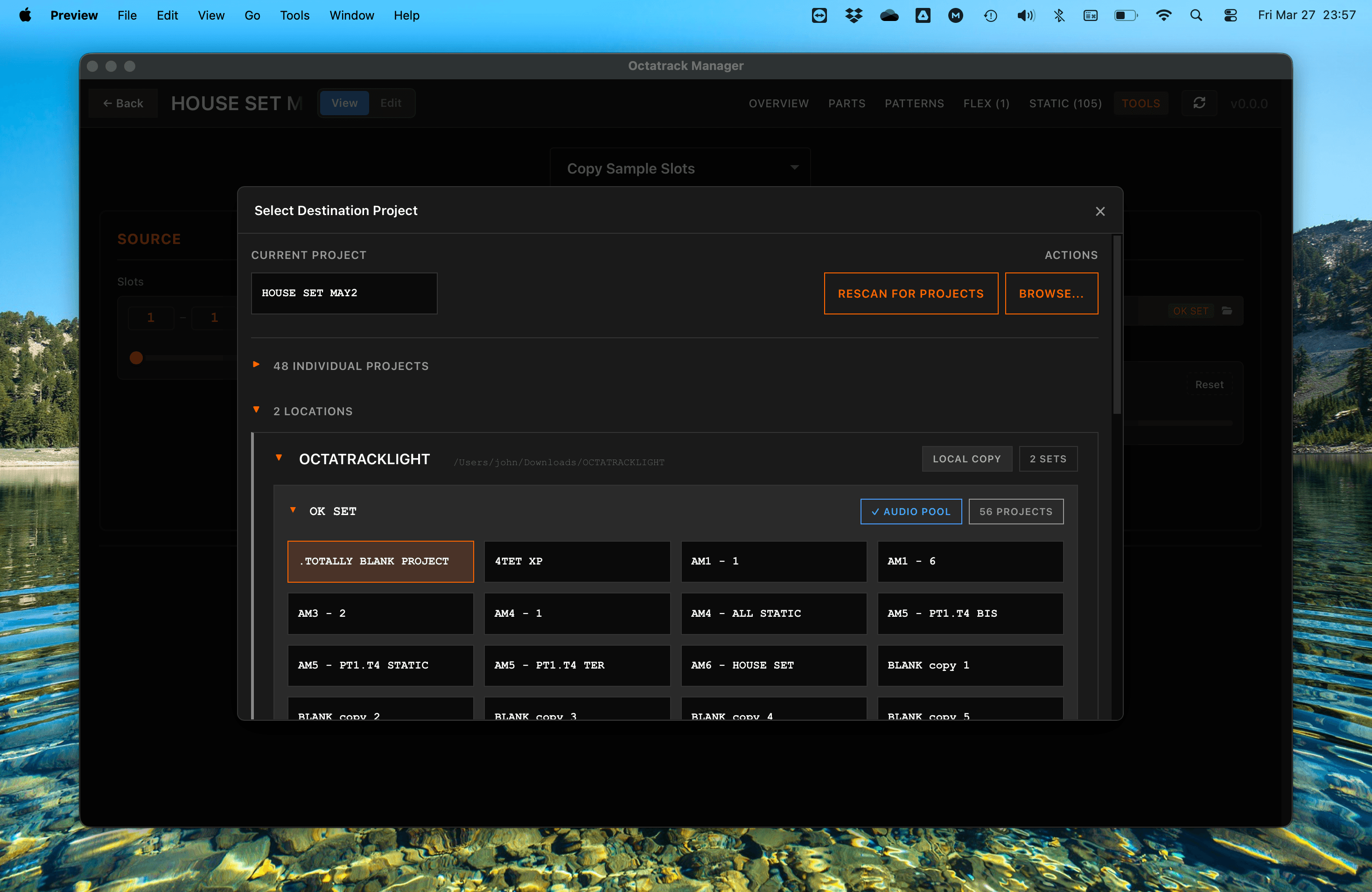
Your copy settings (selected operation, destination project, slot ranges, etc.) are remembered for each project during your session — you can switch tabs and come back without losing selected values.
8. Fix Missing Samples
The Tools tab also includes a Fix Missing Samples operation that scans your project for broken sample slot references and automatically locates and reconnects missing audio files.
It searches the project directory, Audio Pool, and sibling projects, with the option to browse additional directories manually.
9. Fix Incompatible Samples
The Tools tab includes a Fix Incompatible Samples operation which will bulk fix any incompatible audio files the Octatrack can't read (wrong sample rate, wrong bit depth, or a format like MP3).
This can be done from either:
- Fix Audio Pool Samples (the whole Set's shared pool)
- Fix Project Samples (this project's own files)
Both convert affected files to 44.1 kHz 16/24-bit WAV in place and repoint every sample slot that referenced them, across the whole Set.
10. Purge Unused Samples
The Tools tab also includes a Purge Unused Samples operation that finds audio files no sample slot references anywhere, then deletes them (to the Trash Bin) or moves them into a user-selected folder.
This can be done from either:
- Purge Project Samples from Projects Tools tab
- Purge Audio Pool Samples from Audio pool Tools tab (and optionally include all projects of Set)
11. Clear Parts of a Project
The Tools tab also includes a Clear Project operation, the counterpart to the copy operations: it resets parts of the loaded project back to the factory-default state:
- Banks - whole banks, parts and patterns included
- Parts - one part or all four, name included
- Patterns - every trig, plus scale and chaining settings
- Tracks - per-track sound design, sequencer data, or both
- Sample Slots - a range of Flex, Static or both
12. Automatic Backups
Octatrack Manager automatically backs up your project files before any write operation — whether you are enabling Edit mode, saving a Part, or executing a copy operation via Tools.
Backups are stored inside the project directory under:
<project>/backups/<timestamp>_<operation>/
For example: backups/2026-03-26_14-30-45_copy_bank/
This means you can always revert changes by copying the backed-up files back into the project directory.
What gets backed up:
| Operation | Backed-up files |
|---|---|
| Copy Banks | Destination bank file(s) (e.g., bank01.work) |
| Copy Parts | Destination bank file(s) |
| Copy Patterns | Destination bank file |
| Copy Tracks | Destination bank file |
| Copy Sample Slots (Copy) | Destination: project.work, markers.work, and audio files (.wav + .ot) that would be overwritten |
| Copy Sample Slots (Move to Pool) | Destination: project.work, markers.workSource: project.work and audio files (.wav + .ot) that will be moved/deleted |
| Fix Missing Samples | project.work (and sibling projects' project.work when using Move to Pool) |
| Purge Unused Samples (Clear unused sample slot assignments) | project.work - only when the option is enabled and at least one slot is cleared |
| Clear Project | Targeted bank file(s), or project.work when clearing sample slots |
| Edit mode toggle (in header) | Current bank file |
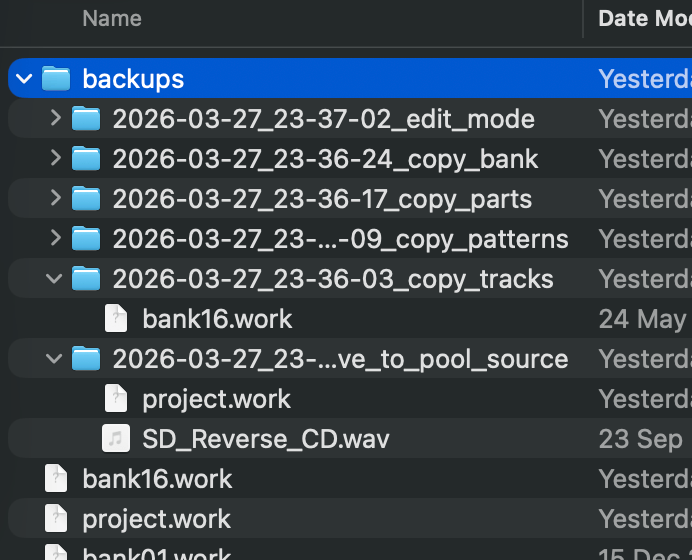
While automatic backups provide a safety net, it’s strongly advised to keep your own copies of your projects as well.
Tips
- Refresh: If you insert a CF card, or make any change in Projects while the app is open, click the Refresh (↻) button in the header.
- Version Check: The app automatically checks for updates. Click the version number in the header to manually check and download the latest version.