View Project Details
The Project Detail page provides a comprehensive, high-level view of an Octatrack project. From here, you can inspect your project's settings, explore its banks, parts, patterns and sample slots.
Overview Tab
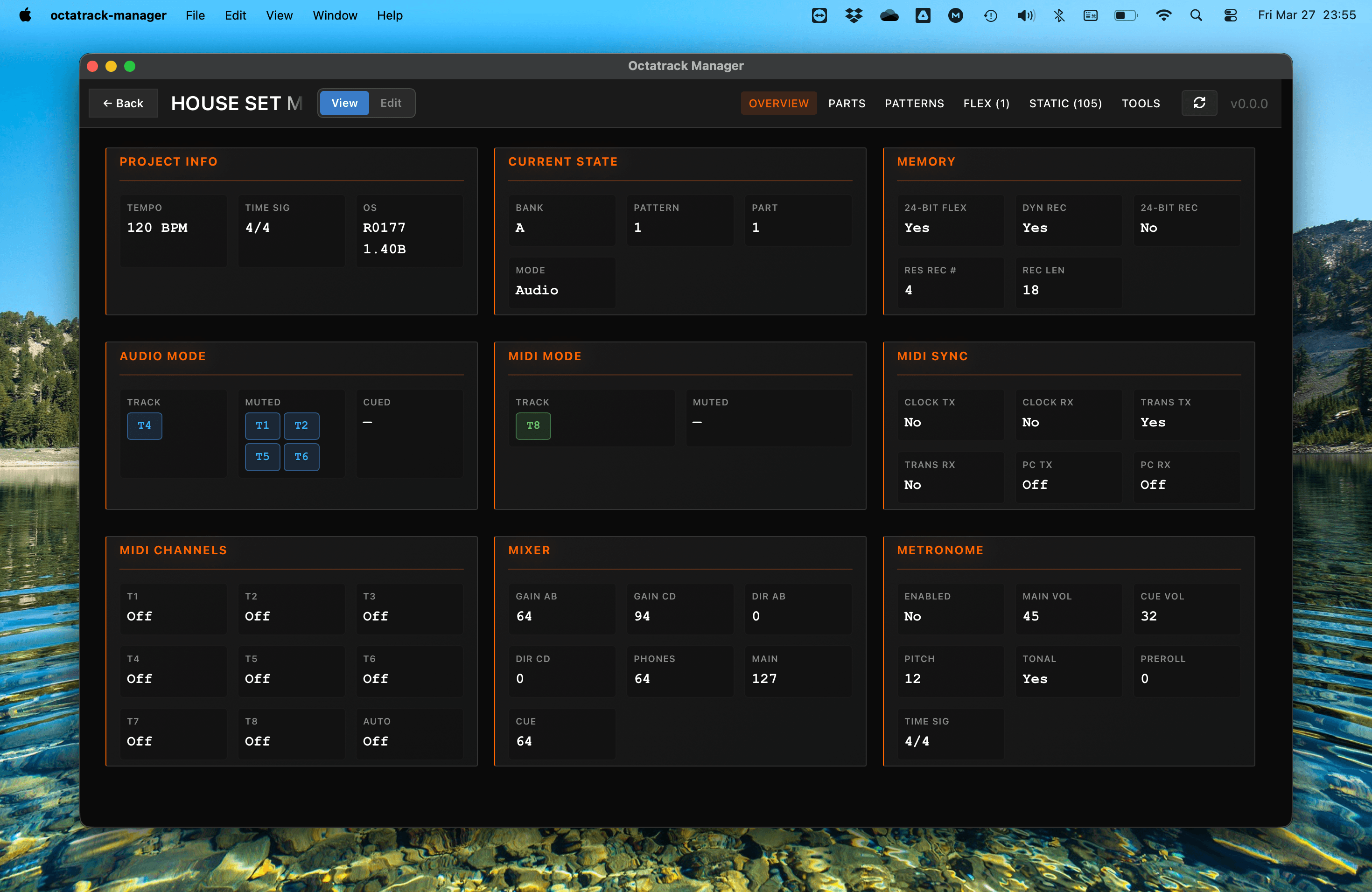
The Overview tab displays the global settings that define how your project behaves on the Octatrack.
It's a view that captures the exact state of the project when it was last saved on the hardware.
Project Metadata
Located in the Project Info section, this shows:
- Tempo: The project BPM (40–300).
- Time Sig: The project's time signature (e.g., 4/4).
- OS Version: The firmware version used to save the project (e.g., 1.40B).
Playback State
The Current State section reflects what was active on the device:
- Bank & Pattern: The currently active sequence.
- Part: The part (1–4) assigned to the current bank.
- Mode: Indicates whether the Octatrack was in Audio Mode or MIDI Mode.
- Track Status: Shows which audio and MIDI tracks were Muted, Soloed, or Cued.
Mixer Settings
The Mixer section mirrors the Octatrack's project-level gain and routing configuration:
- Gain AB / CD: Input gain for the physical inputs.
- Dir AB / CD: Direct-through level for the inputs.
- Phones Mix: The blend between Main and Cue in the headphones.
- Main / Cue Level: The master output volumes.
MIDI & Memory
- MIDI Sync: View whether Clock, Transport, and Program Change messages were enabled for send or receive.
- MIDI Channels: Shows the MIDI channel assigned to each track and the Auto Channel.
- Memory: Displays RAM allocation settings including Flex Format (16/24-bit), Dynamic Recorders, Recorder Format (16/24-bit), Reserve Recordings (None to R1–R8), and Reserve Length (in seconds). In Edit Mode, these settings become editable — changes are saved to the project file with the FREE MEM value updating in real time on the Flex tab.
Metronome
The Metronome section displays all click track settings, including volume, pitch, and tonal/noise click preferences.
Navigation Tabs
At the top of the project header, you can switch between several specialized views:

Parts
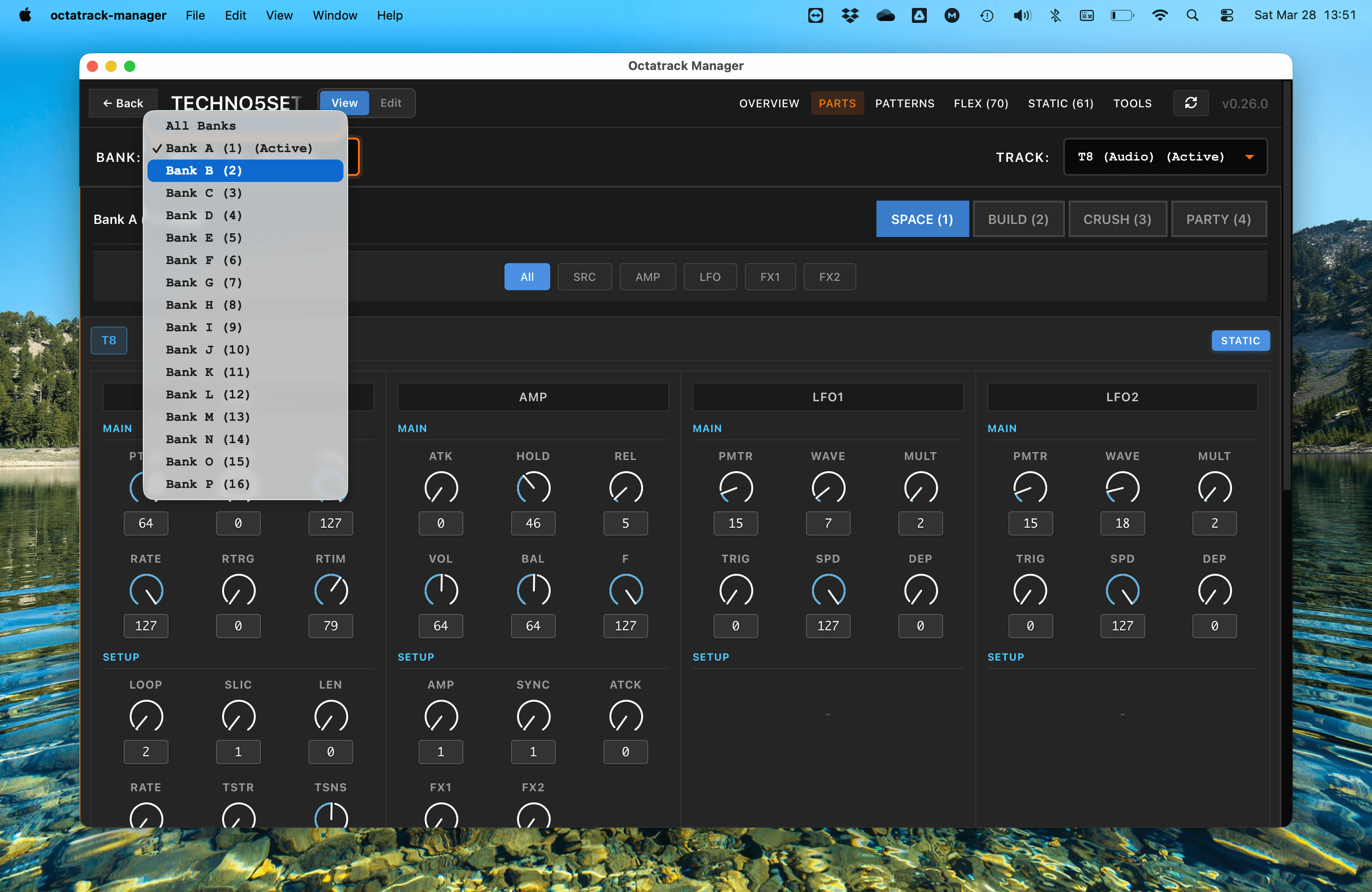
The Parts tab takes you to the Parts Editor, where you can view and modify the sound design parameters of each bank. This is where you can edit Source, Amp, effects, and LFOs perameters for each track - according to machine type.
Patterns
The Patterns tab provides a visual representation of your sequencer data. Steps can be inspected and display their trigger, parameter lock, and trig condition.
Flex & Static Slots
The Flex and Static tabs list all 256 sample slots in project. You can search and filter slots, check their attributes and assign samples to slots using drag & drop from the Audio Pool or from OS File Explorer.
Tools
The Tools tab provides bulk operations for copying content between projects (banks, parts, patterns, tracks or sample slots) as well as additional unique features (like fixing missing samples, fixing project samples that the Octatrack can't play or clearing parts of the project).
Action Bar
In addition of the menu, the header of the Project Detail page also contains several important actions:
- Back Button:
 Return to the Home Page.
 - View/Edit Mode:
 Use the toggle to switch between a safe, read-only view and Edit Mode.
 - Refresh (↻):
 Reload the project from disk. Use this if you have manually replaced project files on your computer.
 - Save Status:
 Displays when changes are being saved to
 .unsavedfiles or committed to the project. - Unsupported Banks Warning:
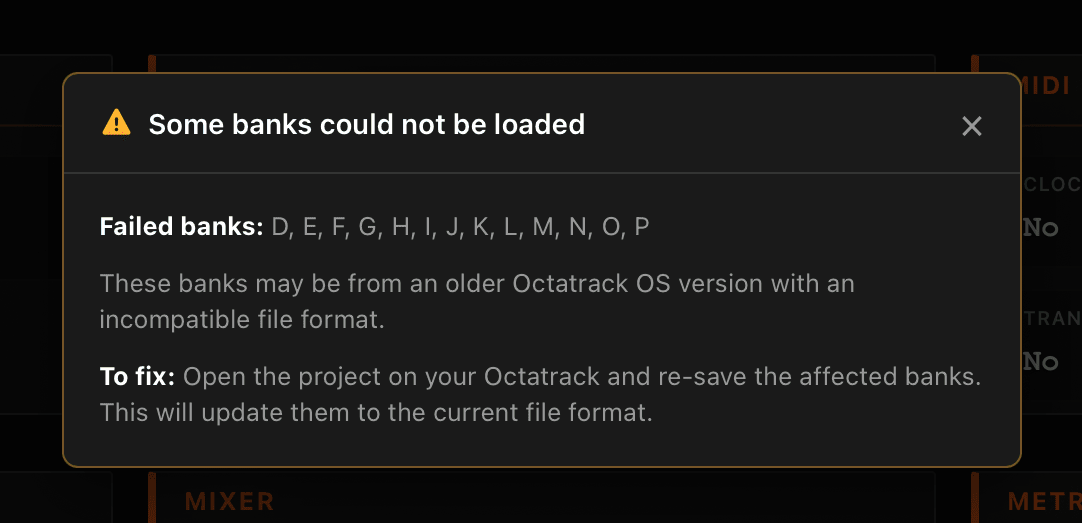
 Appears if some bank files are from an older OS version. Click it for instructions on how to update them on your hardware.
Multi-Bank View
-
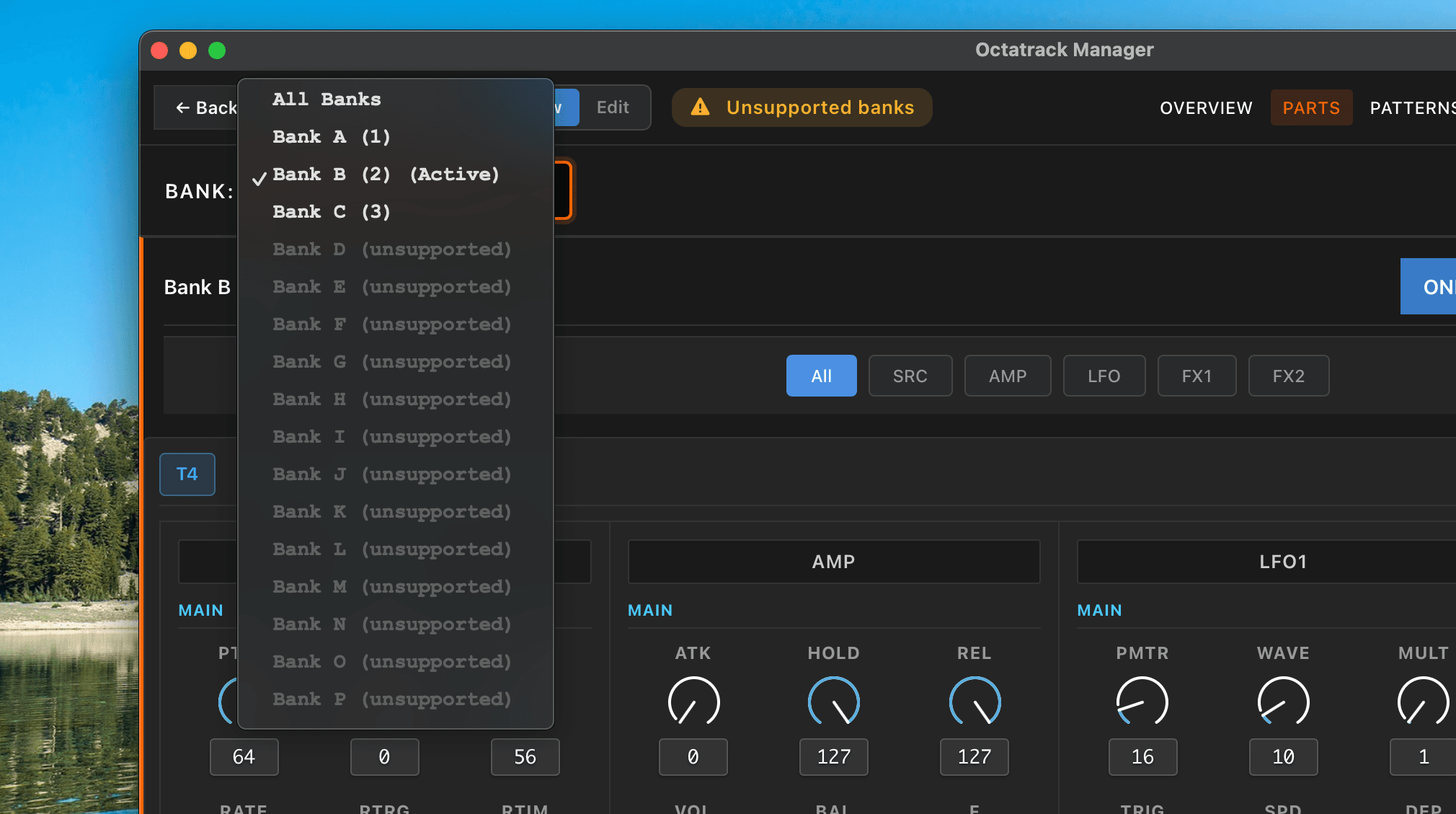
In the Parts and Patterns tabs, you can use the Bank Selector to focus on a single bank (A–P) or select All Banks to see an overview of your entire project simultaneously.
-
By viewing "All Banks", you can scroll through all 16 banks on a single page, making it much easier to organize complex projects.