Manage Projects
Manage Octatrack projects and Sets directly from Projects List — create, copy, rename, move, and delete.
Context Menu
Right-click to access management actions depending on the target:
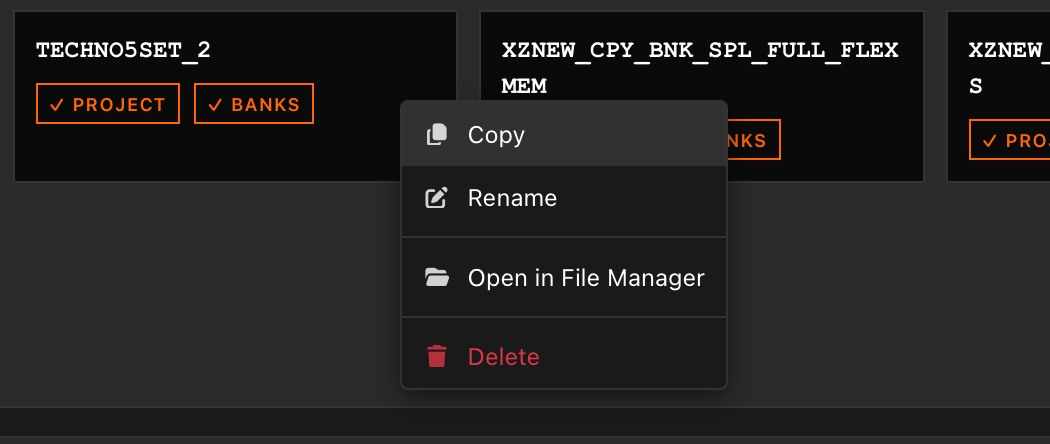
- On a project card: Copy, Rename, Open in File Manager, Delete.
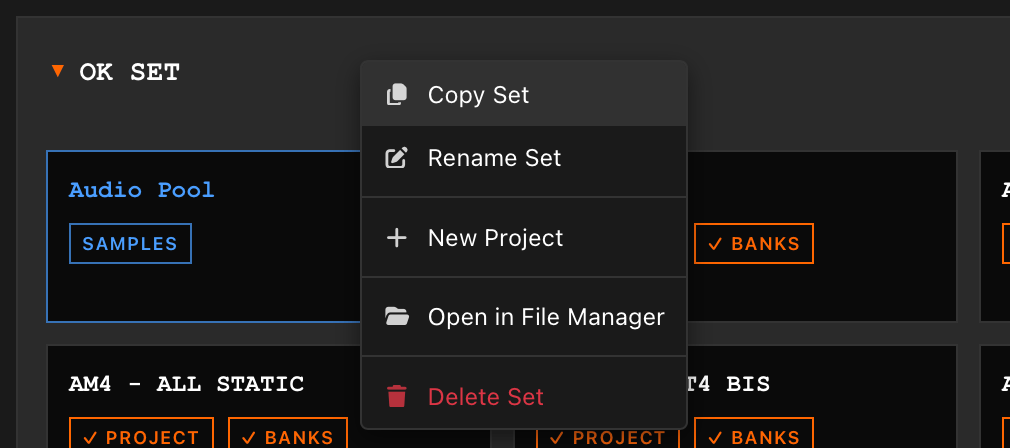
- On a Set header or grid background: Copy Set, Rename Set, New Project, Paste Project (when a project has been copied), Open in File Manager, Delete Set.
- On a location header or background: New Set, Paste Set (when a set has been copied), Open in File Manager.

Naming Rules
The same rules apply to both project and Set names:
- Maximum 32 characters.
- Allowed characters (matching the Octatrack hardware charset):
- Letters: A–Z, a–z
- Digits: 0–9
- Accented: Å Ä Ö Ü Ø ø å ä ö ü, À–ß, à–ÿ
- Symbols:
space!#$%&'()+,-.;=>@[]^_{}~ - Extended: ¡ ¢ £ ¤ ¥ ¦ ¨ © « ¬ ® ¯ ° ± ² ³ ´ µ ¶ · ¸ ¹ º » ¼ ½ ¾ ¿ × ÷
- Characters not in this set are silently rejected — the input field shakes briefly to signal a disallowed character.
- Hover the ⓘ icon inside the name field to see the full allowed character list.
Project Operations
Creating a Project
Click the + card at the end of any Set's grid, or right-click a Set header and choose New Project.
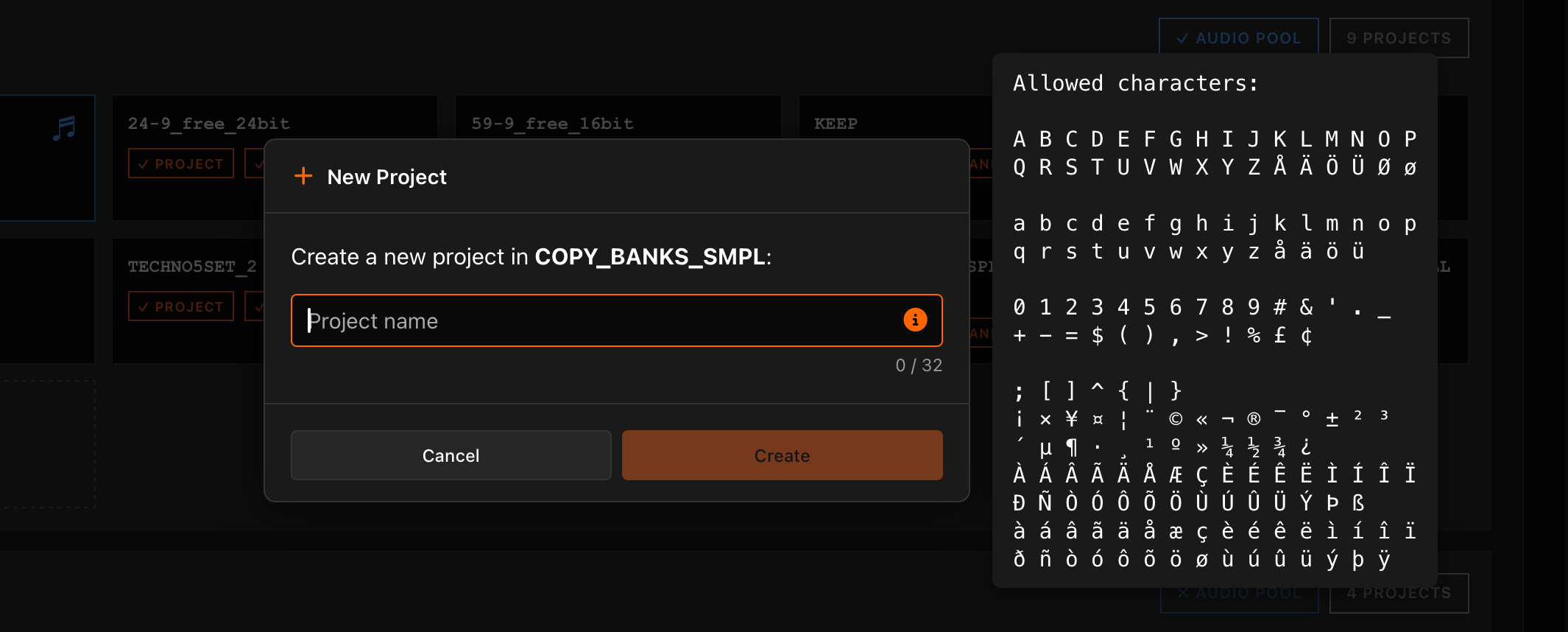
A new project is created with a default project.work and 16 empty bank01.work … bank16.work files, ready to load on the device.
Copying a Project
- Right-click a project → Copy, or focus the card and press Ctrl+C. A confirmation toast briefly appears at the bottom of the screen.
- Right-click a Set header, Set area, or grid background → Paste Project, or focus a card in that Set and press Ctrl+V.
A progress modal appears during the copy, showing the current file being copied, a progress bar, and the total size copied so far (e.g. "52 MB / 523 MB"). You can cancel the operation at any time — partial files are cleaned up automatically.
The pasted copy is renamed _2, _3, … if the name is already taken in the destination Set. Long names are truncated to keep within the 32-character limit.
Renaming a Project
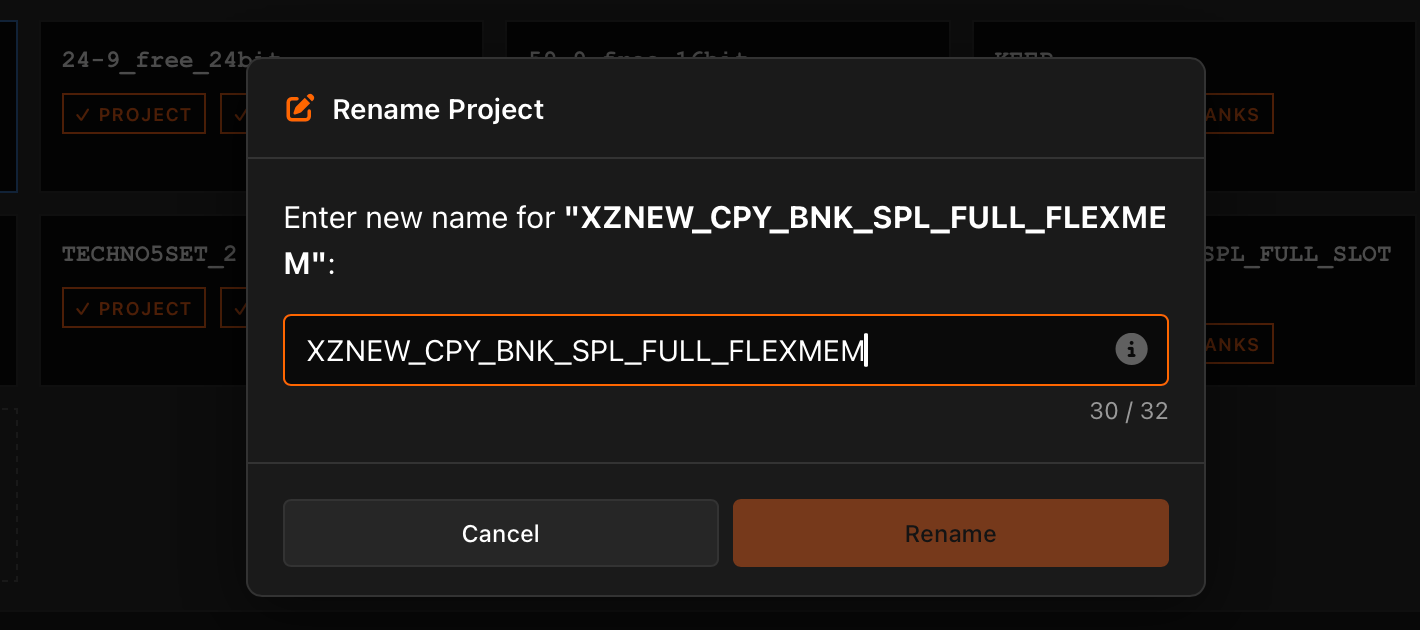
- Right-click → Rename, or focus the card and press F2.
- Type the new name. Press Enter to confirm, Escape to cancel.
Moving a Project
Drag any project card onto another Set's drop zone. A progress modal appears showing the move status. Same-Set drops are ignored.
If the destination is on the same disk, the move is atomic and nearly instant. Across disks, Manager copies the project first, verifies file count and sizes match, then deletes the source — your project is never lost. You can cancel a cross-disk move at any time.
Deleting a Project
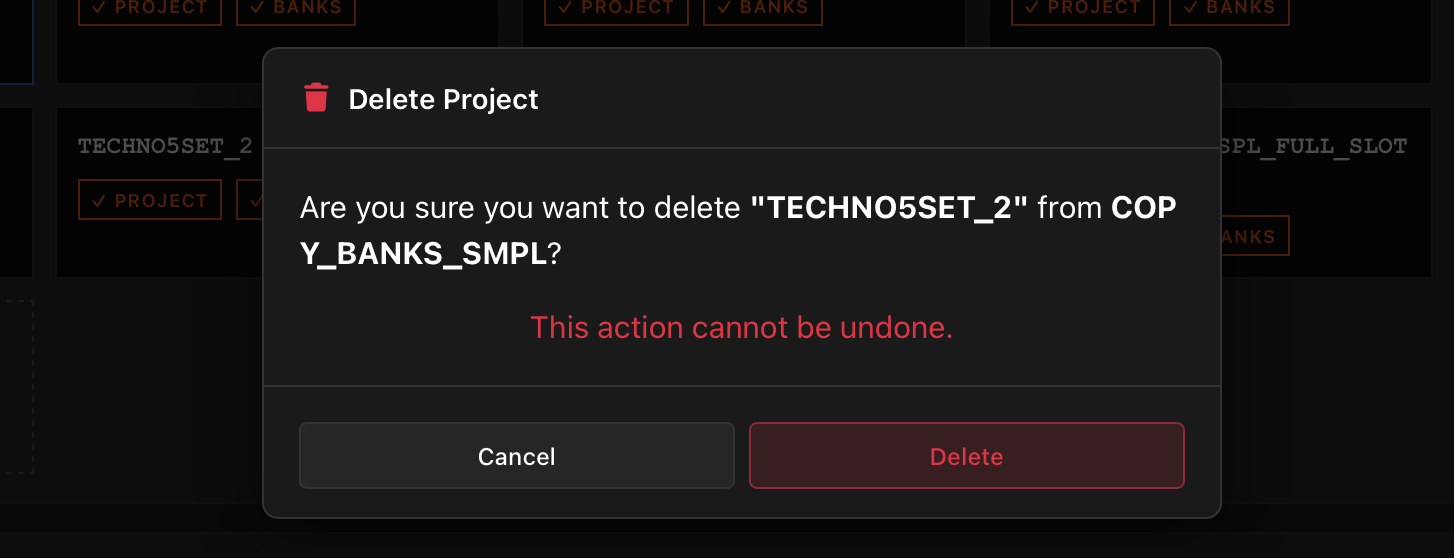
Right-click → Delete, or focus the card and press Delete.
A confirmation dialog appears — delete is destructive and cannot be undone. Cancel is the default focus, so pressing Enter immediately on the dialog will not delete the project. A spinner is shown while the deletion is in progress.
Set Operations
Creating a Set
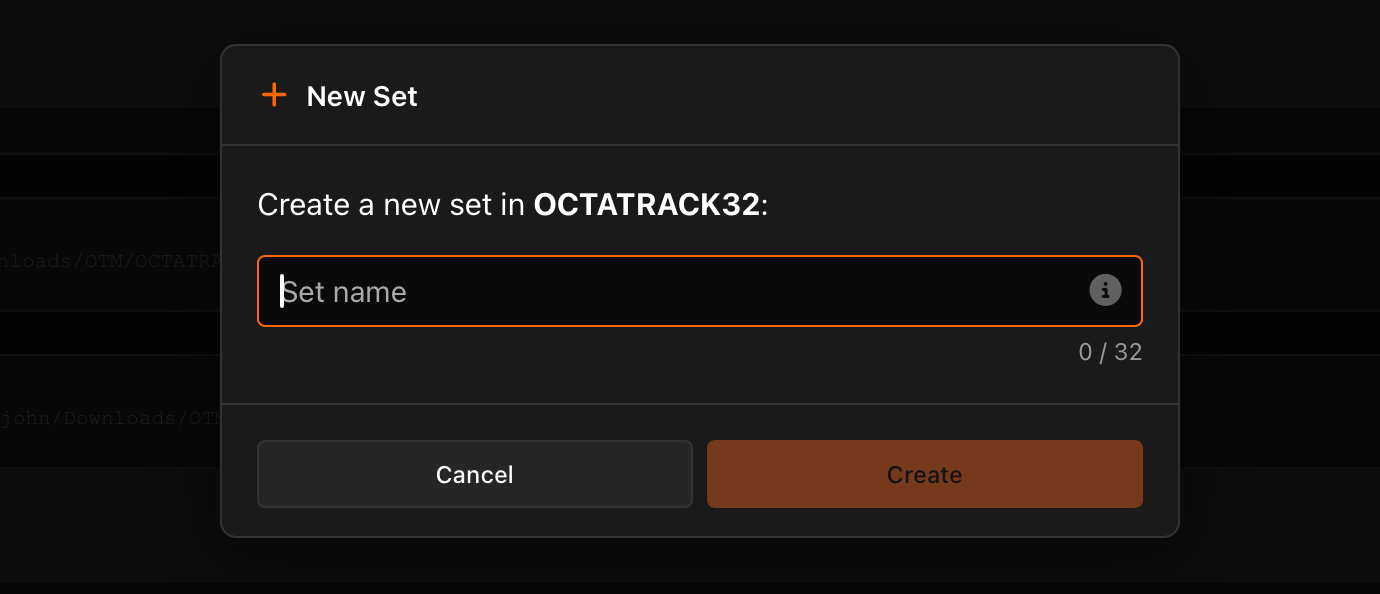
Right-click a location header → New Set, or click the + button in the location header. Enter a name following the naming rules above. A new empty Set folder is created with an AUDIO subfolder.
Copying a Set
- Right-click a Set header → Copy Set. A confirmation toast briefly appears.
- Right-click a location header → Paste Set.
A progress modal appears showing copy progress across all projects and samples, including the total size (e.g. "120 MB / 1.2 GB"). You can cancel at any time.
The pasted Set is renamed _2, _3, … if the name already exists in the target location.
Renaming a Set
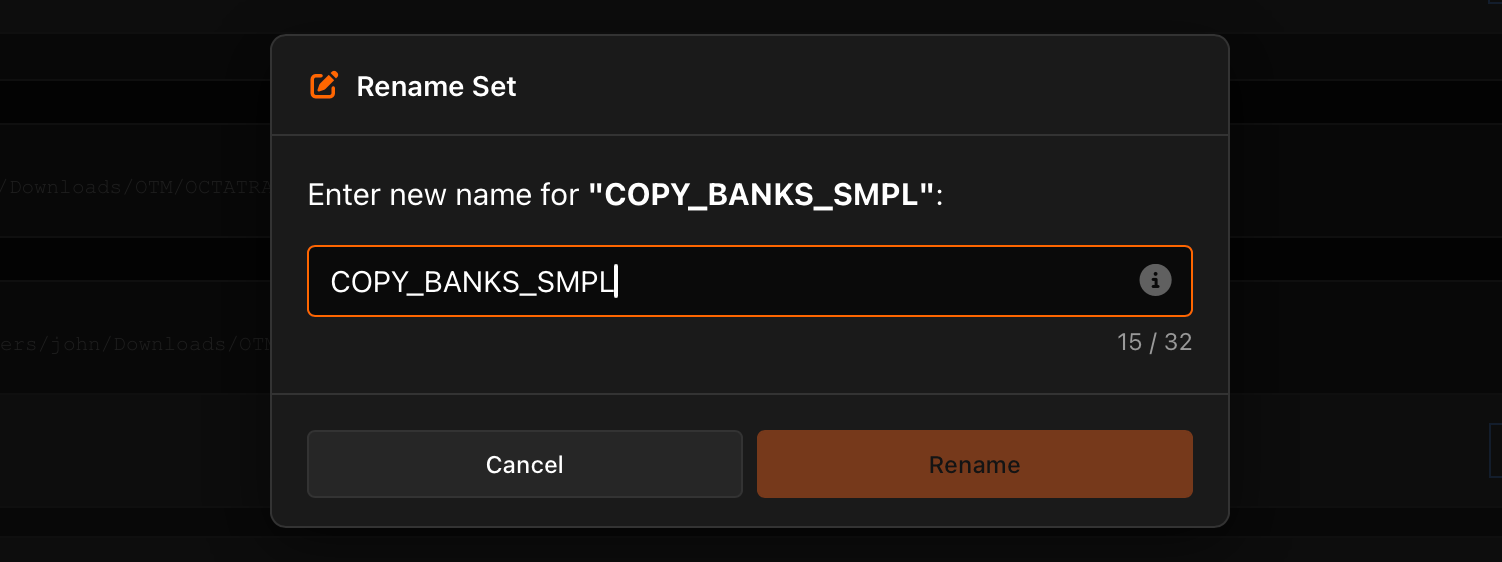
Right-click a Set header → Rename Set. Type the new name and press Enter to confirm.
Moving a Set
Drag any Set header onto another Location. A progress modal appears showing the move status. Same-Location drops are ignored. While dragging a Set, only Locations highlight as valid drop targets — other Sets do not.
If the destination is on the same disk, the move is atomic and nearly instant. Across disks, Manager copies the entire Set first, verifies all files, then deletes the source. You can cancel a cross-disk move at any time.
Deleting a Set
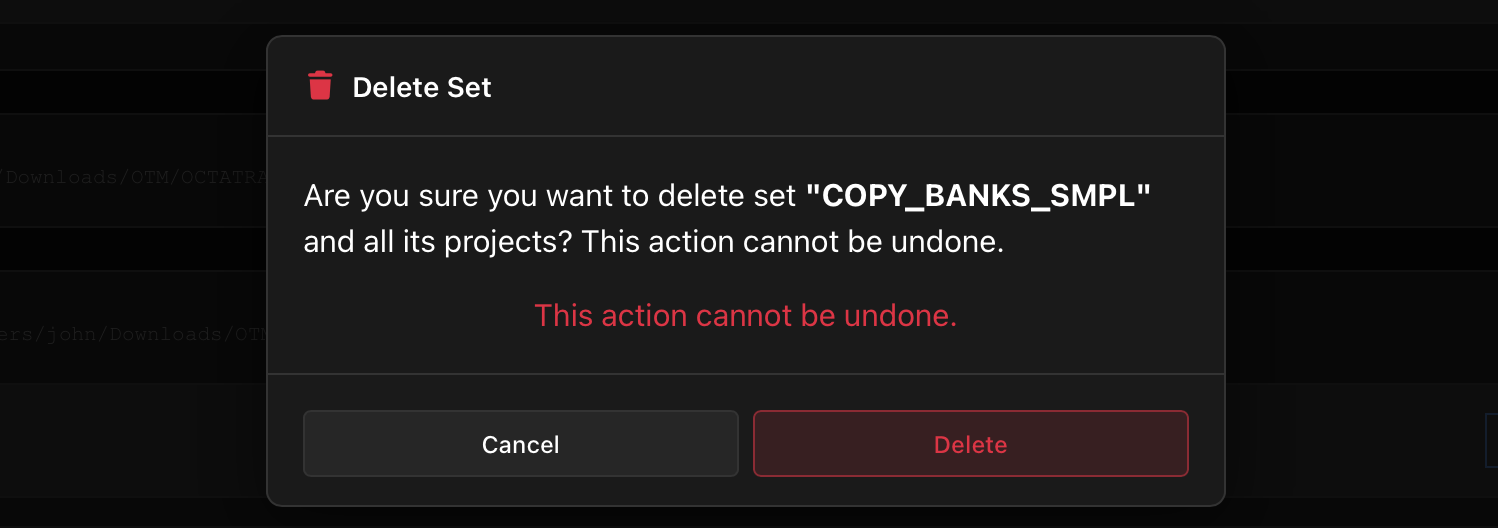
Right-click a Set header → Delete Set.
A confirmation dialog appears — this deletes the Set and all its projects. This action cannot be undone.
Limits
- 32 characters per project or Set name
- 128 projects per Set (OT hardware limit)
- Disk-space check runs before any write — if space is short, no partial files are created.